Software Tips & Tricks

How to Personalize the Email Messages in your Free Purchase Order Software

Peter from the United Kingdom reached out to us on Facebook to ask if he could personalize the emails that SpendMap creates when sending Purchase Orders to his suppliers…

“Is there a way to create a template email?  Also is there a way that the (PDF file name) can be defined, either to match the PO or have a prefix?”

Yes, there are settings in SpendMap to personalize the email messages, including;

  1. Adding your company name to the “From” field of the email messages,
  2. Adding any text that you want to the body of the email itself, and
  3. You can customize the filename of the PDF document (i.e. the PO itself) to show your company name (or any other prefix), as well as including the PO number in the filename.

All these options are available in the middle of the Email Settings screen, which you can find here…
– PURCHASING > Setup system > e-mail settings


The Online Help for that screen has all the details about how to use those settings, but here’s what your emails might look like, based on the settings used above…

Email Purchase Order


Life Hack: Save time by adding items to a processed PO without doing a Change Order

As you may know, you can use the Advanced Purchase Order Modification Utility to reload an already processed Purchase Order back into your PO Work Area, where you can modify the order in any way (i.e. add new items to the PO, delete items, or modify/edit existing items).  This is the most common way, but not the only way, to process Change Orders in SpendMap.

But did you know that there is a faster way to add items to your processed Purchase Order?  Just enter a new PO directly into your PO Work Area, as you would any other new PO, and use the same supplier and PO number as the original PO that you want to add to.

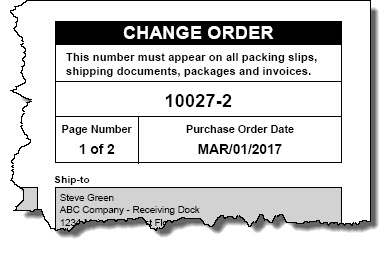
When you process the new PO, SpendMap will add a page to the existing (already processed) PO with the new items, and it will increment the PO Revision Number (e.g. PO#1000 will become PO #1000-1 or 1000-A, depending on your settings).

That said, there are additional features and options in the Advanced Purchase Order Modification Utility, so please try both methods to see which one works best for you.

You can learn all about Change Orders, in this section of SpendMap’s Online Help…
– Purchasing (Main Module) > Purchase Orders > Modify a Processed PO (About Change Orders)

change-order-spendmap

Archiving Old Purchase Orders for a Cleaner View

Archive Closed Purchase OrdersPeter works in a state agency in Louisiana and was asking about removing old Purchase Orders from his Open PO list…

“Once a PO is received and closed it should come off the list.”

You can remove received/closed POs from the Open PO list by moving them to the Closed PO Archive, using…
– PURCHASING > Utility > Purge and Archive History > Archived Purchase Orders > Archive closed POs

…or you can use the applicable setting in the [Permissions] folder of the User Master File, to be prompted from time-to-time to archive your close POs when logging into SpendMap.

This will reduce the number of POs that you see in the Look-up List in View PO Status, when printing PO-related reports, etc., making it easier to focus your attention on the remaining (still open) orders.

Please note, however, that running this utility may leave some closed Purchase Orders behind (ie. they will remain in the Open PO list), per the setting “Number of days before closed POs are moved to the Closed PO Archive“, which you can find at the bottom of the screen in here…
– PURCHASING > Setup system> Purchase order settings > PO processing settings

That is, this setting will keep received/closed POs in the Open PO area for the number of days that you specify, as you may have need to access recently closed orders.  Most SpendMap customers set this to between 30 and 90 days.  Peter – set yours to zero (0).

While you can always access your old/closed Purchase Orders even after they have been archived, and while you can even unarchive/restore a PO back into the Open PO area, it may be more convenient for you to just keep, say, a month or two worth of old POs front-and-center, again, if you need to refer to recently closed POs as a regular course of business.

New Tutorial: Prepayment Invoices (e.g. deposits)

If you’re using SpendMap’s Invoice Approval Module to simplify the approval of your suppliers’ invoices, things are going to get even easier with the upcoming 2017 release of SpendMap.  Stay tuned for more information and official release dates.

SpendMap now supports Prepayments, such as deposits and progress payments, to authorize payment to a supplier before the products or services have been delivered.

SpendMap will keep track of the outstanding prepayments when processing subsequent invoices for the Purchase Order, to make sure that you pay the correct amount in the end.

Check out our new video tutorial on Prepayment Invoices and don’t forget to follow this blog (see right sidebar) to be notified when the new release is ready.

“Add” vs. “Replace” when importing data into your Free Purchase Order Software

Peter works at a hotel/resort in Florida and had a great question about importing data into SpendMap…

“When I import my items, it just keeps adding the new items to the items that are already in the system.  Is there any way to start over and replace everything with the next list of imported items?”

Yes, by default all Master File imports in SpendMap will add to what is already in the Master File.  This is true not only of brand new items, but also new or changed fields for a particular item.  So, for example, you can import the same items over and over again, perhaps to update pricing or other details on an ongoing basis.

But if you’d like to start over, just enable the setting “Allow purging of master files when importing“, in the [Permissions] folder of the User Master File, and then you will see the following prompt the next time you run any of the Master File imports…

import-refresh

Move line items to another PO in your Free PO Software

To save time, you can “cut” line items from one Purchase Order in your PO Work Area and then “paste” the line items onto a different PO, rather than starting a new Purchase Order from scratch.

Perhaps you made a last-minute decision to use a different supplier for certain products or services or maybe you want the items moved to a different PO for some other reason.

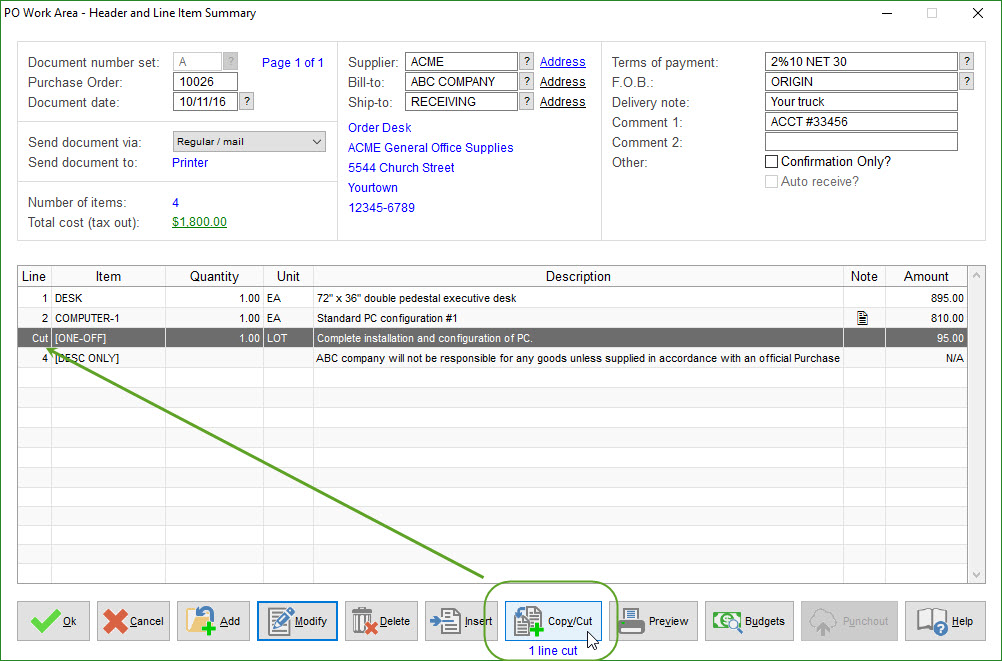
Just use the [Copy/Cut] button at the bottom of the PO Header Screen to “tag” the applicable line item(s)…

Cut PO Line Item

Then move to the other PO and click the [Add] button to add the line items to the bottom of the list.  Or use [Insert] to add the items in between existing items on the PO…

Paste PO Line Items

All of the line item details will be carried forward to the new PO, including all data entry fields, any internal notes and attachments, split-charge account coding details, etc.

TIP: Use the [Copy/Cut] button to tag as many line items as you like, rather than moving them one at a time.

3 Ways to Export Data from you Free Purchase Order Software

Melonie wants to give the Free Version of SpendMap a try but she doesn’t know what the future may hold for her startup company…

“I ran across your free procurement system and I am wondering how easy it is to get the data back out of the system if the company decides to change systems down the road.  Is it possible to easily dump the data into excel and switch systems?”

Sure thing Melonie.  We hope you stick with us but you can get all your information out of SpendMap anytime you want.  You can export your data to Excel and other types of files too (e.g. ASCII, TXT, CSV).

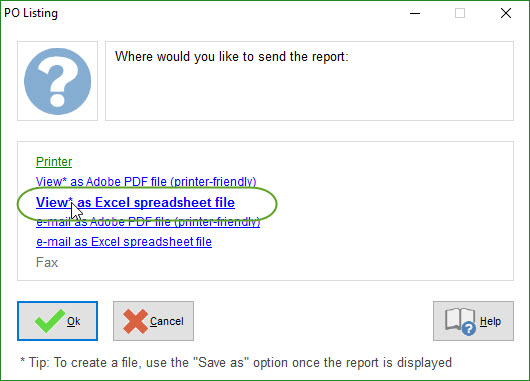
First off, any of the reports in SpendMap can be exported to Excel.  Think Purchase Order history, department spend history, item history, etc…
po-software-excel-report


There are also many dedicated export utilities for common things like Master File data (suppliers, items, users, account codes, etc.).  Check out the options under the Utility > Data Interfaces section of each module.

Finally, in the unlikely event that you need something that isn’t included in the reports or dedicated exports, you can get at anything else using Utility > Data Interfaces > Export Any Table.

Growing with SpendMap

Please also keep in mind that, as your company grows, SpendMap can grow along with you.

As your needs expand, you can upgrade from the Free Version of SpendMap to our paid/commercial version at any time to get access to additional modules/functionality, more advanced technology (e.g. web-based, mobile support, etc.), and we have a full line of Professional Services that larger companies will appreciate, like training and implementation consulting, custom programming, and so on.

When you upgrade from the Free Version to our paid/commercial version, we can bring all your information forward, including all your Purchase Order and other history, master files, configuration settings, etc.

 

Auto-Receive Purchase Orders in your Free PO Software

If you are using the Receiving Module in SpendMap but don’t want to enter receipt transactions for certain Purchase Orders, you can use the Auto Receipts feature to automatically receive/close those POs on their delivery dates.

For example, weekly landscaping services or perhaps a PO for an educational course might be automatically received so that the orders don’t show on the Late PO Report, etc.

First enable the feature for one or more of your PO Number Sets, by checking the option “Auto Receipt?”, in here…
– PURCHASING > Setup system > Incrementing document number sets > POs

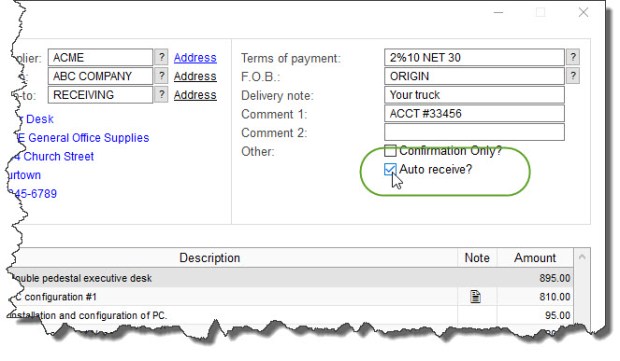
Once enabled, when you enter new POs for that Number Set, you will have access to the Auto Receive checkbox at the top-right of the PO Header Screen…

Auto Receive PO

Now that you have indicated which orders are to be auto-received, you can run the Auto Receipt Utility as often as you like to actually receive/close the applicable orders.  Only orders that are 1) set to Auto Receive and 2) have reached their delivery dates, will be closed when the utility is run…
– RECEIVING > Utility > Auto-receive POs

TIP: enable the option in the [Permissions] Folder of your user account to “Prompt upon login to auto-receive applicable POs?” so that you never forget.

Budget threshold warning in your Free Purchase Order Software

We added a new feature in v14 of SpendMap that can help you stick to your budget by proactively warning you when you’re running out of money.

In Cost Center History/Budget Settings, you can establish the “budget threshold”.  For example, you might want to be warned once you’re down to, say, 20% of the budget remaining (i.e. 80% budget consumed).

While entering new POs, the hyperlink that shows the total value of the order at the top of the Purchase Order Header Screen will change from green to yellow when the budget threshold has been reached.  Then the hyperlink will eventually change to red when there’s nothing left in the budget.

Budget warning on Purchase Order screen

TIP: Click through that hyperlink to see the full budget details.

On a related note, you can also prohibit/stop the processing of Purchase Orders and other documents that will exceed the budget, using the related options in Cost Center History/Budget Settings…

Budget settings in free Purchase Order Software