Peter from the United Kingdom reached out to us on Facebook to ask if he could personalize the emails that SpendMap creates when sending Purchase Orders to his suppliers…
“Is there a way to create a template email? Also is there a way that the (PDF file name) can be defined, either to match the PO or have a prefix?”
Yes, there are settings in SpendMap to personalize the email messages, including;
- Adding your company name to the “From” field of the email messages,
- Adding any text that you want to the body of the email itself, and
- You can customize the filename of the PDF document (i.e. the PO itself) to show your company name (or any other prefix), as well as including the PO number in the filename.
All these options are available in the middle of the Email Settings screen, which you can find here…
– PURCHASING > Setup system > e-mail settings

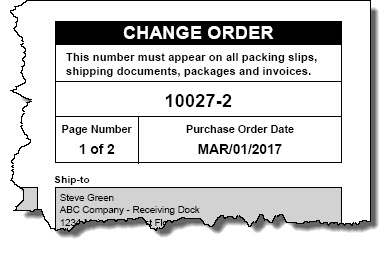
The Online Help for that screen has all the details about how to use those settings, but here’s what your emails might look like, based on the settings used above…


 Peter works in a state agency in Louisiana and was asking about removing old Purchase Orders from his Open PO list…
 Today Seth Godin wrote about how the desire for “simple” has led to an increase of “stupid” in our society.
 Last week a popular antivirus software system reported a “false positive” related to SpendMap’s PDF printer driver. That is, the antivirus software reported that SpendMap may contain a virus even though it does not.

 The Free-Procurement Project