PO software

Simple Purchase Order Software or Stupid Purchase Order Software?

easy-big-buttonToday Seth Godin wrote about how the desire for “simple” has led to an increase of “stupid” in our society.
But don’t read his blog post (it’s way too long). LOL.

Seth is talking about literature and the media but the same thing is happening with Purchase Order software systems.

In recent years we’ve seen the industry shift from an emphasis on building feature-rich, useful tools that actually solve problems, to a focus on “simple”, “easy”, “fast” and “cheap”.

Let’s be clear, ease-of-use and affordability are important for any business software application these days.  Just not at the expense of usefulness.

So if you’ve tried some of those super-simple PO Software Systems only to find that they barely offer a handful of fields on the Purchase Order entry page (who needs Terms of Payment and Delivery Date fields anyway!), why not take a step back and think through your Purchasing process a bit, then come and take a look at SpendMap’s free Purchase Order Software System.

If there’s anything that our 25 years in this business has taught us, it’s that there needs to be a compromise between “simple” and “useful”.

PS. If Seth’s first blog post, above, is too long, here’s a simpler one.

Move line items to another PO in your Free PO Software

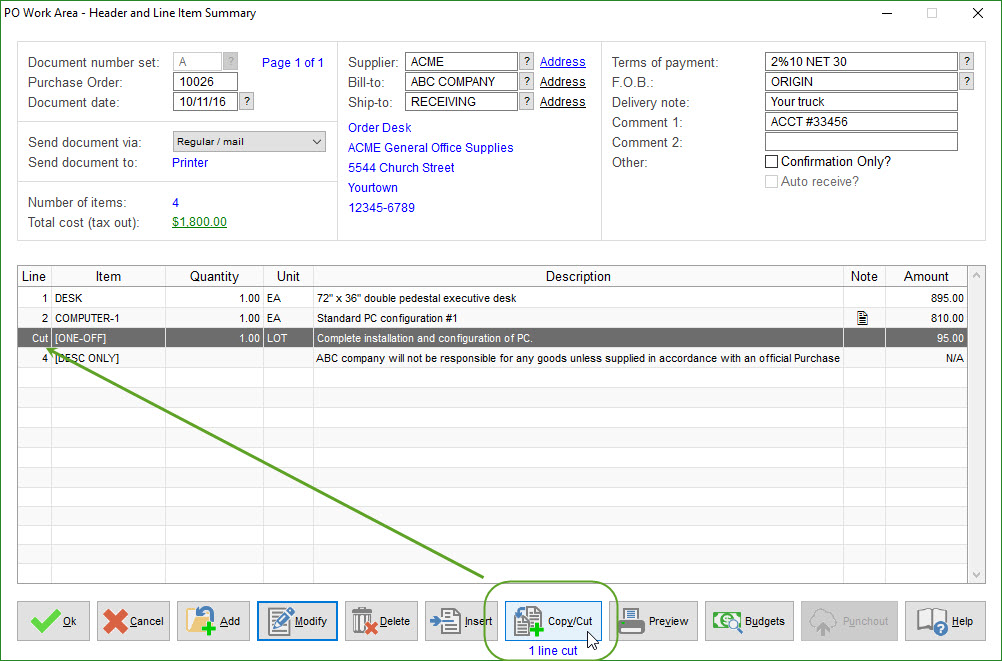
To save time, you can “cut” line items from one Purchase Order in your PO Work Area and then “paste” the line items onto a different PO, rather than starting a new Purchase Order from scratch.

Perhaps you made a last-minute decision to use a different supplier for certain products or services or maybe you want the items moved to a different PO for some other reason.

Just use the [Copy/Cut] button at the bottom of the PO Header Screen to “tag” the applicable line item(s)…

Cut PO Line Item

Then move to the other PO and click the [Add] button to add the line items to the bottom of the list.  Or use [Insert] to add the items in between existing items on the PO…

Paste PO Line Items

All of the line item details will be carried forward to the new PO, including all data entry fields, any internal notes and attachments, split-charge account coding details, etc.

TIP: Use the [Copy/Cut] button to tag as many line items as you like, rather than moving them one at a time.

3 Ways to Export Data from you Free Purchase Order Software

Melonie wants to give the Free Version of SpendMap a try but she doesn’t know what the future may hold for her startup company…

“I ran across your free procurement system and I am wondering how easy it is to get the data back out of the system if the company decides to change systems down the road.  Is it possible to easily dump the data into excel and switch systems?”

Sure thing Melonie.  We hope you stick with us but you can get all your information out of SpendMap anytime you want.  You can export your data to Excel and other types of files too (e.g. ASCII, TXT, CSV).

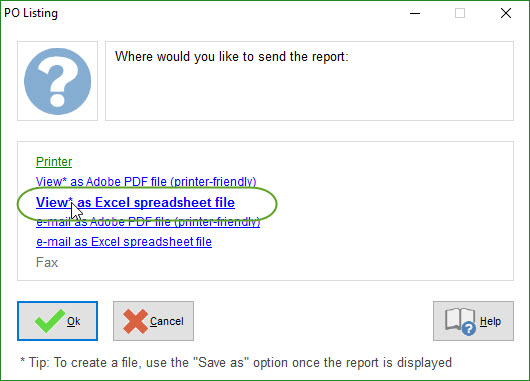
First off, any of the reports in SpendMap can be exported to Excel.  Think Purchase Order history, department spend history, item history, etc…

po-software-excel-report


There are also many dedicated export utilities for common things like Master File data (suppliers, items, users, account codes, etc.).  Check out the options under the Utility > Data Interfaces section of each module.

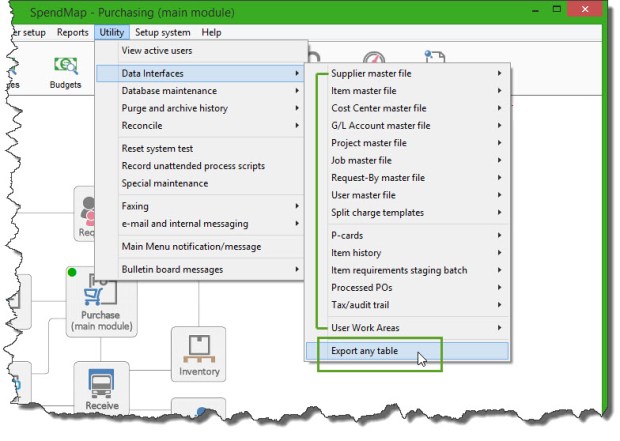
Finally, in the unlikely event that you need something that isn’t included in the reports or dedicated exports, you can get at anything else using Utility > Data Interfaces > Export Any Table.

Growing with SpendMap

Please also keep in mind that, as your company grows, SpendMap can grow along with you.

As your needs expand, you can upgrade from the Free Version of SpendMap to our paid/commercial version at any time to get access to additional modules/functionality, more advanced technology (e.g. web-based, mobile support, etc.), and we have a full line of Professional Services that larger companies will appreciate, like training and implementation consulting, custom programming, and so on.

When you upgrade from the Free Version to our paid/commercial version, we can bring all your information forward, including all your Purchase Order and other history, master files, configuration settings, etc.


Auto-Receive Purchase Orders in your Free PO Software

If you are using the Receiving Module in SpendMap but don’t want to enter receipt transactions for certain Purchase Orders, you can use the Auto Receipts feature to automatically receive/close those POs on their delivery dates.

For example, weekly landscaping services or perhaps a PO for an educational course might be automatically received so that the orders don’t show on the Late PO Report, etc.

First enable the feature for one or more of your PO Number Sets, by checking the option “Auto Receipt?”, in here…
– PURCHASING > Setup system > Incrementing document number sets > POs

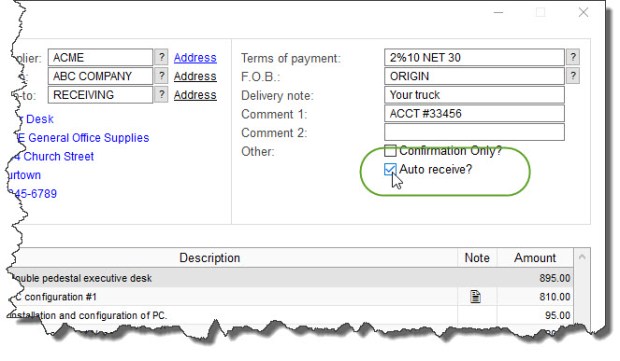
Once enabled, when you enter new POs for that Number Set, you will have access to the Auto Receive checkbox at the top-right of the PO Header Screen…

Auto Receive PO

Now that you have indicated which orders are to be auto-received, you can run the Auto Receipt Utility as often as you like to actually receive/close the applicable orders.  Only orders that are 1) set to Auto Receive and 2) have reached their delivery dates, will be closed when the utility is run…
– RECEIVING > Utility > Auto-receive POs

TIP: enable the option in the [Permissions] Folder of your user account to “Prompt upon login to auto-receive applicable POs?” so that you never forget.

Cool New Stuff Coming to your Free Purchase Order Software

We’re getting ready to roll out the 2016 release of SpendMap, version 14.

Don’t miss any of the important announcements – follow our Blog using the field on the right side of this page.  You can unsubscribe any time.

There’s lots of cool new stuff coming your way soon, including new Excel-based reports that you can add additional fields/columns to, new and improved budget tracking features, attachment capability to complement the internal notes in the Item and Supplier Master Files, and much more.

We can’t wait either!


Testing Your Free Purchase Order Software

Todd was trying to refresh his Testing (“sandbox”) copy of SpendMap so that it has the same data and configuration/settings as his Live (“production”) copy, using this menu option…
– PURCHASING > Setup system > Test environment > Create a TEST system from your PRODUCTION system

…but he got the error message “This does not apply to the free version (A test system was already installed in your free folder)“.

Sorry about that Todd.  That menu is only used in our paid (commercial) version.  We use a different approach to manage Testing Systems in the free version of SpendMap.

Here’s how it works…

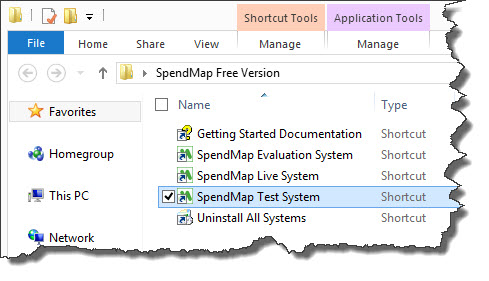
When you install the Free Version, you will get a folder in your Desktop called “SpendMap Free Version” with five shortcuts in it, one of which is the SpendMap Test System

free purchase order software shortcuts

To refresh the data in your Test System, just run that shortcut and you will be prompted for the location where your Live System is installed, so that it can be copied.  If you’re not sure, just log into your Live System, select the menu Help > System Information, and see #8 “Shared File Location”.

Reminder:  Use of the Test System is not always necessary.  You can also do testing in your Evaluation System, which is preloaded with sample data and the most popular settings.  That said, if you want to test something that might be affected by the settings or data in your Live System, then that’s what the Test System is there for.


Options for exporting data from your free Purchase Order Software

You may have noticed that there is more than one way to export items, suppliers, PO history and other data out of the Free Version of SpendMap.  I am referring to the “Export Any Table” utility versus the “dedicated” export utilities under UTILITY > DATA INTERFACES in each module…

export data from PO system

While you could use Export Any Table to export the same data that is available via the dedicated export utilities, the dedicated exports provide some additional features that might come in handy if you’re going to be doing this on a regular basis, such as…

  • The dedicated exports allow you to set up “export templates”, so that you don’t have to manually select the fields that you want to export each time.
  • When configuring the dedicated exports, you can specify the location/position of each field in the export file.  While Export Any Table does allow you to select the fields that you want to export, you cannot specify, for example, the target column in the Excel file.
  • You can specify the format of date fields (e.g. MM/DD/YY vs. YY-MM-DD) if the other system that will be importing the data uses a different format than you use in SpendMap.
  • You can specify a default value for fields that might be blank in the source table.

Hope this help you pick the best tool for the job!

We moved the Getting Started Documentation for your free PO Software

It may seem like a small thing but lots of people rely on the Getting Started Documentation, so we thought we should mention that it was moved to the top of the Online Help…

Getting Started Docs for free PO software

How to include your account number for the supplier on the PO form in your free PO software system

Chaim works in the security solutions industry in New Jersey and was asking how to include an account number for the supplier on the PO form…

When I place an order, our suppliers would like to know our account number. In the Supplier information there are fields to enter Phone, Fax, but not our Account Number.  The Account Number should appear on the PO.

Great question, Chaim!

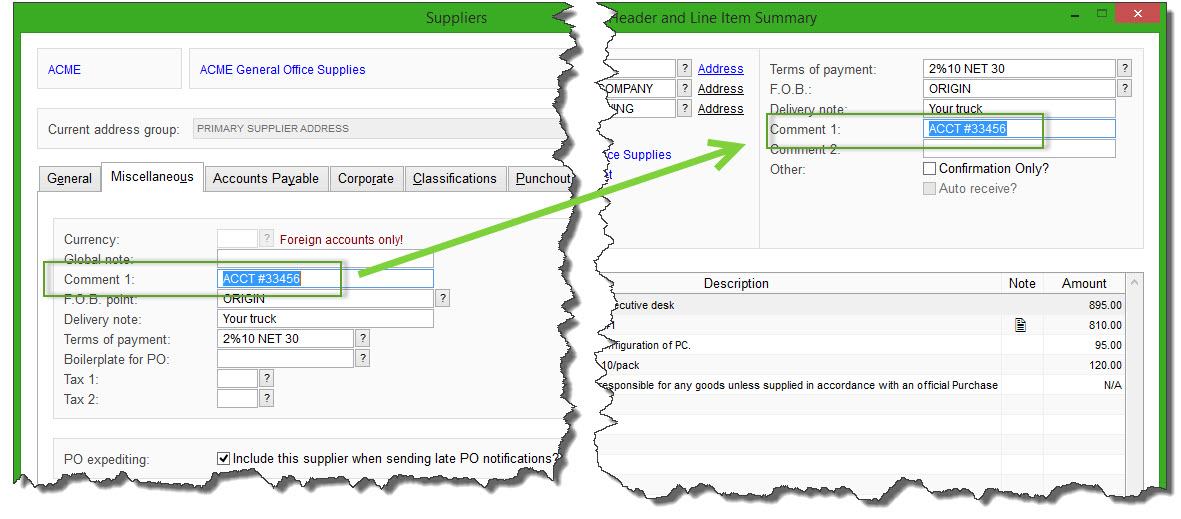
Most people use the Comment 1 field or the Delivery Note field for that, both of which can be renamed to “Account Number” or similar.

You can enter the supplier’s account number into either of those fields in the [Miscellaneous] folder of the Supplier Master File, and it will carry forward to the PO Header for each new PO for that supplier and will be available to print on the PO form…

supplier account number on Purchase Order

TIP: Make sure that the field that you use appears on your PO form layout.  Delivery Note appears on form layouts 1, 2, and 5, where Comment 1 only appears on form layout 3.  Of course, if you upgrade to the paid/commercial version of SpendMap, we can customize your PO form with any fields you like.

You can preview and/or select your PO form layout, using the [Change PO Layout Option] button, in here…
– PURCHASING > Setup system> Purchase order settings > PO printing settings > Settings

Renaming the Fields

You can rename the field titles from “Comment 1” or “Delivery Note” to “Account Number”, which will update the field title in the Supplier Master File, as well as on the PO Header screen and the PO form itself.

Just go in here…
– PURCHASING > Setup system> Purchase order settings > PO printing settings > Text-Based Field Positions and Field Settings > Standard

…and change the Title of field #19 (Delivery Note) or #21 (Comment 1) , then exit and re-run SpendMap.


History of sent e-mail messages in your Free Purchase Order Software

Jose works in the irrigation services industry in Dubai, United Arab Emirates, and was asking how to see a history of e-mail messages that were sent from SpendMap…

I couldn’t confirm whether the PO, RFQ was sent to the recipient….How do I know the PO and RFQ are being sent successfully?

There are two options for sending e-mail from SpendMap, 1) MAPI and 2) SMTP.

If you would like e-mails that are sent from SpendMap to show in your Outlook Sent Box, then use the MAPI option (using the two fields at the top of the E-mail Setting Screen).  TIP: In most cases, you do NOT need to enter any of the other MAPI-related settings further down the screen.

If, however, you prefer the SMTP option, you can enable the Sent E-mail Log, using the setting called “Maintain a log of sent e-mail messages” (also in E-mail Settings), and you will see a history of the outgoing e-mail messages in…
– PURCHASING > Utility > e-mail and internal messaging > e-mail log > Log of sent e-mail messages

Email Logs in free PO Software

TIP: It would be unusual for SpendMap users to verify that each and every e-mail was sent successfully (e.g. by checking Outlook or using the Sent E-mail Log), since you will be notified if an e-mail could NOT be sent.  If SpendMap cannot connect to Outlook or your SMTP server to send a message, you will see a “failed e-mail” icon in the Main Menu of SpendMap, and the failed message will show in the E-mail Error Log, in here…
– PURCHASING > Utility > e-mail and internal messaging > e-mail log > Local/Server e-mail error log

Or, if SpendMap is able to pass the message to the outgoing mail server but the message fails for some other reason (e.g. bad e-mail address), the mail server will send an “undeliverable mail” message back to the sender.