Software Tips & Tricks

Manual PO Numbers in your Free Purchase Order Software

By default, the Free Version of SpendMap will automatically assign incrementing PO numbers to each new Purchase Order that you enter in the system.  You can set up your “Next PO number” during the Setup Wizard that runs automatically when you log into SpendMap for the first time.

But if you prefer to enter your PO numbers manually for each new order, just select the following menu in in the Purchasing Module…
– Setup system (“wrench” icon) > Incrementing document number sets > POs

Then modify PO Number Set A per the screenshot, below.  From that point on, whenever you create a new Purchase Order, the PO Number will be blank and you can enter it manually.

Finally, please note that you can have more than one “PO number set”, for example, if you need multiple sequences of incrementing numbers, or if you want the number to increment for some orders while entering it manually for other orders.

How to edit company address in your free PO Software

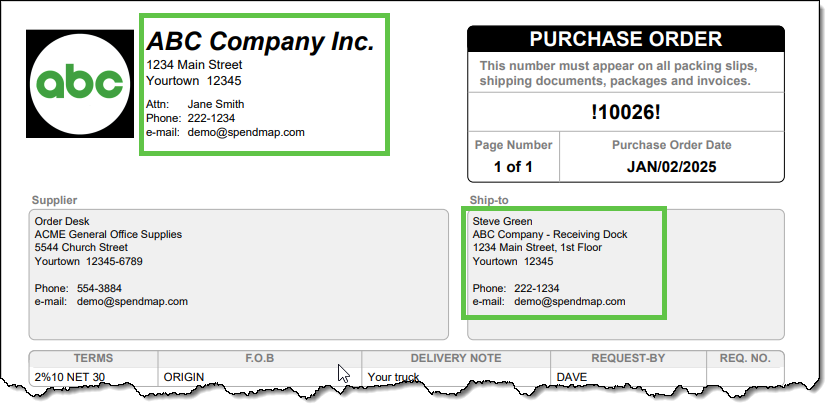
Some people are so excited to start using their free Purchase Order Software that they rush through the Setup Wizard, only to realize later that they need to change the company address displayed at the top of the Purchase Order form…

But don’t worry! It’s completely normal to feel like a kid at Christmas when you get great tools for free. The good news? It’s easy to update your company address after the fact. 😊

There are two ways to modify your Bill-To or Ship-To address information after completing the Setup Wizard…

Option 1: Change the Default Bill-To or Ship-To Address for All New POs

To update the default Bill-To or Ship-To address for future Purchase Orders:

  1. Navigate to the Cost Center section in the left-hand menu.
  2. Look for the codes BILL-TO and SHIP-TO in the list.
  3. Click the Pencil (modify) icon in the Action column on the right-hand side of the grid.

This will allow you to edit the address information associated with those codes. The updated address will automatically appear on all new POs created in SpendMap moving forward.

Option 2: Modify the Address for a Specific PO Only

If you want to update the Bill-To or Ship-To address for a single Purchase Order (without changing the default for future POs):

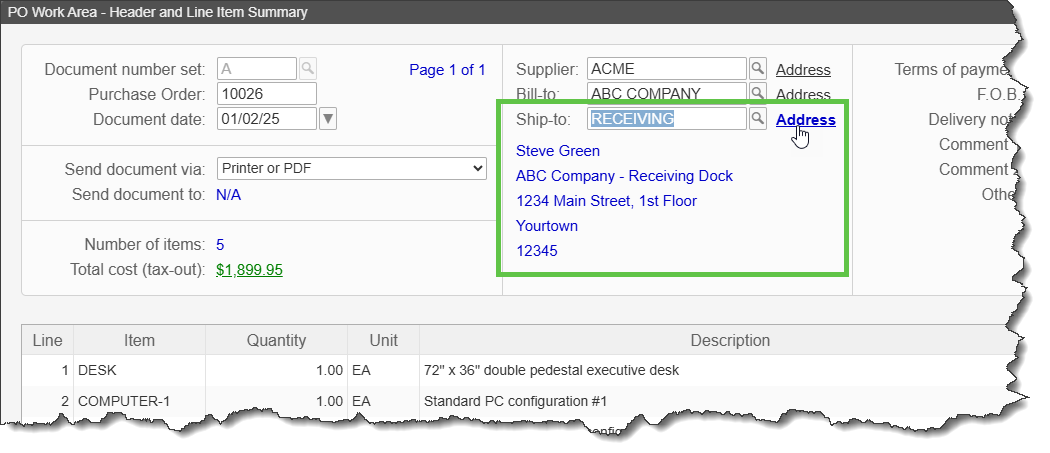
  1. On the PO Header Screen, locate the Bill-To and Ship-To fields.
  2. Click the Address hyperlink next to those fields.

This lets you adjust the address information for that specific PO without affecting other POs.

Add Signature to PO Form in your Free Purchase Order Software

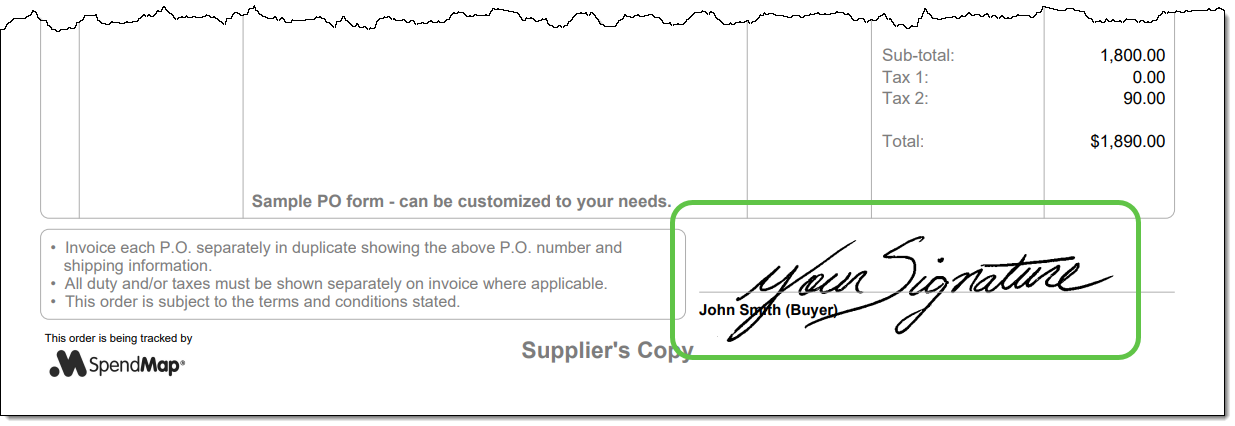
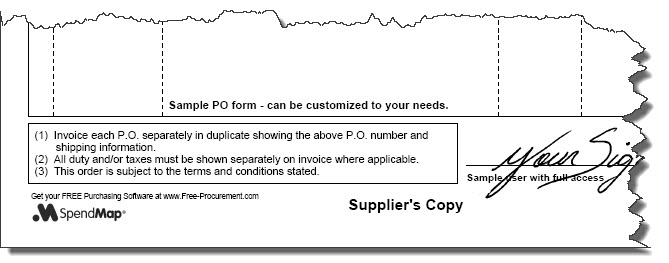
If you’re emailing Purchase Orders to your suppliers directly from SpendMap, or if you’re just tired of signing your Purchase Orders, you can add an “electronic signature” so that your orders will be signed automatically when printed or emailed…

Start by selecting the following menu in the System Setup section…

Select the [Manage User Signatures] button at the top-right, and then use the icons in the Action column to add signatures for one or more users (the applicable signature will be included when the respective user prints or emails their Purchase Orders)…

Date Format in your Free Purchase Order Software

Emma reached out to us, asking how to change the format of date fields in the Free Version of SpendMap…

“I have just registered but the date setting is incorrect. We are in the UK so the date needs to be formatted as DD/MM/YY whereas currently it is set to MM/DD/YY.”

Sure thing, Emma, you can change the format of your date fields in step 6/14 of the Setup Wizard that runs automatically when you log into your Live Copy of SpendMap for the first time.

After that, you can change it in User Defined Field Settings…
– PURCHASING > Setup system > User defined terminology and settings > User defined field settings

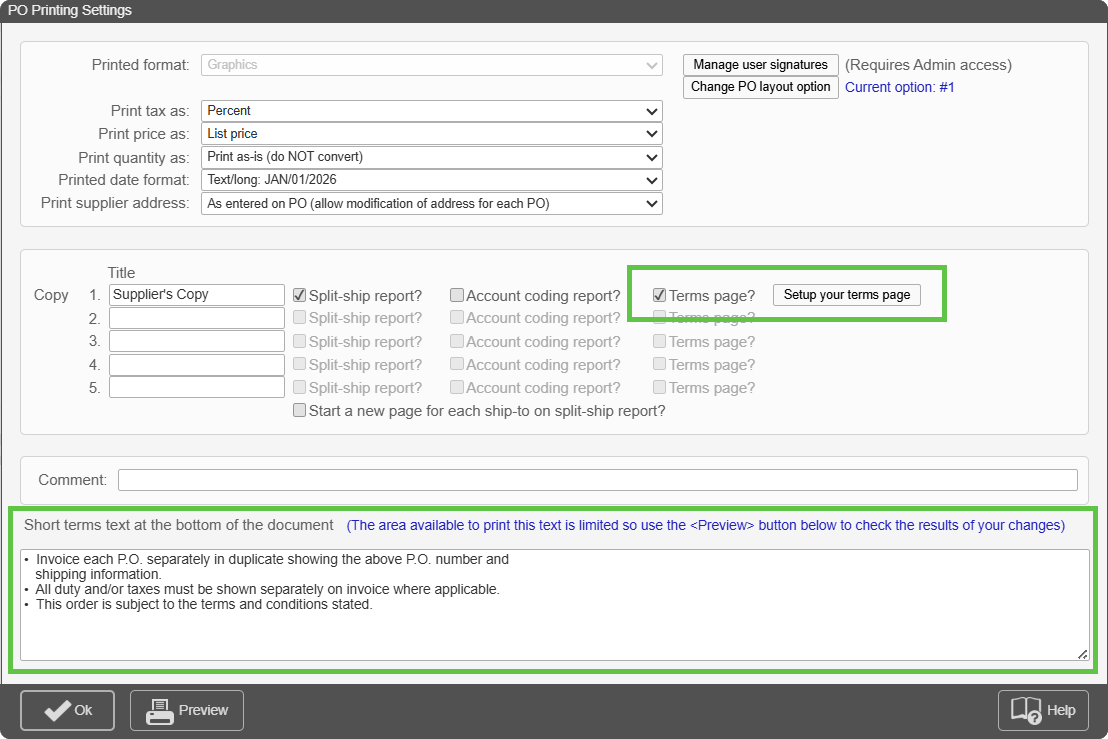
Separately, you can also fine-tune the date format for your printed Purchase Order forms, using the setting “Printed Date Format”, in PO Printing Settings…
– PURCHASING > Setup system> Purchase order settings > PO printing settings > Settings
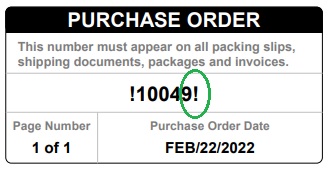
Purchase Order Numbers in your Free PO Software

We’ve had a few questions about the exclamation marks (!) that show next to the PO number on Purchase Order forms in the Free Version of SpendMap…

The exclamation marks will only show when you “preview” the PO in your Purchase Order Work Area but will not show when you actually process the order and print an official copy or e-mail it to your supplier.

Some form layouts also include something like “Draft copy – do not process” somewhere on the form.

You can process your new Purchase Orders using this menu option…
Purchase Orders > Process New POs > Process my POs

…or you can select the “process now” prompt when leaving your PO Work Area.

Hope that helps 🙂

Avoid File Hosting Services for your Free Purchase Order Software

Please do not try to use Dropbox, Microsoft OneDrive, Google Drive or other cloud-based file hosting services for your free Windows/desktop version of SpendMap.  It just doesn’t work.

You can certainly back up your system/database to those services; you just can’t install your active/live database there. 

That’s because, as with other database applications, the files/tables in SpendMap’s database are constantly being opened and updated as you process Purchase Orders and other transactions in SpendMap.  And when files are being copied/uploaded to those cloud-based file hosting services, they are locked and not accessible to SpendMap and so you will get a runtime error if SpendMap tries to access the files as they are being moved up to the cloud (which happens each time a file is modified).

That said, you can certainly 1) exit/close SpendMap and then, 2) copy your database folder to Dropbox, OneDrive or Google Drive as a backup, while SpendMap is not running.  Again, you just can’t keep the live/active database files there.  For more details, please see the section “Backup and Restore Procedures”, in the Getting Started Documentation that comes with the software.

And just as a reminder, if you want your SpendMap data to be stored in the Cloud, we offer a SaaS version as well. You can try a free demo of our Cloud-based Purchase Order Software here.

Move your Free Purchase Order Software to another PC

We’ve had a few chats with people wanting to move their free Windows/desktop version of SpendMap from one computer to another.  Here’s everything you need to know…

Before you get started, you may want to consider the following alternatives to moving SpendMap from computer to computer as described below…

  • You can install the system on a network server so that you can access it from any computer on your Local Area Network. For details, please see “Network Installation Instructions”, in the Getting Started Documentation that comes with the software.
  • You can upgrade to our web-based version and then you can access the system from any computer with an Internet connection. In addition, you’ll never have to worry about software installation, maintenance, backups or applying updates, as we take care of everything for you. You can try our Cloud version here if you like.

OK, to move the free Windows/desktop version of SpendMap to a different computer, you do NOT need to download and reinstall a new copy of the system. You just need to move the database/application folder and the shortcuts/icons that you use to run the system.

(more…)

Button TIPs in your Free Purchase Order Software

Expanding on the Bubble Tips that we added to key screens last year, we recently added helpful pop-up Tips to most of the buttons in SpendMap.

Just hover your mouse over a button to see a description of what it does..

For even more details on buttons, fields or anything else that you see on-screen in SpendMap, click the [Help] button on any screen.

Unit of Measure Conversion in your Free Purchase Order Software

Did you know that you can use different units of measure when entering Purchase Orders, Receipts and other transactions in the free version of SpendMap and the system will convert from one unit to the other for you automatically?

For example, it’s quite common that the purchase quantity and pricing on Purchase Orders are in different units of measure.

You can set up as many units of measure as you like, along with a “conversion factor”, in the Units of Measure Master File…
– PURCHASING > Master Files > Units of measure > Add/modify/delete

And then you can select different units of measure on Purchase Orders and other areas in SpendMap…