Software Tips & Tricks

Keep your Purchase Orders out of your supplier’s Junk Mailbox

Are you sending Purchase Orders to your suppliers using the e-mail feature in the free version of SpendMap?

If your e-mailed POs are getting caught in your suppliers’ Junk Mail filters, you might want to try adding some text to the e-mail cover page.  Without some content in the body of the e-mail, the e-mail will include only an attachment (the attached PO) and one line of text (the default e-mail footer “Get your FREE Purchasing Software at…”, which also includes a hyperlink).  In some cases, a one-line e-mail with a hyperlink and an attachment will be enough to trigger a supplier’s SPAM filter.

So consider adding some text to your e-mail cover page for Purchase Orders, using the field called “Boilerplate for POs/Releases/RFQs”, in the E-mail Settings utility, which you can find here…
– PURCHASING > Setup system > e-mail settings

Here’s some sample cover page text to consider…

Dear Supplier,

Please process the following orders/confirmations.

If you have any questions, please contact us before processing this order.

Also please add this e-mail address to your “safe sender” list or address book, to help ensure that you get our Purchase Orders going forward.

Thank you,

ABC Company – Purchasing Department
(other contact info here)
(avoid adding hyperlinks like e-mail addresses or your company’s URL, as additional links can increase an e-mail’s SPAM score)

Buying services with your free Purchase Order Software

Joe works in the housing development industry in New Jersey and was wondering if he can use SpendMap to buy electrical services.

Sure thing Joe.  SpendMap can be used to manage Purchase Orders for all kinds of services, just as easily as physical products.  And there’s actually not much difference in the process.

So using your example of buying “one hour of installing electrical outlets”, you might want to set up a unit of measure as “HOUR” in the Units of Measure Master File, and then you can use that UoM on the PO. So just like you would buy 1 EACH of a physical product, you would buy 1 HOUR of the service.

Another Unit of Measure that I see people use commonly for services is “LOT”. That is, rather than specifying the number of hours as the quantity for the order, they would buy “1 LOT” of services (e.g. Quantity: 1, Unit: LOT, DESCRIPTION: Complete installation and configuration of PC). This obviously makes sense when the number of hours is unknown and/or if there is a fixed price for the complete service. You can actually see a sample of this in the Evaluation Copy of SpendMap…just log in as the user “FULL”, and check out PO #10026 in that user’s PO Work Area.

With respect to the Item Master File, you may or may not decide to use that for services like this. For example, if you want to keep track of the history of all the times you bought that “electrical service”, by all means add an item to the Item Master as “Misc. Electrical Services” or something like that, and then pick that item each time you order those services, after which you can see the history of that service using this…
– PURCHASING > Status & Inquiries > Item History

That said, it’s also quite common to not use the Item Master for services, and just do a “one-off” instead. You can learn about that in the subsection “Using One-Offs”, in this section of the Online Help…
– System-Wide Features and Information > Master Files > About Master Files

Finally, you may want to consider the receiving process when buying services.  Many SpendMap customers do use the Receiving Module to indicate that the services that they purchased were “delivered” (i.e. completed).  While there’s no physical product to receive, you are nevertheless receiving the service, so you might want the status of the Purchase Order to reflect that, and of course if you’re using the optional Invoice Approval Module, you’ll want to know that the service was in fact delivered before paying the invoice, just like a physical product.

That said, it not uncommon to skip the receiving process for services.  If that’s your preference, you can just wait for the invoice to show up and you can do a two-way match (PO > Invoice) instead of a three-way match (PO > Receipt > Invoice), or you might want to check out the Auto-Receiving feature in SpendMap, which can automatically receive Purchase Orders for services on their delivery dates, without having to enter receipt transactions manually.  You can learn more in this section of the Online Help…
– RECEIVING > Utility > Auto-receive POs

Step-by-step Setup Guide for free Purchase Order Software

We’ve had a few requests for a step-by-step guide or video tutorial for setting up the free version of SpendMap.  Mostly we’re seeing that in the responses to the survey that we send out a couple of weeks after people download the free Purchase Order system.

Yes, we thought of that when we were putting together the video tutorials and other resources for the free version of SpendMap.  The problem is, each company will take different steps when setting up SpendMap, depending on their specific procurement processes and the features and modules of the system that they plan to use.

For example, some people just want to automate their Purchase Orders, while others want to automate Requisitions and approvals, POs, receiving, supplier invoice approval, and inventory control.  And even within each module, there are many features that you may or may not need, depending on how you manage your Purchasing.

In our experience, most people only use 20% or so of the features/functionality in this type of system.  The challenge is, the 20% that you need will be different than the 20% that someone else needs.

So unfortunately it just not practical to put together a generic, “one-size-fits-all” getting started guide that would work for everyone.

We did, however, create 20 or so video tutorials for you, which cover the most popular features that most people will likely need.

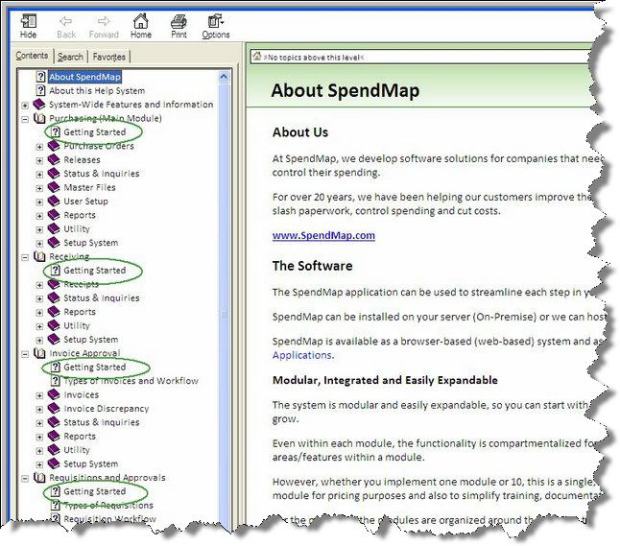
Also, the Online Help system has a Getting Started section for each of the primary modules, which appears as the first sub-section under each module…

getting-started with free PO system

You might also want to take a look at the subsection “Time to Implement” in the Getting Started Documentation that came with your free software…that will point you in the right direction.

Thanks for your input!

Currency and Tax setup in free Purchase Order Software

We’ve had a few support tickets from folks in the United Kingdom, asking how to change the default currency in SpendMap from dollars ($) to pounds sterling (£).

The question usually comes alongside another question about how to set up Value Added Tax (VAT) as the default sales tax rate in the system.

So this blog post outlines the options for changing the default currency and taxes in the free version of SpendMap.  I’ll use “pounds” and “VAT” as the examples, but SpendMap supports other currencies and taxes too, which you can set up in the Tax and Exchange Rates Master File.

Setup Wizard

First things first, I guess I should mention that you will be prompted to select your currency and default taxes during the Setup Wizard, which will run automatically when you log into your Live (Production) copy of SpendMap for the first time.

If for some reason you want to change the currency or taxes in the Evaluation copy of SpendMap (the sample data in the Evaluation copy uses dollars ($) and a generic tax code of “TAX 1”), or if you just missed that part of the Setup Wizard the first time you ran your Live copy, keep reading to learn how to change the default currency and taxes after-the-fact…

(more…)

Supplier Pricing for Items in Free Purchase Order Software

Cathy in California asked why the pricing that she entered in the Standard Price and Standard Cost fields in the [General] Folder of the Item Master File weren’t copying over to new Purchase Orders, Requisitions and other documents.

Those fields are used for other purposes.  If you want pricing to default on new orders based on the selected item, you can set that up in the [Supplier] Folder of the Item Master File, where you can enter pricing from one or more suppliers, in addition to other related information such as freight charges, if that information is known in advance…

Supplier pricing in free Purchase Order Software

If you don’t want to enter separate pricing for each supplier, that is, if you just want to enter a single price to default on new POs regardless of who you are ordering from, then just enter “*” (an asterisk) for the supplier code, and the price will be used for all new Purchase Orders and other documents, regardless of the supplier.

TIP: If you ever change the price while entering a new Purchase Order, you can optionally update the Item Master’s default pricing right from the PO Entry Screen, so you don’t have to go back to the Item Master File to make the changes there as well.  To enable this feature, just use the “price update option” in here…
– PURCHASING > Setup system> Purchase Order settings > PO entry settings

Approving suppliers in your free Purchase Order Software

Carl in the United Kingdom asked…

Is it possible to give a supplier an approval? Ford example a new supplier would be categorised as ‘new’ then on return of a supplier questionnaire would moved to ‘approved’.  Perhaps this can be done in the category tab of the supplier (master file)?

That is a great question, Carl.  It really depends on what you need to do with the suppliers that are pending approval.  For example, if you just need to identify who they are (e.g. print a list of suppliers in the approval process, or search for them while using the system), then using the Supplier Category feature would work well for that.

You can learn more about this feature in this section of the Online Help…
– PURCHASING > Master Files > Supplier Classifications

If, however, you need more functionality around the supplier approval process, then here are a couple other features to consider instead of (or in addition to) the Supplier Category…

(more…)

Multi-Company Setup in your Free Purchase Order Software

Brian in Nevada asked about setting up multiple companies in the free version of SpendMap…

The program is on its way, and I love it so far. I do have another need. I run 2 different companies…They are truly separate companies, payables, orders, everything.  Can I add a second company to the live version of SpendMap, or can I install a second version? What is possible?

You have both options.  You can install a separate system/database for each company, or you can set up both companies in one system, and then use some of the features in SpendMap to segregate your data.  For example, you could use a different sequence of Purchase Order numbers for each company (i.e. different PO Number Sets) so that you can, for example, filter reports to only see POs for one company at a time.  Similarly, if you have separate suppliers, items and/or account codes for each company, you could use the Master File Catalogs feature to create separate Master File lists for each company.

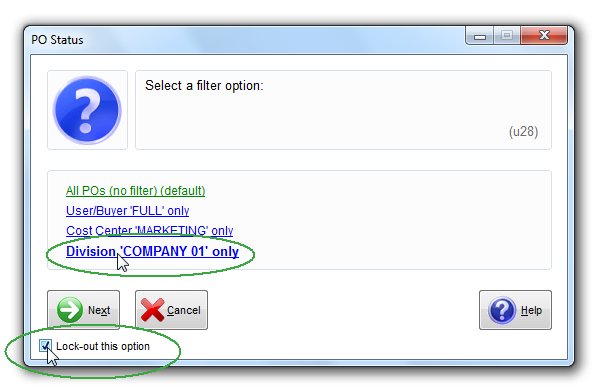
TIP: If you go this route, you may want to restrict users to their company’s Purchase Orders, suppliers, account codes, etc., so that they can’t accidentally select something from the other company.  Or you can let them access data from both companies if you prefer.

Restrict user access in Free Purchase Order Software

So it comes down to how “separate” the companies really are.  If they are truly separate and you will never want to run reports and otherwise view data for both companies at the same time (e.g. Show me a list of Purchase Orders across both companies), then by all means create two separate copies of the database, with a separate shortcut/icon for each system on your desktop.

Inventory Control Module Video Tutorial

How about some Inventory Control to go along with your free Purchase Order software?

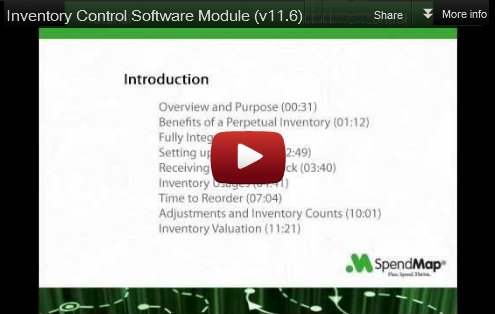
This new video tutorial shows how to manage a consumable inventory such as office supplies, cleaning and maintenance supplies, raw materials for production, and so on.

Click the image below to watch the Inventory Control Software tutorial, and don’t forget to visit our YouTube channel to see 16 other tutorials that will help you get started with the most popular features in SpendMap…

Inventory Control Software Video Tutorial