PO form

How to edit company address in your free PO Software

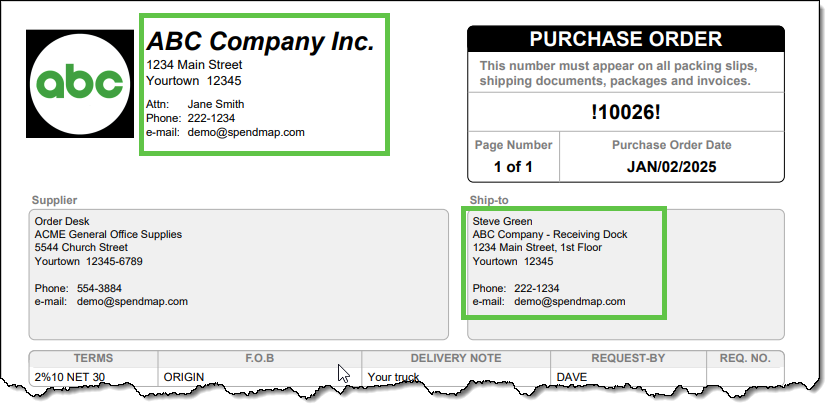
Some people are so excited to start using their free Purchase Order Software that they rush through the Setup Wizard, only to realize later that they need to change the company address displayed at the top of the Purchase Order form…

But don’t worry! It’s completely normal to feel like a kid at Christmas when you get great tools for free. The good news? It’s easy to update your company address after the fact. 😊

There are two ways to modify your Bill-To or Ship-To address information after completing the Setup Wizard…

Option 1: Change the Default Bill-To or Ship-To Address for All New POs

To update the default Bill-To or Ship-To address for future Purchase Orders:

  1. Navigate to the Cost Center section in the left-hand menu.
  2. Look for the codes BILL-TO and SHIP-TO in the list.
  3. Click the Pencil (modify) icon in the Action column on the right-hand side of the grid.

This will allow you to edit the address information associated with those codes. The updated address will automatically appear on all new POs created in SpendMap moving forward.

Option 2: Modify the Address for a Specific PO Only

If you want to update the Bill-To or Ship-To address for a single Purchase Order (without changing the default for future POs):

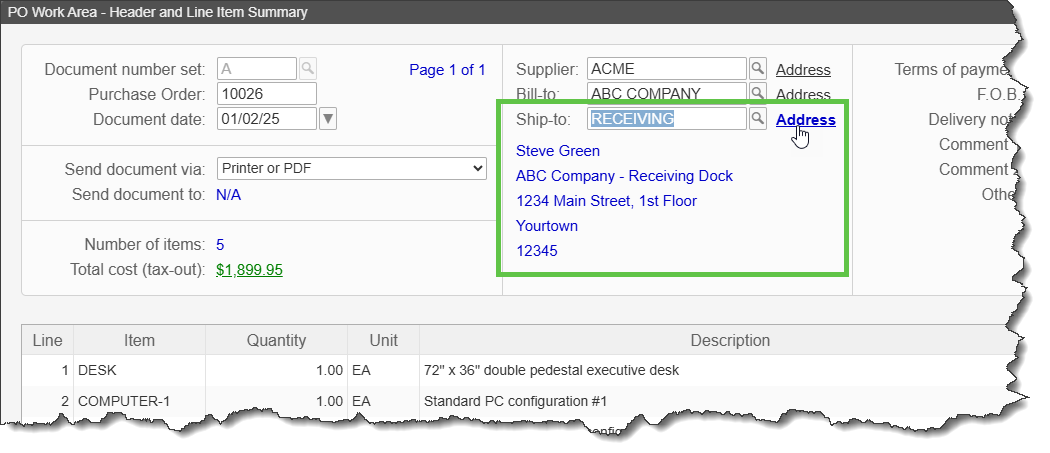
  1. On the PO Header Screen, locate the Bill-To and Ship-To fields.
  2. Click the Address hyperlink next to those fields.

This lets you adjust the address information for that specific PO without affecting other POs.

Add Signature to PO Form in your Free Purchase Order Software

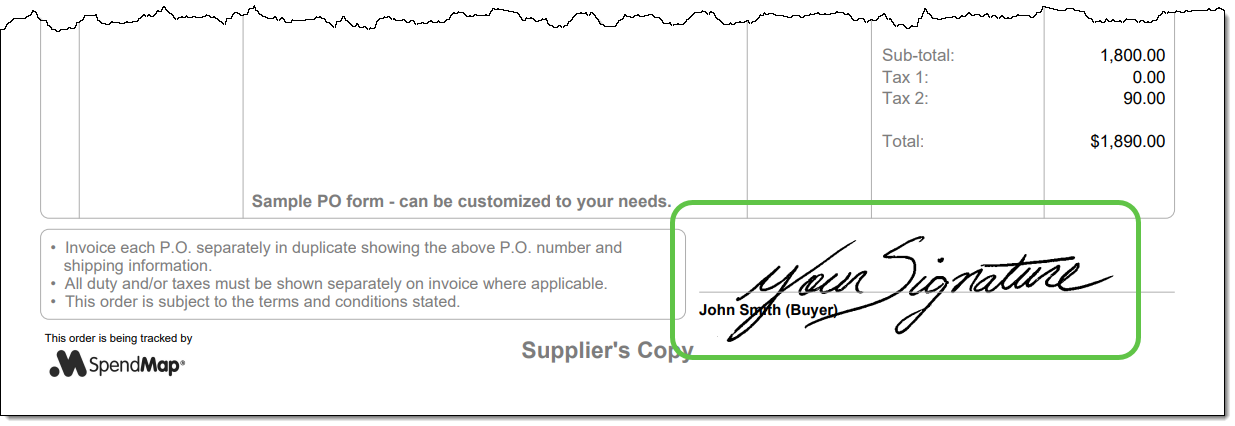
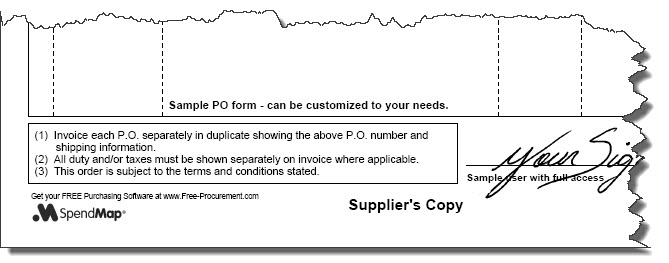
If you’re emailing Purchase Orders to your suppliers directly from SpendMap, or if you’re just tired of signing your Purchase Orders, you can add an “electronic signature” so that your orders will be signed automatically when printed or emailed…

Start by selecting the following menu in the System Setup section…

Select the [Manage User Signatures] button at the top-right, and then use the icons in the Action column to add signatures for one or more users (the applicable signature will be included when the respective user prints or emails their Purchase Orders)…

Date Format in your Free Purchase Order Software

Emma reached out to us, asking how to change the format of date fields in the Free Version of SpendMap…

“I have just registered but the date setting is incorrect. We are in the UK so the date needs to be formatted as DD/MM/YY whereas currently it is set to MM/DD/YY.”

Sure thing, Emma, you can change the format of your date fields in step 6/14 of the Setup Wizard that runs automatically when you log into your Live Copy of SpendMap for the first time.

After that, you can change it in User Defined Field Settings…
– PURCHASING > Setup system > User defined terminology and settings > User defined field settings

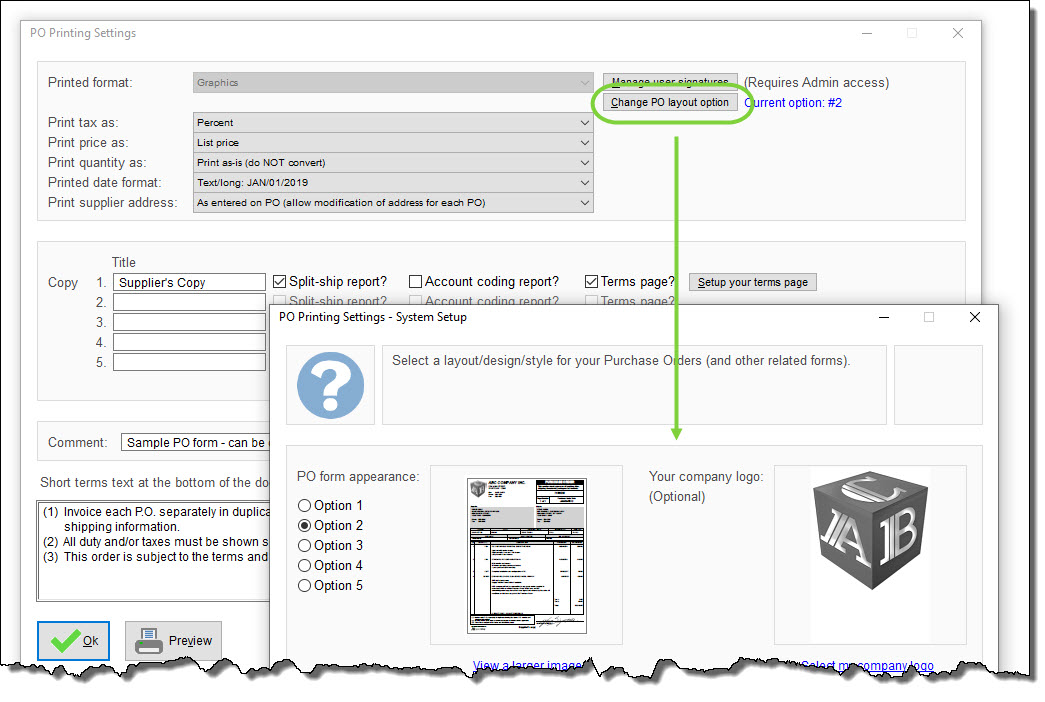
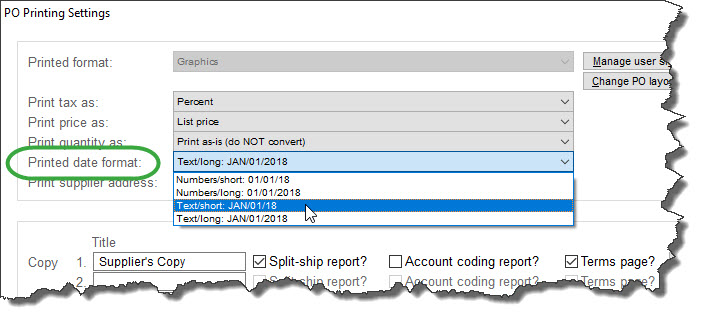
Separately, you can also fine-tune the date format for your printed Purchase Order forms, using the setting “Printed Date Format”, in PO Printing Settings…
– PURCHASING > Setup system> Purchase order settings > PO printing settings > Settings
Purchase Order Numbers in your Free PO Software

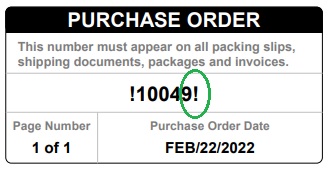
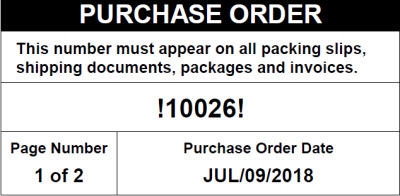
We’ve had a few questions about the exclamation marks (!) that show next to the PO number on Purchase Order forms in the Free Version of SpendMap…

The exclamation marks will only show when you “preview” the PO in your Purchase Order Work Area but will not show when you actually process the order and print an official copy or e-mail it to your supplier.

Some form layouts also include something like “Draft copy – do not process” somewhere on the form.

You can process your new Purchase Orders using this menu option…
Purchase Orders > Process New POs > Process my POs

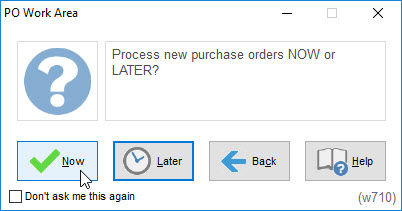
…or you can select the “process now” prompt when leaving your PO Work Area.

Hope that helps 🙂

Draft Purchase Orders in your Free PO Software

If you’re just getting started with the Free Version of SpendMap, you can enter new Purchase Orders in your PO Work Area…

PO Work Area

Your PO Work Area Contains your “Draft” Purchase Orders

Draft POs in your PO Work Area won’t affect the rest of the system until you process them. For example, they won’t show on reports and you can’t receive against them.

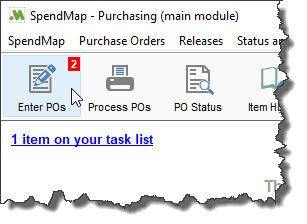
When your new POs are processed and sent to your suppliers, they’ll come out of your PO Work Area and then the “live” orders will be visible throughout the system.  You can process your new POs using the [Process POs] Toolbar button or you can just select the following prompt when you exit your PO Work Area…

Process-new-purchase-orders

What’s with the Exclamation Marks?

If you preview a draft PO in your PO Work Area, the PO form will have a few visual reminders that it’s not an official copy yet, such as exclamation marks (!) before and after the PO number.  Most forms also show a message or watermark like “Draft Copy – Do No Process” or similar.  Again, this won’t show when the order is actually processed.

po-number-marks


How to change the Delivery Date in your free Purchase Order Software

Ricardo works in the construction industry in Australia and was asking how to change the Delivery Date on a Purchase Order in the Free Version of SpendMap.

Great question, Ricardo.  You can enter the Delivery Date for each new PO in the Delivery field, at the right side of the Line Item Details screen in your PO Work Area.

After that, once the PO is processed, you can change/update the delivery date using…
– PURCHASING > Purchase Orders > Modify a processed PO > Set new delivery date/re-promise

Or you can change ANY FIELD on a processed PO by doing a Change Order. You can learn more about Change Orders in the following section of the Online Help in SpendMap…
– Purchasing (Main Module) > Purchase Orders > Modify a processed PO (About Change Orders).

Finally, you can customize the way that the Deliver Date appears on your PO Form, using the following setting in PO Printing Settings…

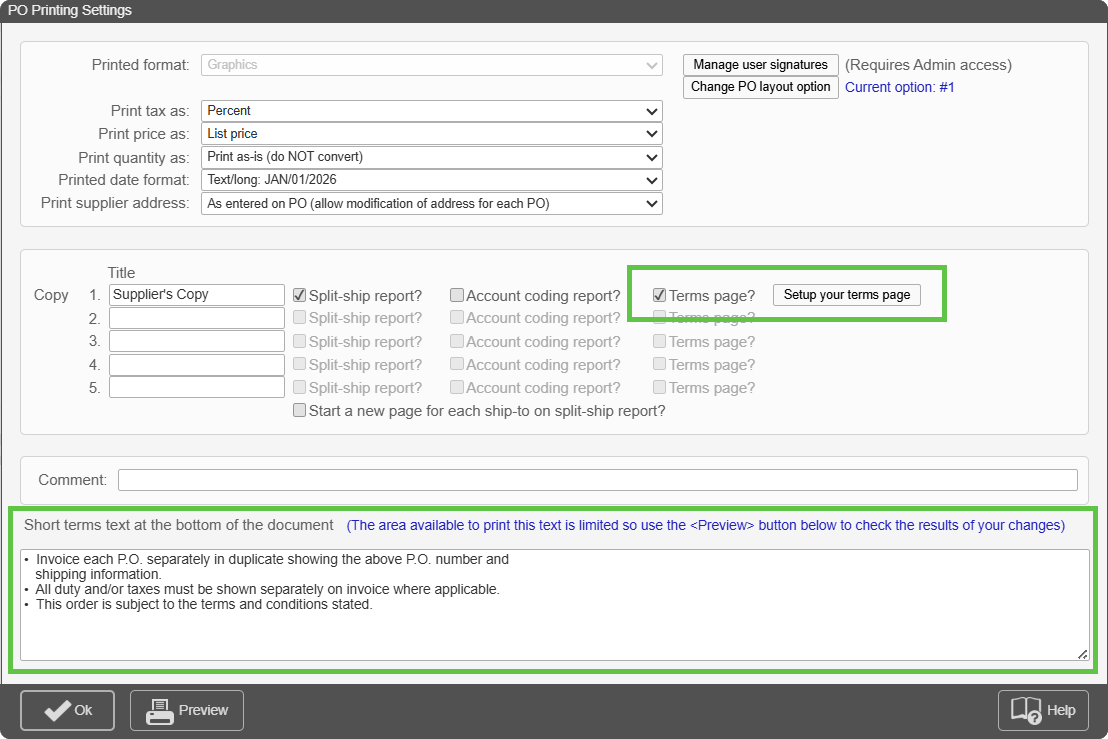
purchase-order-form-date-format

Forms and Documents in your Free Purchase Order Software (Video Tutorial, v14.5)

It’s not quite as good as your Christmas present but here’s a new video tutorial on how to set up your PO form in the Free Version of SpendMap.

We’ll just call it a belated stocking stuffer.  Ho-ho-ho!

Signature Line on PO Form in your Free Purchase Order Software

Garrett wants his manager’s name to appear in the signature line at the bottom of his Purchase Order form, rather than his own name…

“On our current Purchase Orders in the system, it shows my name at the bottom of the PO.  However, we need to have another manager sign-off on POs.  Is it possible to change the name?”

PO Form Signature Line

Yes, SpendMap can do that.  Just select this menu…
– PURCHASING > Setup system> Purchase order settings > PO printing settings > Text-Based Field Positions and Field Settings > Standard

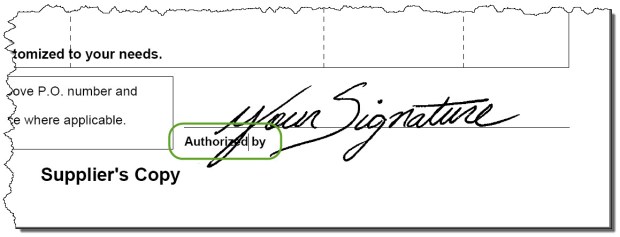
…scroll down to field #85 and in the Title Field, fill in your Manager’s name that you would like to appear in the signature line on your Purchase Orders.

If you leave the Title Field blank, SpendMap will print the name of the person who entered/created the PO in SpendMap but if you fill in the Title, that’s what will print instead.  You can enter someone’s name, or maybe just “Authorized by”, or something like that.

But did you know that SpendMap offers a Requisitions and Approvals Module, that your managers can use to approve/reject orders right in SpendMap, without having to forward a copy of each order manually?  You can learn more here.

When to Use a Change Order in your Free Purchase Order Software

When you need to modify a Purchase Order after it has already been sent to your supplier, you would typically process a Change Order in SpendMap.

In order to communicate to the supplier that this is a modification to an existing order rather than a brand new order, SpendMap will print “Change Order” rather than “Purchase Order” at the top of the form.  You will also see a “revision number” that will increment each time the order is changed (e.g. PO #1000-1, 1000-2, etc.).

What about changes that don’t impact the supplier?

While it’s common to use a Change Order when making changes that will affect your supplier, such as a quantity or price change, there are times when you may not want to bother informing your supplier that an order changed.  For example, it might not make sense to notify your supplier in this way if you just need to change the account coding or other “internal” fields that are of no concern to your supplier.

So, if you’d like to modify a PO without processing a Change Order, without incrementing the PO revision number, etc., just answer [No] to the following prompt, which you will see when you click the [OK] button on the PO Header Screen to save your changes…

To learn more about what happens when you make changes to Purchase Orders that have already been processed, check out the following section of the Online Help in SpendMap…
– Purchasing (Main Module) > Purchase Orders > Modify a processed (About Change Orders)