PO form

How to include your account number for the supplier on the PO form in your free PO software system

Chaim works in the security solutions industry in New Jersey and was asking how to include an account number for the supplier on the PO form…

When I place an order, our suppliers would like to know our account number. In the Supplier information there are fields to enter Phone, Fax, but not our Account Number.  The Account Number should appear on the PO.

Great question, Chaim!

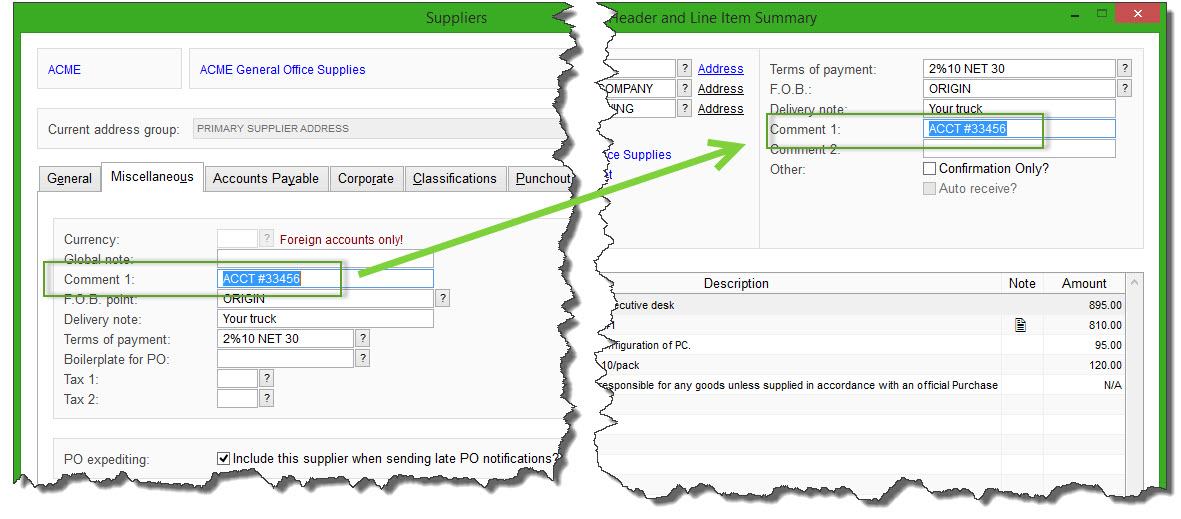
Most people use the Comment 1 field or the Delivery Note field for that, both of which can be renamed to “Account Number” or similar.

You can enter the supplier’s account number into either of those fields in the [Miscellaneous] folder of the Supplier Master File, and it will carry forward to the PO Header for each new PO for that supplier and will be available to print on the PO form…

supplier account number on Purchase Order

TIP: Make sure that the field that you use appears on your PO form layout.  Delivery Note appears on form layouts 1, 2, and 5, where Comment 1 only appears on form layout 3.  Of course, if you upgrade to the paid/commercial version of SpendMap, we can customize your PO form with any fields you like.

You can preview and/or select your PO form layout, using the [Change PO Layout Option] button, in here…
– PURCHASING > Setup system> Purchase order settings > PO printing settings > Settings

Renaming the Fields

You can rename the field titles from “Comment 1” or “Delivery Note” to “Account Number”, which will update the field title in the Supplier Master File, as well as on the PO Header screen and the PO form itself.

Just go in here…
– PURCHASING > Setup system> Purchase order settings > PO printing settings > Text-Based Field Positions and Field Settings > Standard

…and change the Title of field #19 (Delivery Note) or #21 (Comment 1) , then exit and re-run SpendMap.


Terms and Conditions on PO Form (Ts and Cs)

Jody works in the hospitality industry in California and was asking how to include terms and conditions (Ts and Cs) on her PO form in the free version of SpendMap.

There are actually two options when it comes to terms and conditions on your Purchase Order form…

Short Terms Text

If you just need a few lines of text, try using the Short Terms Text in PO Printing Settings, which will be included on the face of the PO form, at the bottom, next to your signature line.  Here is where you can find the setting, and what it looks like…
– PURCHASING > Setup system> Purchase order settings > PO printing settings > Settings

Short terms and conditions on PO form

Long Terms Page

If you need more than just a few lines of text, the other option would be to use the full Terms and Conditions Page that will automatically accompany each PO that is printed or e-mailed to your suppliers .  You can configure the Terms Page using the [Setup Your Terms Page] button on that same PO Printing Settings screen.

When you click the [Setup Your Terms Page] button, you will be brought to a screen where you can either 1) enter lots and lots of text for your Terms Page, or 2) if you already have an existing Terms Page, you can scan it and upload it into SpendMap as an image file.

Finally, don’t forget to enable the Terms Page for one or more copies of the PO (likely only the Supplier’s copy) using the applicable check-box on the main PO Printing Settings screen…

PO Printing Settings

Only one sales tax in your Free Purchase Order Software

Sohan works in the automotive tire industry in Australia and was asking how to remove the second Sales Tax field from his printed Purchase Order form in the free version of SpendMap.

“I want to configure tax…in Australia we only have one tax but PO shows tax 2 as well. I don’t want TAX 2 to be seen on PO. How can I do it?”

Tax-on-PO-form
Sure thing Sohan, you can remove TAX 2 from your printed PO form.  Just go in here…

– PURCHASING > Setup system> Purchase order settings > PO printing settings > Text-Based Field Positions and Field Settings > Standard

…scroll down to Field #89, and un-check the box called “Print Title”.

That will remove the Tax 2 Total from your PO form, but you may (or may not) want to also make a couple changes to the PO Work Area screen, to avoid potential confusion about that field on the users’ part.

For example, you might want to rename the Tax 2 Field to “N/A” or similar, so they know not to use it.  You can do that in here…
– PURCHASING > Setup system > User defined terminology and settings > User defined field names and terminology

If you like, you can go one step further and actually suppress/lock/restrict the field during PO entry, so that users can’t even get to the field by accident. You can do that using…
– PURCHASING > User setup > Field restrictions by user access level > Set field restrictions

Hope that helps!

How to add a Page Break in your free Purchase Order Software

Sometimes you may need to force a “page break” while entering a PO or other document in the free version of SpendMap.

For example, some people like to add instructions for the supplier or other special notes/comments on a separate page.  Or maybe you want a separate page for each Ship-To location, with a separate list of items for each destination..

To force a page break while entering a new Purchase Order, Requisition or RFQ, use the [Page Break] button at the bottom of the PO, Requisition or RFQ Work Area Summary Screen…

Purchase Order with Page Break

TIP: If you ever need to move line items from one page of the document to another, please note that the [Copy/Cut] button at the bottom of the Line Item Summary Screen works across pages.  That is, you can Cut one or more line items from one page and then Add or Insert them on a different page (or even a different PO).

How to edit company address in your free PO Software

Dan works at a mechanical contracting company in Calgary, Alberta, and was asking how to change the company address information that shows at the top of the PO form in the free version of SpendMap…

PO-form-header

That comes from the Bill-To address, which you’ll enter during the Setup Wizard that runs automatically when you log into your Live Copy of SpendMap for the first time.  But there are two ways to modify your Bill-To or Ship-To address information after you have already completed the Setup Wizard…

  1. Just go into the Cost Center Master File here…
    – PURCHASING > Master Files > Cost Centers > Add/Modify/Delete
    …and look for the codes BILL-TO and SHIP-TO, and change the address information associated with those codes. The next time you enter a new PO, the new address info will carry forward to the new PO.
  2. If you just want to modify the bill-to or ship-to address info on individual POs but not all POs going forward, rather than modifying the default bill-to/ship-to information, you can modify it on a PO-by-PO basis, by clicking the “Address” hyperlink, to the right of the Bill-to and Ship-to fields on the PO Header Screen in your PO Work Area.

PO-Header-Screen

Entering PO numbers manually in your free Purchase Order Software

Marsha works at a shipyard in Newfoundland, Canada, and was asking if she can enter her PO numbers manually, instead of SpendMap assigning the next Purchase Order number automatically for each new order.

Sure thing Marsha, you can enter your PO numbers manually on each new PO if you prefer.

The Setup Wizard, which runs automatically when you first run the Live Copy of SpendMap, will set up an “auto incrementing” sequence of PO numbers, since most people want that, but you can either;

  1. replace that auto-incrementing number with the option of manually entering your PO numbers, or
  2. you can set up multiple “PO Number Sets”, and one of the Number Sets can give you the next sequential number for each new PO, and you can use a separate PO Number Set that allows you to enter the PO numbers manually for certain orders when you need to.

You can change the settings in here…
– PURCHASING > Setup system > Incrementing document number sets > POs

If you want to enter your PO number manually, just enter “.” (a period, without the quotes) in the Next Number field, then select the check-box to “Allow user to modify number”.

PO number settings

Printing POs to disk in your Free Purchase Order Software

Alan works in the graphic design industry in Glasgow, UK, and he was asking why he’s getting the message “PDF file creation is not available from here” when he selects the “Disk (PDF) file” option when processing new Purchase Orders in his PO Work Area…

Save PO to Disk

As it turns out, we recently added support for PDF file creation in that area, so if you’d like to save new POs to disk rather than printing a hard copy, that option is now available.  If you’re still getting the message “PDF file creation is not available from here”, just select the menu HELP > CHECK FOR UPDATES to update your free version of SpendMap.

But please note that printing POs to disk is usually not necessary (which is why that option was not available previously).  Here are a few reasons why you might be doing that, along with alternate (recommended) functionality to consider…

PO history

If you are saving a copy of your POs to disk to have around for historical/audit purposes, please note that every new PO that you process is stored in SpendMap automatically, whether or not you print a hard copy or save a copy to disk.  At any time, you can reprint a processed PO, or pull up the details of the order on-screen.  Here are the applicable menu options…

– PURCHASING > Purchase Orders > Re-print or re-send a processed PO
– PURCHASING > Status & Inquiries > PO Status
(TIP: you can also re-print a copy of the actual PO document, using the [Print] button at the bottom of the screen)

There are also many reports that show Purchase Order history, under…
– PURCHASING > Reports > Purchase Order Reports >

E-mailing POs to suppliers

You might be saving a copy of new POs to disk in order to e-mail them to your suppliers.  But a better alternative would be to select the “e-mail” option in the Send Document Via field on the PO Header Screen, in which case the PO will be e-mailed to the supplier automatically (with no extra work) when the PO is processed…

Send Purchase Order by e-mail

That way, you won’t have to manually create an e-mail for each PO, manually attach the PDF file that you created, etc.

In addition, if you process a batch of POs for multiple suppliers, SpendMap will automatically create a separate e-mail for each supplier, and attach only their POs.  By comparison, if you use the “Disk (PDF) file” option when processing new POs, you’ll get a single PDF file with all POs that you’re processing (for all suppliers), so you’d have to process the batch in pieces in order to get a separate PDF file for each supplier.

Anyway, we took all that into account with the “e-mail” option in the Send Document Via field.  For more details on how we intended for you to send POs to your suppliers by e-mail, check out this section of the Online Help…
– System-Wide Features and Information > Documents and Reports > Sending Documents Electronically

Don’t need a copy of your Purchase Orders at all?

Some of you might be printing to disk because you don’t need any hard copies at all (e.g. if you’re calling in your orders to your suppliers), so perhaps you’re using the “Disk (PDF) file” option to avoid sending the print job to your printer?

If so, please consider using the “None/verbal” option in the Send Document Via field, in which case new POs will not be printed or transmitted when processed.  Again, you can use this option when you only want to store the PO in the system, but you have another means of informing the supplier about the new order (e.g. by phone).

Got anymore feedback for us?

We’re not exactly sure why a few of you have asked for the ability to (manually) save a copy of each new PO to disk, but we try to listen so, again, we did add that ability recently.  If you still want to, you can now select the “Disk (PDF) file” option when processing new Purchase Orders from your PO Work Area.

If there are other reasons why you’re manually saving POs to disk that we haven’t thought of, please let us know by adding a comment to this blog post, or e-mail us at free-procurement@spendmap.com

Thanks!

Fix for Testing Copy and PO Form margins in free version of SpendMap

We have corrected two minor problems in the free version of SpendMap…

  1. On some printers, Purchase Order forms were printing with no top and left margins, making the form appear off-center.  You can correct this simply by selecting the menu HELP > CHECK FOR UPDATES in SpendMap.
  2. When using the “Testing Copy” of SpendMap, which allows you to make a copy of your Live System for testing purposes, sometimes the copying procedure would fail with the message “Unable to delete files in ROOT folder”, after which the icon/shortcut to run the Testing Copy would fail to launch.  Unfortunately, if you experienced this issue, you will not be able to log into your Testing Copy to check for updates, so just submit a support ticket or send us an e-mail at free-procurement@spendmap.com and we’ll reply back with instructions for correcting the problem.  However, if you are able to log into your Testing Copy, please do so (without refreshing the data from your Live Copy) and select the menu HELP > CHECK FOR UPDATES, to avoid the issue going forward.

Sorry the inconvenience.

Best regards,

The Free-Procurement Project team
Totally FREE software that automates Purchase Orders and a whole lot more
Powered by SpendMap

Update for free Purchase Order System

An update has been posted to correct an issue in the free version of SpendMap whereby an “unregistered copy” watermark would print on Purchase Orders and other documents if the system was copied or moved to a different computer or restored from backup.

To correct this issue, just select the menu HELP > CHECK FOR UPDATES from within SpendMap to update your system.

If you have any questions, please use the free support ticket system.

Sorry for the inconvenience.