PO software

Manual PO Numbers in your Free Purchase Order Software

By default, the Free Version of SpendMap will automatically assign incrementing PO numbers to each new Purchase Order that you enter in the system.  You can set up your “Next PO number” during the Setup Wizard that runs automatically when you log into SpendMap for the first time.

But if you prefer to enter your PO numbers manually for each new order, just select the following menu in in the Purchasing Module…
– Setup system (“wrench” icon) > Incrementing document number sets > POs

Then modify PO Number Set A per the screenshot, below.  From that point on, whenever you create a new Purchase Order, the PO Number will be blank and you can enter it manually.

Finally, please note that you can have more than one “PO number set”, for example, if you need multiple sequences of incrementing numbers, or if you want the number to increment for some orders while entering it manually for other orders.

How to edit company address in your free PO Software

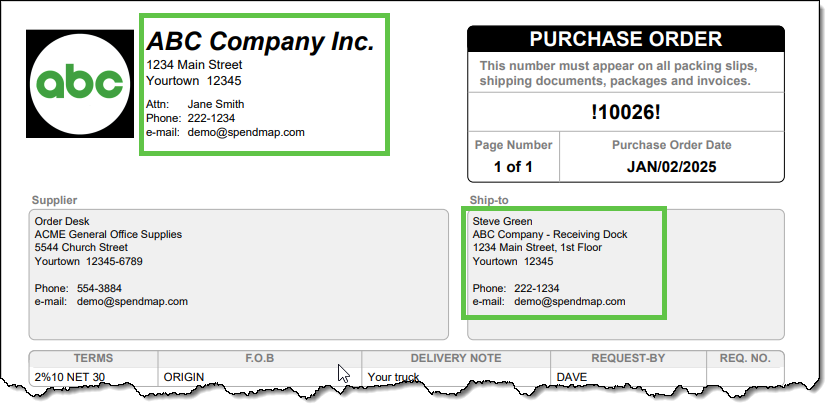
Some people are so excited to start using their free Purchase Order Software that they rush through the Setup Wizard, only to realize later that they need to change the company address displayed at the top of the Purchase Order form…

But don’t worry! It’s completely normal to feel like a kid at Christmas when you get great tools for free. The good news? It’s easy to update your company address after the fact. 😊

There are two ways to modify your Bill-To or Ship-To address information after completing the Setup Wizard…

Option 1: Change the Default Bill-To or Ship-To Address for All New POs

To update the default Bill-To or Ship-To address for future Purchase Orders:

  1. Navigate to the Cost Center section in the left-hand menu.
  2. Look for the codes BILL-TO and SHIP-TO in the list.
  3. Click the Pencil (modify) icon in the Action column on the right-hand side of the grid.

This will allow you to edit the address information associated with those codes. The updated address will automatically appear on all new POs created in SpendMap moving forward.

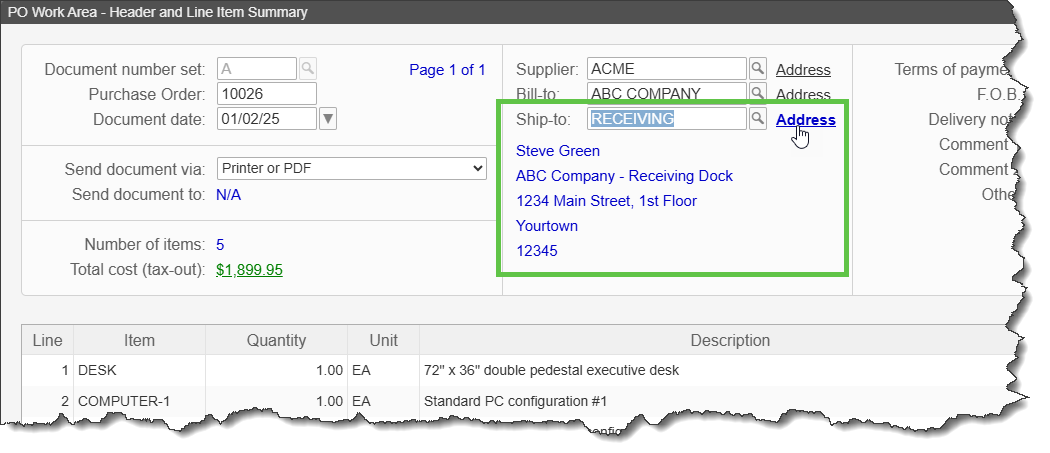
Option 2: Modify the Address for a Specific PO Only

If you want to update the Bill-To or Ship-To address for a single Purchase Order (without changing the default for future POs):

  1. On the PO Header Screen, locate the Bill-To and Ship-To fields.
  2. Click the Address hyperlink next to those fields.

This lets you adjust the address information for that specific PO without affecting other POs.

Add Signature to PO Form in your Free Purchase Order Software

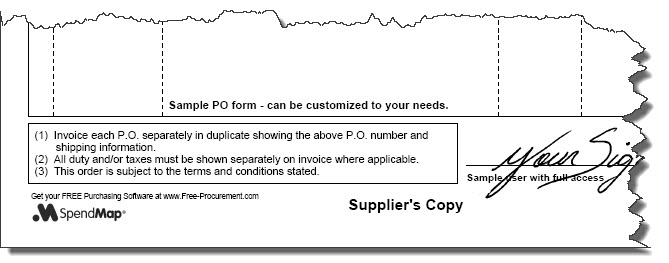
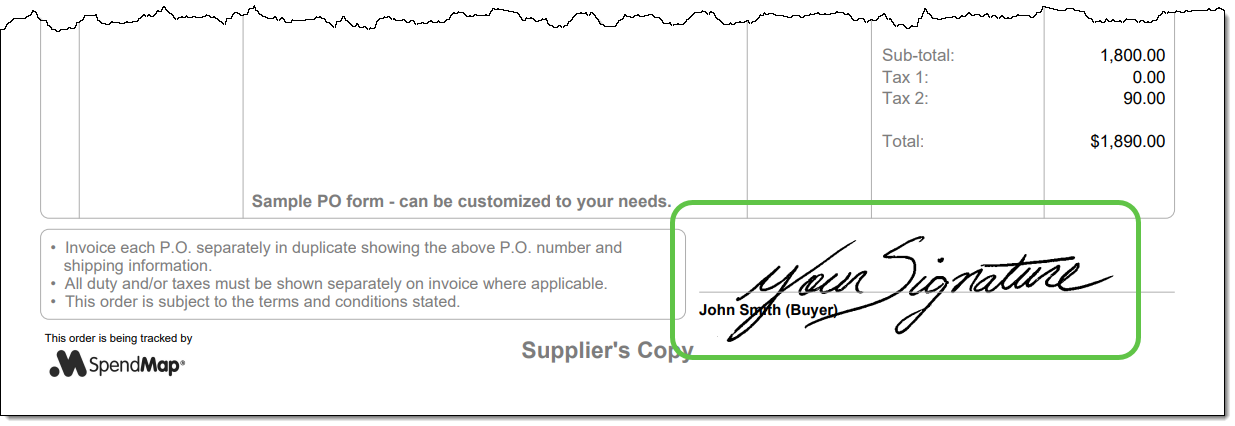
If you’re emailing Purchase Orders to your suppliers directly from SpendMap, or if you’re just tired of signing your Purchase Orders, you can add an “electronic signature” so that your orders will be signed automatically when printed or emailed…

Start by selecting the following menu in the System Setup section…

Select the [Manage User Signatures] button at the top-right, and then use the icons in the Action column to add signatures for one or more users (the applicable signature will be included when the respective user prints or emails their Purchase Orders)…

Upgrade to the 2023 Release of SpendMap’s Free Purchase Order Software

Are you still using version 14.84 of SpendMap’s Free Purchase Order Software for Windows/desktop? It’s time to upgrade to the 2023 release.  Don’t worry; the upgrade utility will seamlessly bring forward all your data, history, settings, and more. This means you won’t lose any of your work in SpendMap.

To begin the upgrade process for your Windows/desktop system:

  1. Open SpendMap and go to HELP > CHECK FOR UPDATES. This action won’t install the upgrade immediately, but rather it will apply a patch to your v14.84 system.
  2. You’ll notice a distinctive red hyperlink at the bottom of the Main Menu in SpendMap.
  3. Click on this hyperlink to access full upgrade instructions.

Tired of Applying Updates? Try the Cloud Version!

We’ve got good news! SpendMap now offers Free Purchase Order Software in the Cloud. With the cloud version, you can forget about manual updates, backups, and other system maintenance. Give it a try today!

Regards,

The Free-Procurement Project Team
Totally FREE software that automates Purchase Orders and much more,
powered by SpendMap.

Upgrade your Free Purchase Order Software

Purchase Order Numbers in your Free PO Software

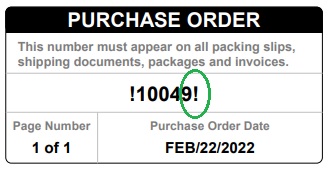
We’ve had a few questions about the exclamation marks (!) that show next to the PO number on Purchase Order forms in the Free Version of SpendMap…

The exclamation marks will only show when you “preview” the PO in your Purchase Order Work Area but will not show when you actually process the order and print an official copy or e-mail it to your supplier.

Some form layouts also include something like “Draft copy – do not process” somewhere on the form.

You can process your new Purchase Orders using this menu option…
Purchase Orders > Process New POs > Process my POs

…or you can select the “process now” prompt when leaving your PO Work Area.

Hope that helps 🙂

Hoping for Free Purchase Order Software from Santa?

The old software was hung,
The users cried “It’s not fair”.
The Purchasing Manager pulled out,
What was left of her hair.

“We can’t take it no more,
This old system’s the pits.
It’s time for a new one,
We’re at the end of our wits.”

“But we don’t have the money”,
The CEO said with chagrin,
“We’ll just have to wait,
For more cash to come in.”

They were sad and frustrated,
They’d heard so many NOs.
How they longed for new software,
To automate their POs.

But then SpendMap came through,
With PO software for FREE,
And things soon got much better,
Oh, the hope and the glee!

They just couldn’t believe,
It does seem kinda funny,
That their fancy new software,
Didn’t cost any money!

And it works so darn well,
They process POs and receive,
They email Purchase Orders to suppliers,
With no paper and such ease.

But that’s just what we do,
It just how we give back.
It’s our pleasure to give you,
This little gift from Spend-Map.

Happy Holidays from your friends at the Free-Procurement Project.

Move your Free Purchase Order Software to another PC

We’ve had a few chats with people wanting to move their free Windows/desktop version of SpendMap from one computer to another.  Here’s everything you need to know…

Before you get started, you may want to consider the following alternatives to moving SpendMap from computer to computer as described below…

  • You can install the system on a network server so that you can access it from any computer on your Local Area Network. For details, please see “Network Installation Instructions”, in the Getting Started Documentation that comes with the software.
  • You can upgrade to our web-based version and then you can access the system from any computer with an Internet connection. In addition, you’ll never have to worry about software installation, maintenance, backups or applying updates, as we take care of everything for you. You can try our Cloud version here if you like.

OK, to move the free Windows/desktop version of SpendMap to a different computer, you do NOT need to download and reinstall a new copy of the system. You just need to move the database/application folder and the shortcuts/icons that you use to run the system.

(more…)

Button TIPs in your Free Purchase Order Software

Expanding on the Bubble Tips that we added to key screens last year, we recently added helpful pop-up Tips to most of the buttons in SpendMap.

Just hover your mouse over a button to see a description of what it does..

For even more details on buttons, fields or anything else that you see on-screen in SpendMap, click the [Help] button on any screen.

New “TIPs” in your Free Purchase Order Software

We added helpful pop-up Tips to around 30 areas of SpendMap, to proactively guide new users in the right direction…

We posted a patch for version 14.84, so you’ll start seeing the tips the next time you update your system, which you can do any time using the menu Help > Check for Updates.

Retiring Last Year’s Free Purchase Order Software (v14.50)

It has been a few months since we released the 2020 version of SpendMap (v14.84), so now the time has come to officially stop supporting the old version (v14.50).

Please upgrade at your earliest convenience.  The upgrade utility will bring forward all your data, history, settings, etc., so you will not lose any of your work in SpendMap.

For instructions on how to upgrade your system and a list of new features, from within SpendMap please select the menu HELP > CHECK FOR UPDATES.  This will not actually install the upgrade.  Rather, if you are using v14.50, this will expose a red hyperlink at the bottom of the Main Menu in SpendMap…just click the hyperlink to see full upgrade instructions.

TIP: You can skip the upgrade by switching to our Cloud Version and get a 20% discount.  For details, please see the promo box at the top-right of the Upgrade Instructions (when you click the red hyperlink in the Main Menu of SpendMap per above).

Thanks,
The Free-Procurement Project Team
Totally FREE software that automates Purchase Orders and a whole lot more
Powered by SpendMap

Upgrade your Free Purchase Order Software