purchase order software

Retiring Last Year’s Free Purchase Order Software (v11.64)

It has been over three months since we announced the free upgrade for last year’s release of the free version of SpendMap (v11.64), so now the time has come to officially stop supporting the old version.

Going forward, we can only provide support for the latest release (v11.98).

If you’re not sure which version you are using, just select the menu HELP > ABOUT.

For instructions on how to update your system, from within SpendMap please select the menu HELP > CHECK FOR UPDATES.  This will not actually install the update.  Rather, if you are using the old version, this will expose a red hyperlink at the bottom of the Main Menu in SpendMap…just click the hyperlink to see full upgrade instructions.

NOTE: The upgrade utility will bring forward all your data, history, settings, etc., so you will not lose any of your work in SpendMap.

Thanks,

The Free-Procurement Project Team
Totally FREE software that automates Purchase Orders and a whole lot more
Powered by SpendMap

Update for free Purchase Order System (various fixes and new Online Help)

An update has been posted to correct a few minor issues in the free version of SpendMap, as well as various improvements to the Online Help.

At your earliest convenience, please select the menu HELP > CHECK FOR UPDATES from within SpendMap to update your system.

As always, this “patch” will NOT update your version number or change any features.

If you have any questions, please use the free support ticket system.

Regards,
– The Free-Procurement Project Team

PS.  Have you told anyone about us lately?  Please help spread the word.  Thanks!

Is free Purchase Order software right for you?

Barry in Washington, D.C. commented that we might want to be a bit more forthcoming about the differences between the Free and Paid versions of SpendMap. free vs.  paid purchase order software

Sorry about that, Barry.  We didn’t mean to hide anything.

In a nutshell, while they are functionally very similar, the Free Version is a Windows/desktop application that was designed for small businesses and small buying groups in larger organizations, while the Paid Version is a web-based (browser-based) system that is more suitable for midsize and large organizations (since it runs in your web browser with no software to install, it’s easier to deploy to a large number of users).

Technology aside, there are also differences in the way that we sell, implement and support the two products.  For example, the Free Version is all set up for SMBs to do a self-evaluation, while we offer a more “consultative” sales approach for our larger customers who are considering the Paid Version (bigger companies tend to have more complex needs when it comes to their e-procurement systems, which often makes a self-evaluation impractical).

Similarly, the Free Version assumes a do-it-yourself implementation using the various resources that we provide with the free software (e.g. online help, video tutorials, online support system), while our larger, paying customers get to work directly with our Client Services Group and have access to our full line of Professional Services, such as priority phone support, web-based and on-site training, implementation consulting, and custom programming services.

Again, these are just the main differences between the Free and Paid Versions of SpendMap.  For more details, we added a new subsection called “Is this right for you?” to the Getting Started Documentation that comes with the free software.  Just select the menu HELP > CHECK FOR UPDATES, then exit and re-run SpendMap.  The new section is right at the top of the Getting Started Documentation.

Hope this helps.

Keep your Purchase Orders out of your supplier’s Junk Mailbox

Are you sending Purchase Orders to your suppliers using the e-mail feature in the free version of SpendMap?

If your e-mailed POs are getting caught in your suppliers’ Junk Mail filters, you might want to try adding some text to the e-mail cover page.  Without some content in the body of the e-mail, the e-mail will include only an attachment (the attached PO) and one line of text (the default e-mail footer “Get your FREE Purchasing Software at…”, which also includes a hyperlink).  In some cases, a one-line e-mail with a hyperlink and an attachment will be enough to trigger a supplier’s SPAM filter.

So consider adding some text to your e-mail cover page for Purchase Orders, using the field called “Boilerplate for POs/Releases/RFQs”, in the E-mail Settings utility, which you can find here…
– PURCHASING > Setup system > e-mail settings

Here’s some sample cover page text to consider…

Dear Supplier,

Please process the following orders/confirmations.

If you have any questions, please contact us before processing this order.

Also please add this e-mail address to your “safe sender” list or address book, to help ensure that you get our Purchase Orders going forward.

Thank you,

ABC Company – Purchasing Department
(other contact info here)
(avoid adding hyperlinks like e-mail addresses or your company’s URL, as additional links can increase an e-mail’s SPAM score)

Buying services with your free Purchase Order Software

Joe works in the housing development industry in New Jersey and was wondering if he can use SpendMap to buy electrical services.

Sure thing Joe.  SpendMap can be used to manage Purchase Orders for all kinds of services, just as easily as physical products.  And there’s actually not much difference in the process.

So using your example of buying “one hour of installing electrical outlets”, you might want to set up a unit of measure as “HOUR” in the Units of Measure Master File, and then you can use that UoM on the PO. So just like you would buy 1 EACH of a physical product, you would buy 1 HOUR of the service.

Another Unit of Measure that I see people use commonly for services is “LOT”. That is, rather than specifying the number of hours as the quantity for the order, they would buy “1 LOT” of services (e.g. Quantity: 1, Unit: LOT, DESCRIPTION: Complete installation and configuration of PC). This obviously makes sense when the number of hours is unknown and/or if there is a fixed price for the complete service. You can actually see a sample of this in the Evaluation Copy of SpendMap…just log in as the user “FULL”, and check out PO #10026 in that user’s PO Work Area.

With respect to the Item Master File, you may or may not decide to use that for services like this. For example, if you want to keep track of the history of all the times you bought that “electrical service”, by all means add an item to the Item Master as “Misc. Electrical Services” or something like that, and then pick that item each time you order those services, after which you can see the history of that service using this…
– PURCHASING > Status & Inquiries > Item History

That said, it’s also quite common to not use the Item Master for services, and just do a “one-off” instead. You can learn about that in the subsection “Using One-Offs”, in this section of the Online Help…
– System-Wide Features and Information > Master Files > About Master Files

Finally, you may want to consider the receiving process when buying services.  Many SpendMap customers do use the Receiving Module to indicate that the services that they purchased were “delivered” (i.e. completed).  While there’s no physical product to receive, you are nevertheless receiving the service, so you might want the status of the Purchase Order to reflect that, and of course if you’re using the optional Invoice Approval Module, you’ll want to know that the service was in fact delivered before paying the invoice, just like a physical product.

That said, it not uncommon to skip the receiving process for services.  If that’s your preference, you can just wait for the invoice to show up and you can do a two-way match (PO > Invoice) instead of a three-way match (PO > Receipt > Invoice), or you might want to check out the Auto-Receiving feature in SpendMap, which can automatically receive Purchase Orders for services on their delivery dates, without having to enter receipt transactions manually.  You can learn more in this section of the Online Help…
– RECEIVING > Utility > Auto-receive POs

Fix for Testing Copy and PO Form margins in free version of SpendMap

We have corrected two minor problems in the free version of SpendMap…

  1. On some printers, Purchase Order forms were printing with no top and left margins, making the form appear off-center.  You can correct this simply by selecting the menu HELP > CHECK FOR UPDATES in SpendMap.
  2. When using the “Testing Copy” of SpendMap, which allows you to make a copy of your Live System for testing purposes, sometimes the copying procedure would fail with the message “Unable to delete files in ROOT folder”, after which the icon/shortcut to run the Testing Copy would fail to launch.  Unfortunately, if you experienced this issue, you will not be able to log into your Testing Copy to check for updates, so just submit a support ticket or send us an e-mail at free-procurement@spendmap.com and we’ll reply back with instructions for correcting the problem.  However, if you are able to log into your Testing Copy, please do so (without refreshing the data from your Live Copy) and select the menu HELP > CHECK FOR UPDATES, to avoid the issue going forward.

Sorry the inconvenience.

Best regards,

The Free-Procurement Project team
Totally FREE software that automates Purchase Orders and a whole lot more
Powered by SpendMap

Step-by-step Setup Guide for free Purchase Order Software

We’ve had a few requests for a step-by-step guide or video tutorial for setting up the free version of SpendMap.  Mostly we’re seeing that in the responses to the survey that we send out a couple of weeks after people download the free Purchase Order system.

Yes, we thought of that when we were putting together the video tutorials and other resources for the free version of SpendMap.  The problem is, each company will take different steps when setting up SpendMap, depending on their specific procurement processes and the features and modules of the system that they plan to use.

For example, some people just want to automate their Purchase Orders, while others want to automate Requisitions and approvals, POs, receiving, supplier invoice approval, and inventory control.  And even within each module, there are many features that you may or may not need, depending on how you manage your Purchasing.

In our experience, most people only use 20% or so of the features/functionality in this type of system.  The challenge is, the 20% that you need will be different than the 20% that someone else needs.

So unfortunately it just not practical to put together a generic, “one-size-fits-all” getting started guide that would work for everyone.

We did, however, create 20 or so video tutorials for you, which cover the most popular features that most people will likely need.

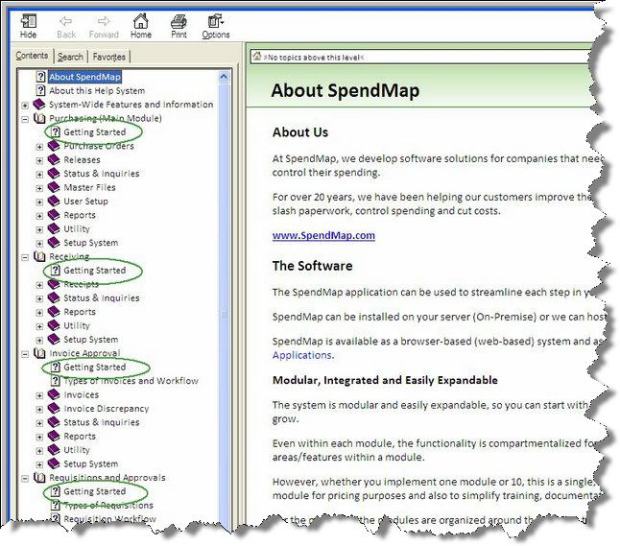
Also, the Online Help system has a Getting Started section for each of the primary modules, which appears as the first sub-section under each module…

getting-started with free PO system

You might also want to take a look at the subsection “Time to Implement” in the Getting Started Documentation that came with your free software…that will point you in the right direction.

Thanks for your input!

Currency and Tax setup in free Purchase Order Software

We’ve had a few support tickets from folks in the United Kingdom, asking how to change the default currency in SpendMap from dollars ($) to pounds sterling (£).

The question usually comes alongside another question about how to set up Value Added Tax (VAT) as the default sales tax rate in the system.

So this blog post outlines the options for changing the default currency and taxes in the free version of SpendMap.  I’ll use “pounds” and “VAT” as the examples, but SpendMap supports other currencies and taxes too, which you can set up in the Tax and Exchange Rates Master File.

Setup Wizard

First things first, I guess I should mention that you will be prompted to select your currency and default taxes during the Setup Wizard, which will run automatically when you log into your Live (Production) copy of SpendMap for the first time.

If for some reason you want to change the currency or taxes in the Evaluation copy of SpendMap (the sample data in the Evaluation copy uses dollars ($) and a generic tax code of “TAX 1”), or if you just missed that part of the Setup Wizard the first time you ran your Live copy, keep reading to learn how to change the default currency and taxes after-the-fact…

(more…)