purchase orders

How to Personalize the Email Messages in your Free Purchase Order Software

Peter from the United Kingdom reached out to us on Facebook to ask if he could personalize the emails that SpendMap creates when sending Purchase Orders to his suppliers…

“Is there a way to create a template email?  Also is there a way that the (PDF file name) can be defined, either to match the PO or have a prefix?”

Yes, there are settings in SpendMap to personalize the email messages, including;

  1. Adding your company name to the “From” field of the email messages,
  2. Adding any text that you want to the body of the email itself, and
  3. You can customize the filename of the PDF document (i.e. the PO itself) to show your company name (or any other prefix), as well as including the PO number in the filename.

All these options are available in the middle of the Email Settings screen, which you can find here…
– PURCHASING > Setup system > e-mail settings


The Online Help for that screen has all the details about how to use those settings, but here’s what your emails might look like, based on the settings used above…

Email Purchase Order


Archiving Old Purchase Orders for a Cleaner View

Archive Closed Purchase OrdersPeter works in a state agency in Louisiana and was asking about removing old Purchase Orders from his Open PO list…
“Once a PO is received and closed it should come off the list.”

You can remove received/closed POs from the Open PO list by moving them to the Closed PO Archive, using…
– PURCHASING > Utility > Purge and Archive History > Archived Purchase Orders > Archive closed POs

…or you can use the applicable setting in the [Permissions] folder of the User Master File, to be prompted from time-to-time to archive your close POs when logging into SpendMap.

This will reduce the number of POs that you see in the Look-up List in View PO Status, when printing PO-related reports, etc., making it easier to focus your attention on the remaining (still open) orders.

Please note, however, that running this utility may leave some closed Purchase Orders behind (ie. they will remain in the Open PO list), per the setting “Number of days before closed POs are moved to the Closed PO Archive“, which you can find at the bottom of the screen in here…
– PURCHASING > Setup system> Purchase order settings > PO processing settings

That is, this setting will keep received/closed POs in the Open PO area for the number of days that you specify, as you may have need to access recently closed orders.  Most SpendMap customers set this to between 30 and 90 days.  Peter – set yours to zero (0).

While you can always access your old/closed Purchase Orders even after they have been archived, and while you can even unarchive/restore a PO back into the Open PO area, it may be more convenient for you to just keep, say, a month or two worth of old POs front-and-center, again, if you need to refer to recently closed POs as a regular course of business.

Move line items to another PO in your Free PO Software

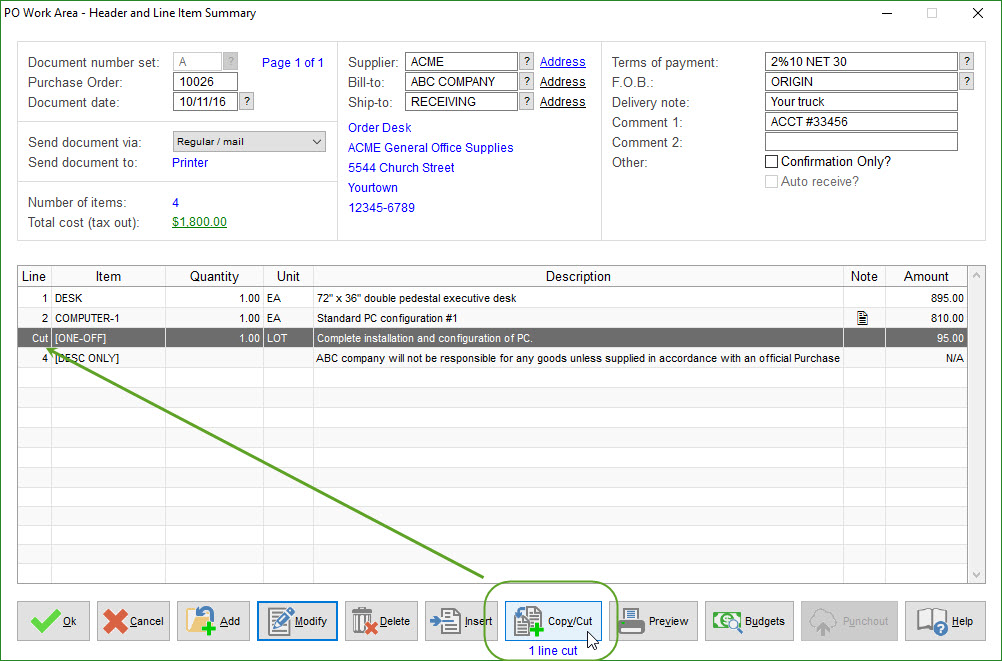
To save time, you can “cut” line items from one Purchase Order in your PO Work Area and then “paste” the line items onto a different PO, rather than starting a new Purchase Order from scratch.

Perhaps you made a last-minute decision to use a different supplier for certain products or services or maybe you want the items moved to a different PO for some other reason.

Just use the [Copy/Cut] button at the bottom of the PO Header Screen to “tag” the applicable line item(s)…

Cut PO Line Item

Then move to the other PO and click the [Add] button to add the line items to the bottom of the list.  Or use [Insert] to add the items in between existing items on the PO…

Paste PO Line Items

All of the line item details will be carried forward to the new PO, including all data entry fields, any internal notes and attachments, split-charge account coding details, etc.

TIP: Use the [Copy/Cut] button to tag as many line items as you like, rather than moving them one at a time.

Separate PDF files to send Purchase Orders to suppliers by e-mail

Imran works in the Engineering Services field and was asking about the best way to create PDF files of his Purchase Orders to send to his suppliers when using the free version of SpendMap.Many-POs-in-PDF

“While processing a PO, how do I print the buyer’s copy and seller’s copy separately?
…it is printing both pages together.”

Imran is printing both a “supplier’s copy” as well as an “internal copy” of his Purchase Orders, and both are ending up in a single PDF file (since both copies are in the same print job).

This would also be an issue when processing multiple POs for multiple suppliers at the same time.  For example, if you processed 5 POs in your PO Work Area for 5 separate suppliers, if you chose to print to a PDF file, you would get a single PDF file containing all 5 orders, again, since all are coming from the same print job.

If you’re printing hard copies (on paper), this doesn’t matter because you’ll just grab the pile of POs off the printer and give each one to the applicable supplier.  But if you’re printing to PDF (most likely to send to your suppliers by e-mail as Imran is trying to do), then you will end up with a single PDF with all POs in a single file, which obviously won’t work.

Solution: Use SpendMap’s Email Module to send the supplier their PDF file.

Instead of enabling multiple copies of your printed POs in PO Printing Settings, just use SpendMap’s built-in email feature to send the supplier their copy of the order.  When you process new orders, SpendMap will create a PDF copy of the PO, attach it to an e-mail message, and will send it to the supplier automatically, with no manual intervention (i.e. it all happens behind-the-scenes, so there is no need to manually create PDF files, manually create e-mail messages, and then attach the applicable PDFs to the applicable e-mails.

(more…)

Sender of email messages in your free Purchase Order Software

mail-GREENMichael works in the construction industry in England and was asking about the “From” field when sending Purchase Orders and other documents to his suppliers by e-mail…

“Do all emailed purchase orders need to be sent from the same email address irrespective of user? … Is it possible to have individual email addresses for each user, if so how do I set this up?”

You actually have both options.  The e-mail can come from the individual Buyers (i.e. the person who processes the Purchase Order in SpendMap) or it can be the same e-mail address regardless of who is sending the order, such as “Purchasing@YourCompany” or similar.

It’s controlled by the setting “Sender of external automatic messages” in…
– PURCHASING > Setup system > e-mail settings

Per the Online Help for that setting, the “sender” is noteworthy as the recipient might reply to a message or an error might occur during transmission (in which case the sender would typically get an “undeliverable mail” message from the outgoing mail server), so if you decide to use a single e-mail address for all messages, make sure that someone is set up to receive messages to that account.

Hope that helps.

Seeing other users’ work in your Free Purchase Order Software

PO-Work-Area-Toolbar-ButtonRandy works at a consulting firm in Little Rock, Arkansas, and was asking why users aren’t able to see other people’s work in SpendMap…

“I installed the free version of SpendMap on a server for two users. They are trying to see each other’s work (one added a PO, but the other can’t see it under the PO Main screen). Is this the way it is supposed to work?”

Randy is referring to Purchase Orders in the users’ PO Work Areas, which contain their “work in progress” (i.e. the POs that are still “on their desks”).  When they’re finished, they will process the new POs, which will update many areas of the system, so that everyone can see (provided they have the appropriate permissions).

So yes, Purchase Orders, Requisitions, RFQs and other “pending” documents/transactions will not be visible (in most areas of the system) until they are processed.

To learn more, check out this section of the Online Help…
– System-Wide Features and Information > System-Wide Features and Utilities > Document Work Areas


How to add a Page Break in your free Purchase Order Software

Sometimes you may need to force a “page break” while entering a PO or other document in the free version of SpendMap.

For example, some people like to add instructions for the supplier or other special notes/comments on a separate page.  Or maybe you want a separate page for each Ship-To location, with a separate list of items for each destination..

To force a page break while entering a new Purchase Order, Requisition or RFQ, use the [Page Break] button at the bottom of the PO, Requisition or RFQ Work Area Summary Screen…

Purchase Order with Page Break

TIP: If you ever need to move line items from one page of the document to another, please note that the [Copy/Cut] button at the bottom of the Line Item Summary Screen works across pages.  That is, you can Cut one or more line items from one page and then Add or Insert them on a different page (or even a different PO).

3 More Reasons to use Free Purchase Order Software

happy purchase order software usersInteresting data from Spend Matters and American Productivity & Quality Center,

If we’re crunching the numbers correctly, automating your procure-to-pay process can:

  • Save up to 71% of the time it takes to process Purchase Orders
  • Increase the number of Purchasing transactions that each staff member can process by 186%
  • Reduce supplier lead time to receive orders by up to 9 days

As if you needed even more motivation to implement our Free Purchase Order Software.


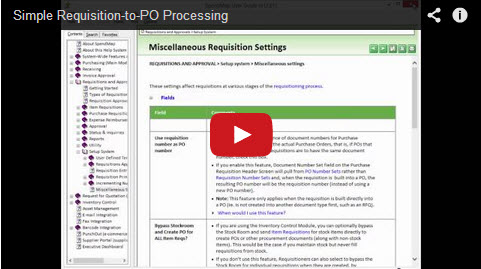
New Tutorial: Simple Requisition-to-PO Processing

We added a new feature in the 2014 Release to convert approved Purchase Requisitions into Purchase Orders, as soon as the last approval occurs, so you no longer have to run the Build PO Utility as a separate step.

We had a few requests for this feature from smaller companies that don’t have Purchasing Departments or dedicated Buyers (i.e. the Requisitioners are responsible for placing the orders once their Requisitions are approved).

The Tutorial also reviews a few other related features that are popular with smaller companies (and larger companies that have “end-user Purchasing”), so we rolled it all into this video, which we’re calling “Simple Requisition-to-PO Processing”.

Click the image below to watch the tutorial on YouTube, and don’t forget to visit our Channel to see 20 other video tutorials that will help you get started with the most popular features in your free Purchase Order system…

Tutorial: Simple Requisition-to-PO Processing