Software Tips & Tricks

Separate PDF files to send Purchase Orders to suppliers by e-mail

Imran works in the Engineering Services field and was asking about the best way to create PDF files of his Purchase Orders to send to his suppliers when using the free version of SpendMap.Many-POs-in-PDF

“While processing a PO, how do I print the buyer’s copy and seller’s copy separately?
…it is printing both pages together.”

Imran is printing both a “supplier’s copy” as well as an “internal copy” of his Purchase Orders, and both are ending up in a single PDF file (since both copies are in the same print job).

This would also be an issue when processing multiple POs for multiple suppliers at the same time.  For example, if you processed 5 POs in your PO Work Area for 5 separate suppliers, if you chose to print to a PDF file, you would get a single PDF file containing all 5 orders, again, since all are coming from the same print job.

If you’re printing hard copies (on paper), this doesn’t matter because you’ll just grab the pile of POs off the printer and give each one to the applicable supplier.  But if you’re printing to PDF (most likely to send to your suppliers by e-mail as Imran is trying to do), then you will end up with a single PDF with all POs in a single file, which obviously won’t work.

Solution: Use SpendMap’s Email Module to send the supplier their PDF file.

Instead of enabling multiple copies of your printed POs in PO Printing Settings, just use SpendMap’s built-in email feature to send the supplier their copy of the order.  When you process new orders, SpendMap will create a PDF copy of the PO, attach it to an e-mail message, and will send it to the supplier automatically, with no manual intervention (i.e. it all happens behind-the-scenes, so there is no need to manually create PDF files, manually create e-mail messages, and then attach the applicable PDFs to the applicable e-mails.

(more…)

How to display ONLY those items from the supplier on your Purchase Order

There is a new feature in version 14 of SpendMap that you can use to limit the items that your staff can select while entering Purchase Orders, such that they will only be able to select the standard items that you have set up for that supplier in advance.  That is, you can prohibit the use of non-standard items/suppliers.

Just use the new setting in PO Entry Settings, which you can find here…
– PURCHASING > Setup system> Purchase Order settings > PO entry settings

Listing only-items-for-supplier in PO Software

Alternatively, without this formal restriction, users can also search for items by supplier while entering new POs.

Finally, if you forgo the restriction and allow your staff to select non-standard items/suppliers but still want to know when it’s happening, you can use the setting “Log if non-standard supplier is chosen”, in System Alert Log Settings…
– PURCHASING > Setup system > System alert log settings

Auto-Update Currency Exchange Rates in your Free Purchase Order Software

CurrencyIf you’re using multiple currencies in SpendMap, you might be tired of updating the Exchange Rates for your Currency Codes all the time.

To save you some time and effort, we added a new feature in version 14 of SpendMap that can be used to update all exchange rates in SpendMap with current rates available on the Internet (from Yahoo! Finance), as opposed to having to update the Rate Field for each Currency Code manually.

Here’s the menu path in SpendMap…
– PURCHASING > Master Files > Tax and Exchange Rates > Update currency exchange rates from the web

As the online Help for that utility explains, you can either run this menu option manually from time to time or you can use the setting “Exchange rate update option” in User Defined Field Defaults to instruct SpendMap to update the exchange rates automatically once per day…
– PURCHASING > Setup system > User defined terminology and settings > User defined field defaults

If you use multiple currencies in SpendMap, updating the exchange rates frequently is recommended so that the landed dollar values for each transaction (which affect budgets, spend reporting, etc.) will be as accurate as possible.

World Backup Day and your Free Purchase Order Software

We’re not sure if World Backup Day is really a thing but any excuse to remind you to protect your work in the free version of SpendMap is a good thing.

Remember, unlike the On-Demand/SaaS version of SpendMap, when using the free Windows/desktop application, your database is installed on your own computer, so we’re not backing it up for you.

For details, please see “Backup and Restore Procedures” in the Getting Started Documentation that comes with the software.

An ounce of prevention is worth a pound of cure.

Updated Video Tutorials for your Free Purchase Order Software

We started updating some of the video tutorials on our YouTube Channel to show the 2016 release of SpendMap (v14).

Note the version number in the title of each video.

We plan to update more videos in the coming weeks.  In the meantime, feel free to refer to the older videos, even if you’re using the latest release of SpendMap.  We never take features away, so anything that you see in the older videos will still apply to newer releases of SpendMap, albeit with some differences in the screens.

Youtube-SM-logos

Is your free Purchase Order Software a bit too loud?

After all that New Year’s fun, you might want to turn the volume down a bit in your free Purchase Order software.

To disable the warning/notification sounds in SpendMap, just use the Workstation Setting for “Audible Prompts (beeping)“, in here…
– PURCHASING > Setup system > Workstation configuration settings

In v12.65 it is setting #4 but in v14 (coming soon) we moved it to #12.

No-Sound


Can’t see your free Purchase Order Software?

The free version of SpendMap can show you where the money is going.  But only if you can read the screens!

If you would like to make the screens a bit bigger in your free Purchase Order Software System, try using setting #10 (Font/Screen Scaling Factor) in here…
– PURCHASING > Setup system > Workstation configuration settings

Visibility and free Purchase Order Software

Popular Videos for Buyers and Purchasing Managers

Our YouTube Channel is approaching 80,000 views.

And the video that reviews our Free Purchase Order Software is about to hit 25,000 views itself.

Aside from helping you implement the free version of SpendMap, our video tutorials are a good way to learn about the benefits of e-procurement software in general.

Thanks for  your time and interest.

– The Free-Procurement Project Team

Youtube-SM-logos

Testing Your Free Purchase Order Software

Todd was trying to refresh his Testing (“sandbox”) copy of SpendMap so that it has the same data and configuration/settings as his Live (“production”) copy, using this menu option…
– PURCHASING > Setup system > Test environment > Create a TEST system from your PRODUCTION system

…but he got the error message “This does not apply to the free version (A test system was already installed in your free folder)“.

Sorry about that Todd.  That menu is only used in our paid (commercial) version.  We use a different approach to manage Testing Systems in the free version of SpendMap.

Here’s how it works…

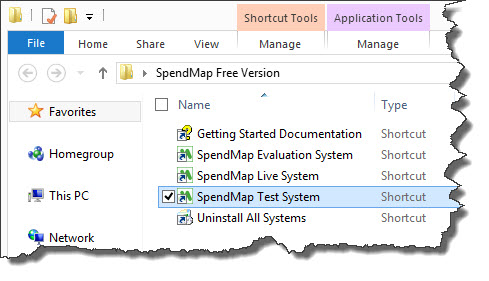
When you install the Free Version, you will get a folder in your Desktop called “SpendMap Free Version” with five shortcuts in it, one of which is the SpendMap Test System

free purchase order software shortcuts

To refresh the data in your Test System, just run that shortcut and you will be prompted for the location where your Live System is installed, so that it can be copied.  If you’re not sure, just log into your Live System, select the menu Help > System Information, and see #8 “Shared File Location”.

Reminder:  Use of the Test System is not always necessary.  You can also do testing in your Evaluation System, which is preloaded with sample data and the most popular settings.  That said, if you want to test something that might be affected by the settings or data in your Live System, then that’s what the Test System is there for.