Don’t forget to reindex your free Purchase Order Software

The embedded database that comes with the free version of SpendMap is ideal for a free PO System like this because it’s super easy to install (the database actually installs itself when you install SpendMap).

But unlike SQL Server and Oracle databases used in our paid version, there’s nothing running on the server to do any behind-the-scenes database maintenance.

So it’s important to reindex the embedded database once in a while.  For details, please see this section of the Online Help…
– PURCHASING > Utility > Database Maintenance > Reindex all tables

If you would like the system to remind you to run the reindex utility from time to time, just enable the first setting in the [Permissions] tab of the User Master File.

And remember, you can also run the reindex operation automatically (unattended) from a task scheduler.  Here’s the Help section…
– System-Wide Features and Information > System Admin and Maintenance > Unattended Mode

FYI – We just finished a new scripting option to make it faster and easier to configure unattended operations…no more need to preconfigure pop-up options for a user account.  One less thing.

Multiple PO number sequences in your free Purchase Order Software

Lisa works in the construction industry in South Africa and was asking about setting up different sequences of PO numbers for each of her projects…

“We work on a lot of different sites and we need different sequences of (Purchase Order) numbers for each project/job – how do I configure the different sequences?”

Sure thing Lisa, you can set up a different “PO Number Set” for each Project/Job, each with its own incrementing PO number.  Then you can select that Number Set when creating orders for that project.  Here’s the menu option…
– PURCHASING > Setup system > Incrementing document number sets > POs

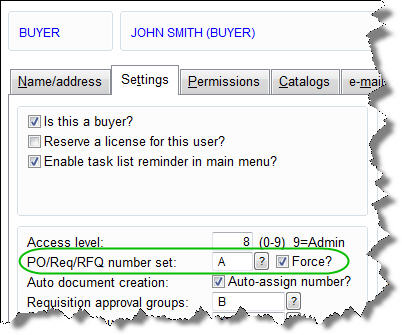
If you like, you can also assign a default PO Number Set to each user (e.g. if a user works on specific Project), so that it defaults to their PO Number Set automatically for each new order.  You can optionally do that using the field called “PO/Req/RFQ number set”, in the [SETTINGS] Folder of the User Master File.

If you don’t specify a default for a user (e.g. if they work on multiple projects/jobs), they can just select a PO Number Set when creating each new Purchase Order in their PO work Area.

Finally, if you want a user to have access to ONLY one Number Set and no others, you can use the “Force?” check-box, just to the right of the “PO/Req/RFQ number set” field…

PO Number Settings for User

Your network server may be a safer place for your free Purchase Order Software

Craig had the Free Version of SpendMap installed on his laptop (including the database), and the voltage regulator went out, so he couldn’t power up his machine.

Luckily, he was able to make an image of the drive, so we were able to get his system up and running on his new PC.

Since laptop and desktop computers are not as reliable as servers, please consider installing SpendMap on a network server by following the “Network Installation Instructions”, in the Getting Started Documentation that came with your free Software.

You’ll sleep better at night with your database resting peacefully on a nice, safe network drive, even if you don’t need multi-user access to the system.

An ounce of prevention is worth a pound of cure.

Expense Reimbursement Requests in your Free PO System

We’ve had a few requests from the Free-Procurement community for the ability to enter a “Request for Reimbursement” in SpendMap.  This has already been added to the system and is coming in the 2014 release of SpendMap.

Also known as “expense management” and “expense reports”, this includes the ability for staff to request reimbursement for something that they purchased and paid for personally, instead of creating a Requisition or Purchase Order in the procurement system.

expense reimbursementsWhat role do expense reimbursements play in your Purchasing process?

Some would argue that it should be avoided and that expense reimbursement is not ideal from a Spend Management perspective, since the approval process comes after the purchase transaction (in a perfect world, all spending would be approved before the products or services are ordered).  But in some cases it’s just not practical to create a Purchase Order for everything that you buy.  Common examples include things like travel expenses, meals and entertainment, and so on.

In any event, while we always advocate for pre-purchase spend control whenever possible, we understand that expense reimbursements play an important role in some Purchasing environments, and we have already added Expense Reimbursement functionality to SpendMap, allowing users to submit expense reimbursement requests, which can be routed for online approval based on user-definable business rules, just like Purchase Requisitions.  Once approved, SpendMap will send a “check request” to your Accounting System to process payment to the employee, update the status of the cost center’s budgets, and so on, all without the hassle, errors and delays that are inherent with paper-based expense reports.

These new features will be available in the 2014 release of the Free Version of SpendMap.

On a separate but related note, don’t forget that SpendMap also supports Non-PO Invoice approval, for things like rent and utilities, where it’s also not practical to create Purchase Orders in advance, but approval of a supplier’s invoice is still required.  For details, check out this section of the Online Help…
– Invoice Approval > Types of Invoices and Workflow

Free-Procurement Friday: 100 Likes on Facebook

Looks like we’ll reach 100 Likes on our new Facebook fan page today.

Thanks everyone!

Please Like and Share our Facebook page to show your support for the Free-Procurement Project.

100 likes

Entering PO numbers manually in your free Purchase Order Software

Marsha works at a shipyard in Newfoundland, Canada, and was asking if she can enter her PO numbers manually, instead of SpendMap assigning the next Purchase Order number automatically for each new order.

Sure thing Marsha, you can enter your PO numbers manually on each new PO if you prefer.

The Setup Wizard, which runs automatically when you first run the Live Copy of SpendMap, will set up an “auto incrementing” sequence of PO numbers, since most people want that, but you can either;

  1. replace that auto-incrementing number with the option of manually entering your PO numbers, or
  2. you can set up multiple “PO Number Sets”, and one of the Number Sets can give you the next sequential number for each new PO, and you can use a separate PO Number Set that allows you to enter the PO numbers manually for certain orders when you need to.

You can change the settings in here…
– PURCHASING > Setup system > Incrementing document number sets > POs

If you want to enter your PO number manually, just enter “.” (a period, without the quotes) in the Next Number field, then select the check-box to “Allow user to modify number”.

PO number settings

The Free-Procurement Project is on Facebook

Find us on FacebookHey there fellow Spend-Mappers,

We just joined Facebook to help keep the conversation going, and to expand our social media presence beyond Twitter and this Blog.

Please “Like” our Facebook page and join the conversation.

We need to get to 20 Likes before Facebook will give us a proper (short) address/URL for our Page, and if we can get to 100 Likes, we can start running offers.

In addition to updates on the Project, software “tips and tricks” and other content similar to this Blog, we plan to use our new Facebook Fan Page to develop a closer relationship with the Free-Procurement community (that’s you).

Looking forward to connecting with you soon…

Best regards,
-The Free-Procurement Project team

MAPI vs. SMTP e-mail setup in your free PO Software


>>> 07/29/2015 update – The free version of SpendMap now includes a free, built-in e-mail service, which you can use instead of configuring the system to use your own e-mail server or ISP.  This post has details.  The balance of this post, below, still applies if you want to set the system up to use your own e-mail server or ISP.


Since we blogged last month about how to set up the e-mail module in the free version of SpendMap, we realize that the MAPI option might be better than SMTP for many smaller companies (the target market for the Free-Procurement Project).

Our suggestion in last month’s blog post to try the SMTP option first came from our Support Group’s experience with our paying customers, who mostly use the web-based version of SpendMap, and who usually have their own (internal) SMTP servers.  For these customers, SMTP is usually the best option.

But for smaller companies, who are more likely to use a third-party e-mail provider like Gmail, YAHOO mail, MS Live, etc., the SMTP option may not work as some hosted e-mail services don’t allow third-party apps to connect to their outgoing mail servers.

So, if you don’t have your own internal SMTP server, please give the MAPI option a try first, using the two fields at the top of the E-mail Setting Screen.

TIP: Assuming you have MAPI-compliant e-mail software (e.g. Outlook) installed on the PC that you’ll be using for SpendMap, setting the first two fields in E-mail Setting to the MAPI option is all that will be required.  In most cases, you do not need to enter any of the other MAPI-related settings further down the screen.  Any e-mail messages that SpendMap generates will be “handed off” to Outlook and will show in your Out Box until you hit [Send].

All the other instructions in that earlier blog post remain the same (e.g. other setup steps, testing, etc.).

Sorry for the false start, folks.  If you have any trouble, we’re always here to help.

Best regards,
The Free-Procurement Project team
Totally FREE software that automates Purchase Orders and a whole lot more
Powered by SpendMap

Printing POs to disk in your Free Purchase Order Software

Alan works in the graphic design industry in Glasgow, UK, and he was asking why he’s getting the message “PDF file creation is not available from here” when he selects the “Disk (PDF) file” option when processing new Purchase Orders in his PO Work Area…

Save PO to Disk

As it turns out, we recently added support for PDF file creation in that area, so if you’d like to save new POs to disk rather than printing a hard copy, that option is now available.  If you’re still getting the message “PDF file creation is not available from here”, just select the menu HELP > CHECK FOR UPDATES to update your free version of SpendMap.

But please note that printing POs to disk is usually not necessary (which is why that option was not available previously).  Here are a few reasons why you might be doing that, along with alternate (recommended) functionality to consider…

PO history

If you are saving a copy of your POs to disk to have around for historical/audit purposes, please note that every new PO that you process is stored in SpendMap automatically, whether or not you print a hard copy or save a copy to disk.  At any time, you can reprint a processed PO, or pull up the details of the order on-screen.  Here are the applicable menu options…

– PURCHASING > Purchase Orders > Re-print or re-send a processed PO
– PURCHASING > Status & Inquiries > PO Status
(TIP: you can also re-print a copy of the actual PO document, using the [Print] button at the bottom of the screen)

There are also many reports that show Purchase Order history, under…
– PURCHASING > Reports > Purchase Order Reports >

E-mailing POs to suppliers

You might be saving a copy of new POs to disk in order to e-mail them to your suppliers.  But a better alternative would be to select the “e-mail” option in the Send Document Via field on the PO Header Screen, in which case the PO will be e-mailed to the supplier automatically (with no extra work) when the PO is processed…

Send Purchase Order by e-mail

That way, you won’t have to manually create an e-mail for each PO, manually attach the PDF file that you created, etc.

In addition, if you process a batch of POs for multiple suppliers, SpendMap will automatically create a separate e-mail for each supplier, and attach only their POs.  By comparison, if you use the “Disk (PDF) file” option when processing new POs, you’ll get a single PDF file with all POs that you’re processing (for all suppliers), so you’d have to process the batch in pieces in order to get a separate PDF file for each supplier.

Anyway, we took all that into account with the “e-mail” option in the Send Document Via field.  For more details on how we intended for you to send POs to your suppliers by e-mail, check out this section of the Online Help…
– System-Wide Features and Information > Documents and Reports > Sending Documents Electronically

Don’t need a copy of your Purchase Orders at all?

Some of you might be printing to disk because you don’t need any hard copies at all (e.g. if you’re calling in your orders to your suppliers), so perhaps you’re using the “Disk (PDF) file” option to avoid sending the print job to your printer?

If so, please consider using the “None/verbal” option in the Send Document Via field, in which case new POs will not be printed or transmitted when processed.  Again, you can use this option when you only want to store the PO in the system, but you have another means of informing the supplier about the new order (e.g. by phone).

Got anymore feedback for us?

We’re not exactly sure why a few of you have asked for the ability to (manually) save a copy of each new PO to disk, but we try to listen so, again, we did add that ability recently.  If you still want to, you can now select the “Disk (PDF) file” option when processing new Purchase Orders from your PO Work Area.

If there are other reasons why you’re manually saving POs to disk that we haven’t thought of, please let us know by adding a comment to this blog post, or e-mail us at free-procurement@spendmap.com

Thanks!