configuration

Manual PO Numbers in your Free Purchase Order Software

By default, the Free Version of SpendMap will automatically assign incrementing PO numbers to each new Purchase Order that you enter in the system.  You can set up your “Next PO number” during the Setup Wizard that runs automatically when you log into SpendMap for the first time.

But if you prefer to enter your PO numbers manually for each new order, just select the following menu in in the Purchasing Module…
– Setup system (“wrench” icon) > Incrementing document number sets > POs

Then modify PO Number Set A per the screenshot, below.  From that point on, whenever you create a new Purchase Order, the PO Number will be blank and you can enter it manually.

Finally, please note that you can have more than one “PO number set”, for example, if you need multiple sequences of incrementing numbers, or if you want the number to increment for some orders while entering it manually for other orders.

How to edit company address in your free PO Software

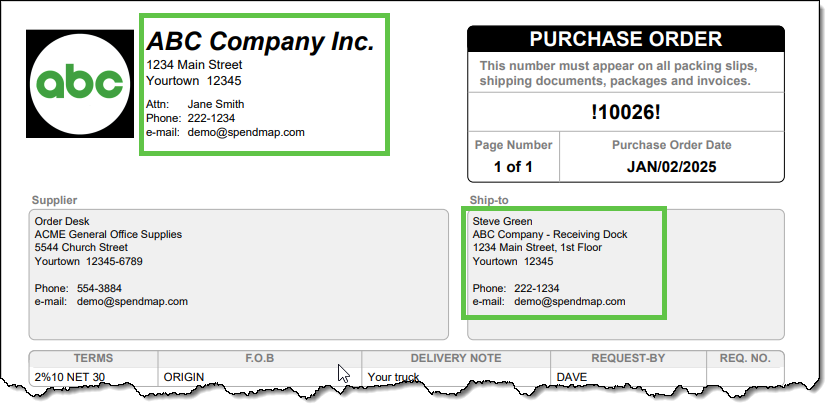
Some people are so excited to start using their free Purchase Order Software that they rush through the Setup Wizard, only to realize later that they need to change the company address displayed at the top of the Purchase Order form…

But don’t worry! It’s completely normal to feel like a kid at Christmas when you get great tools for free. The good news? It’s easy to update your company address after the fact. 😊

There are two ways to modify your Bill-To or Ship-To address information after completing the Setup Wizard…

Option 1: Change the Default Bill-To or Ship-To Address for All New POs

To update the default Bill-To or Ship-To address for future Purchase Orders:

  1. Navigate to the Cost Center section in the left-hand menu.
  2. Look for the codes BILL-TO and SHIP-TO in the list.
  3. Click the Pencil (modify) icon in the Action column on the right-hand side of the grid.

This will allow you to edit the address information associated with those codes. The updated address will automatically appear on all new POs created in SpendMap moving forward.

Option 2: Modify the Address for a Specific PO Only

If you want to update the Bill-To or Ship-To address for a single Purchase Order (without changing the default for future POs):

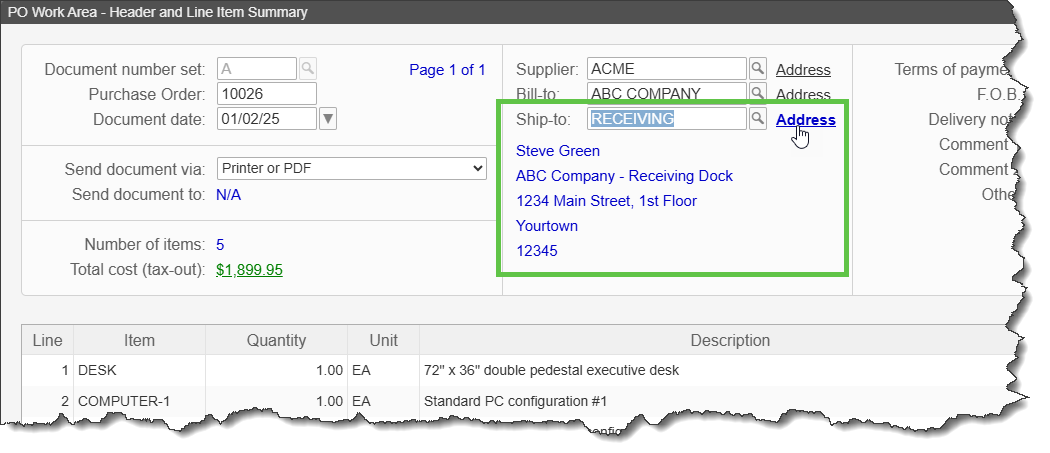
  1. On the PO Header Screen, locate the Bill-To and Ship-To fields.
  2. Click the Address hyperlink next to those fields.

This lets you adjust the address information for that specific PO without affecting other POs.

Date Format in your Free Purchase Order Software

Emma reached out to us, asking how to change the format of date fields in the Free Version of SpendMap…

“I have just registered but the date setting is incorrect. We are in the UK so the date needs to be formatted as DD/MM/YY whereas currently it is set to MM/DD/YY.”

Sure thing, Emma, you can change the format of your date fields in step 6/14 of the Setup Wizard that runs automatically when you log into your Live Copy of SpendMap for the first time.

After that, you can change it in User Defined Field Settings…
– PURCHASING > Setup system > User defined terminology and settings > User defined field settings

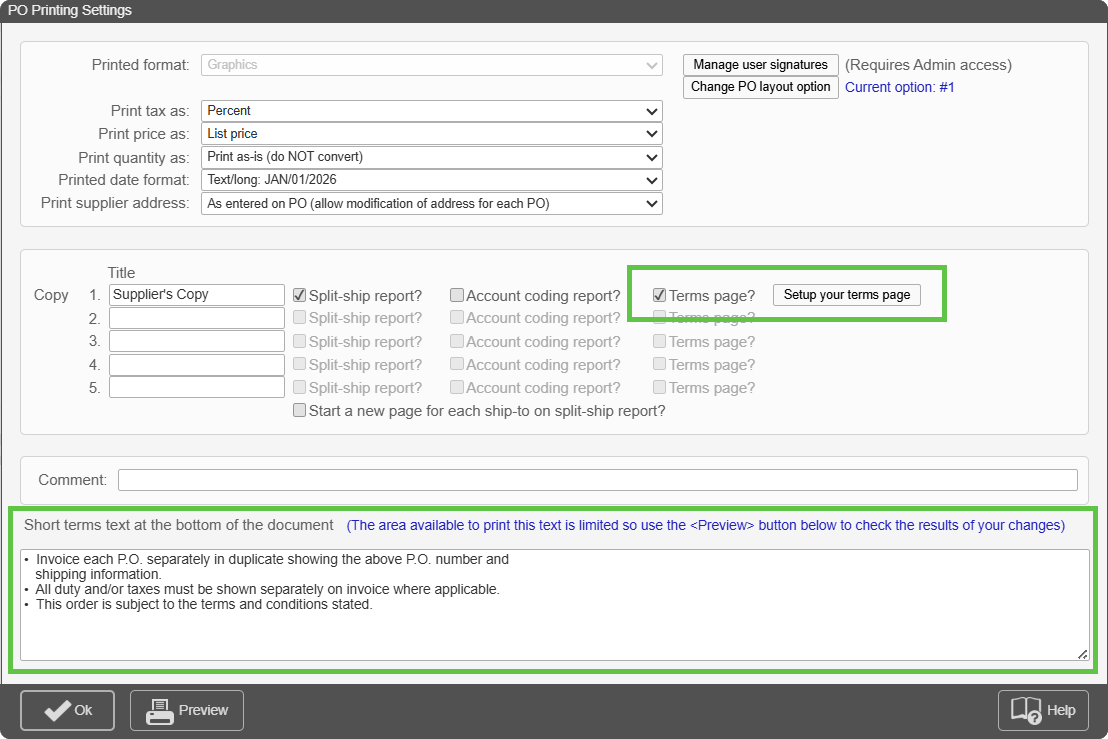
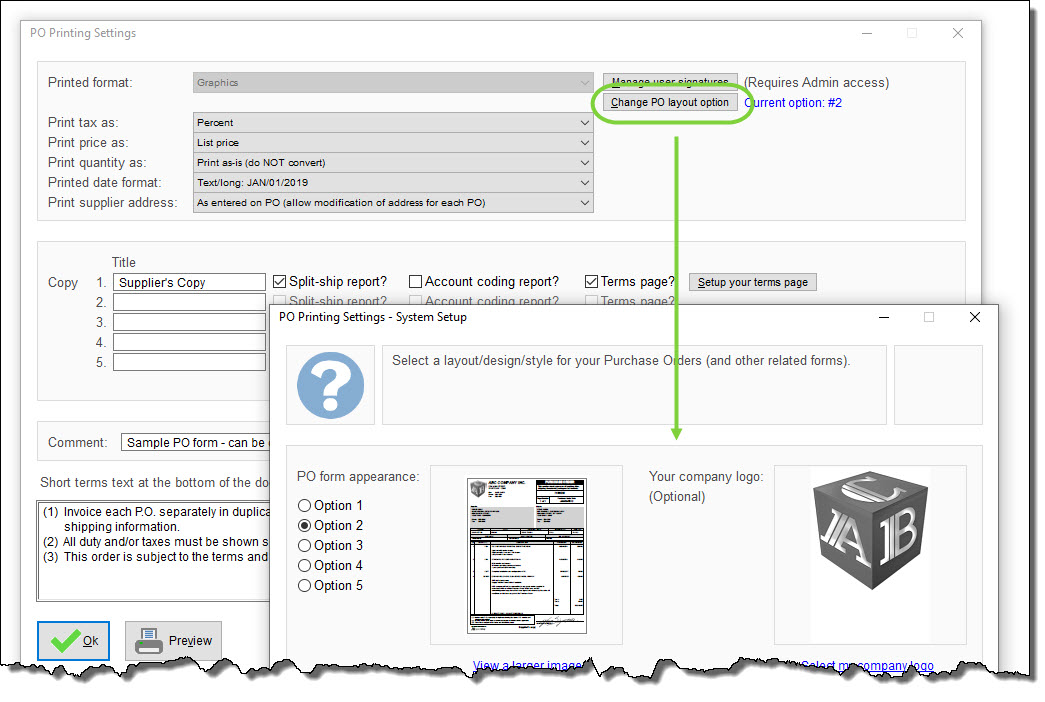
Separately, you can also fine-tune the date format for your printed Purchase Order forms, using the setting “Printed Date Format”, in PO Printing Settings…
– PURCHASING > Setup system> Purchase order settings > PO printing settings > Settings
New year, new budget period in your free Purchase Order Software

Marina from California jumped on a chat with us yesterday, asking how to set up a new budget period for 2021…

“We are currently using SpendMap but I do not have the instructions to open a new period.”

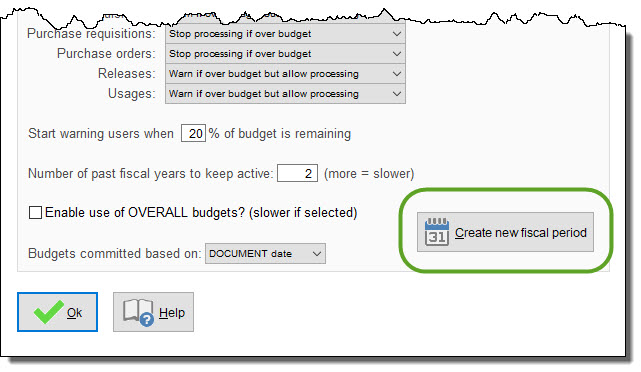
If you are tracking time-based budgets in SpendMap (e.g. yearly, monthly, quarterly, etc.), you need to create/enable each fiscal period before you can enter the budget amounts for each Cost Center (department, project, etc.). Do this using the [CREATE NEW FISCAL PERIOD] button, in here…
– PURCHASING > Setup system > Cost center history/budget settings

TIP: If your new year’s budgets are the same or similar to a previous year’s budgets, when you create the new fiscal period per above, you will see an option to [Copy] a previous year…this will duplicate each Cost Center’s budgets, so you don’t have to enter the new year’s budgets from scratch. You can then modify/tweak the budgets for each Cost Center if you like.

You can enter or modify the budgets for each Cost Center, in the Cost Center Master File, in here…
– PURCHASING > Master Files > Cost Centers > Add/Modify/Delete

Budget Setup in your Free Purchase Order Software

This post reviews how to set up the budget tracking feature in your Live Copy of SpendMap.

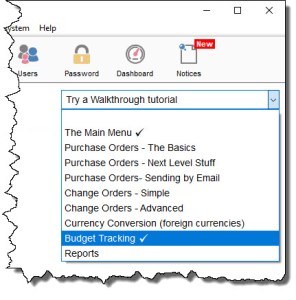
If you’d like to see the budget tracking feature in action before you get started, it’s already set up in your Evaluation Copy of SpendMap (the copy with the sample data), and there’s a Walkthrough Tutorial called “Budget Tracking” that you can try, using the drop-list at the top-right of the Main Menu in SpendMap…

OK, here’s what you do to set it up in your Live Copy…

(more…)

Codes or Descriptions in your Free Purchase Order Software?

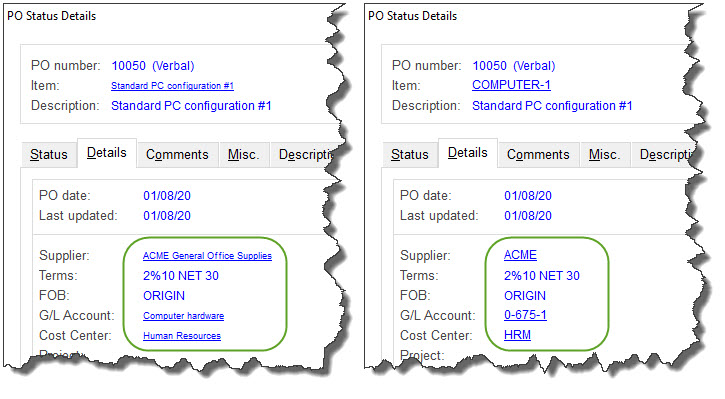
Did you know that you can display master file descriptions rather than codes on screens throughout SpendMap?

For example, if GL Account “0-663-1” isn’t meaningful for your users, you can display “Office Supplies” instead.  This applies to all of the main Master Files, including all account code fields, item/part numbers, supplier codes, and so on…

Display Description Instead of Code

If you would like SpendMap to display descriptions rather than the codes for one or more Master Files, here is where you can set that up…
– PURCHASING > Setup system > Master file settings > Master file code/description display options

Alternating Between Codes and Descriptions On-The-Fly

Regardless of whether you’re displaying codes or descriptions per above, you can alternate between the two at any time by pressing the <F2> key on your keyboard

Alternatively, you can hover your mouse over fields, like this…

Sorting Look-Up Lists

Drop-down lists can also be sorted either by code or description, using…
– PURCHASING > Setup system > Master file settings > Additional sort options for master file lookups

Decimal places in your Free Purchase Order Software

By default, the Price and Quantity fields are set to two (2) decimal places in the Free Version of SpendMap (e.g. $123.12).

But if you purchase items with a very low unit price, you may need to increase the number of decimal places for prices, which you can do in here…
– PURCHASING > Setup system > User defined terminology and settings > User defined field settings

Decimal-places-PO-software

You might also want to consider the unit of measure that you’re using.  For example, if you purchase by the hundred (C), you’d need fewer decimal places (e.g. $123.45/C vs. $1.2345/EACH).  You can set up your units of measure in here…
– PURCHASING > Master Files > Units of measure > Add/modify/delete


Manual PO Numbers in your Free Purchase Order Software

By default, the Free Version of SpendMap will automatically assign incrementing PO numbers to each new Purchase Order that you enter in the system.  You can set up your “Next PO number” during the Setup Wizard that runs automatically when you log into your Live System for the first time.

But if you prefer to enter your PO numbers manually for each new order, just select the following menu in SpendMap…
– PURCHASING > Setup system > Incrementing document number sets > POs

Then modify PO Number Set A as follows.  From that point on, whenever you enter a new PO in your PO Work Area, the PO Number will be blank and you can enter it manually for each order.

Time-Based and Overall Budgets in your Free Purchase Order Software

Hanna is the Purchasing Manager at a construction company in California and asked about setting up budgets for her departments and jobs…

“When a department buys something, like a computer or office supplies for example, it goes against their monthly budget but when we buy something for one of our jobs, the budget can span several months in some cases.”

No problem Hanna, you can track both “time-based” and “overall” budgets in SpendMap.

For your time-based budgets, you would typically allocate funds by month, quarter or year but when you allocate an overall budget to a project or a job, that budget will be available for the life of the project, regardless of how long that takes.

Theoretically an individual Cost Center (department, project, job, etc.) could have both time-based budgets and an overall budgets but that’s pretty unusual.  Typically it’s one or the other.

You can enter both time-based and overall budgets in the Cost Center Master File…

Budgets in Purchase Order Software