setup

E-mail Setup in your Free Purchase Order Software

email purchase order


>>> 07/29/2015 update – The free version of SpendMap now includes a free, built-in e-mail service, which you can use instead of configuring the system to use your own e-mail server or ISP.  This post has details.  The balance of this post, below, still applies if you want to set the system up to use your own e-mail server or ISP.


Most people who use the Free Version of SpendMap want to send Purchase Orders and other documents to their suppliers by e-mail.

You can also enable various e-mail notifications, to let people know about important events, without them having to log into the system (e.g. “You have a new Requisition waiting for your approval” or “Your Requisition was rejected”, and so on).

For SpendMap to send e-mail to your suppliers and staff, you need to enable and set up the e-mail connectivity module, which is included in your free PO software.

Everything you need to know to get e-mail going is in the Online Help system, but I’ve taken the liberty of writing it out in detail here, to save you some time…

E-Mail Server Settings

Before we get started, it helps to understand that SpendMap is no different from any other e-mail client (e.g. Outlook, etc.) when it comes to sending e-mail. Just like Outlook needs to “connect” to your outgoing e-mail server to send messages, so does SpendMap. So you can probably borrow the settings from your standard e-mail software and plug those into the E-Mail Settings Utility in SpendMap, using this menu option…
– PURCHASING > Setup system > e-mail settings

Most people use the SMTP protocol (as opposed to MAPI), so I’ll assume SMTP for now. If you have any questions, or if you prefer to use MAPI and need any tips after reading the Online Help, please log a free support ticket.


>>>CORRECTION<<<  After we posted this article, we realized that the MAPI option might be better than SMTP for many smaller companies (the target market for the Free-Procurement Project).  If you have any trouble using the SMTP option outlined below, you might want to give MAPI a try instead.  Here’s another post with more details.

OK, back to what we were saying…


On the E-mail Settings screen, select “ISP or SMTP server” in the two fields at the top of the screen.

Then, in the block of fields labeled “SMTP” just below that, enter your outgoing mail server’s name or IP address. It will usually look something like “smtp.service-provider.com”. Again, you can probably get that from the Settings area of your e-mail software, or you might have to contact your service provider or IT Department.

Next, enter “587” for the port number, unless your service provider advises you otherwise.

Then enter the user account (or e-mail address) that you use to log into to your e-mail account, and the associated password in the adjacent field.

That’s usually all that is needed for SpendMap to connect to your outgoing mail server.

Other E-Mail Settings

Other than that, you will need to fill in the three fields at the bottom of the screen (Proper User Name, User E-mail Address, and SpendMap User ID). This will improve the formatting of the e-mail messages that your suppliers receive.  Again, the Online Help has details of what those fields are used for.

So those are the only mandatory (i.e. minimum) fields that you have to fill in. You may, however, want to review the other (optional) fields. For example, if you want to add some text to the cover page of the e-mail that goes along with each new Purchase Order to your suppliers, you can use the Boilerplate field in the center of the screen. If so, this blog post may also be of interest.

And it’s also quite popular to enable the setting to “Maintain a log of sent e-mail messages” but, again, all that stuff is optional. And again, the Online Help has all the details.

Test to Confirm Settings

Once the E-mail Settings are configured per above, it’s time to test that SpendMap is in fact able to connect to your outgoing e-mail server. Rather than processing a new PO to do this test, I prefer to just try e-mailing a report, which has less variables than processing a PO, so it’s faster/easier to confirm that it’s working.

So just run any report and select the “e-mail” option when it asks you “Where do you want to send the report?”. Any report will do, but personally I like to use a small report for testing, so maybe try the User Master File report, which you can find here…
– PURCHASING > Reports > Master file reports > Users master file

So, assuming the report shows up in your e-mail client, then that means that SpendMap is able to send e-mail.

Additional Setup for Specific Types of E-Mail

Once you have the e-mail feature working per above, you can enable the various types of e-mail messages in SpendMap.

Sending Documents by E-Mail

If you would like to e-mail Purchase Orders or other documents to your suppliers, please see this section of the Online Help…
– System-Wide Features and Information > Documents and Reports > Sending Documents Electronically

E-Mail Notifications

If you would like SpendMap to send e-mail notifications to your users when certain events occur (e.g. an e-mail to the Approver when someone processes a new Requisition, etc.), please see this section of the Online Help…
– System-Wide Features and Information > System-Wide Features and Utilities > Automatic E-mail Notifications
No shortcuts for PO Software

Seth Godin’s words are always worth repeating, but perhaps never more so than his recent blog post about shortcuts.

How does this relate to the world of Purchase Order Software and e-procurement?

Far too many software vendors push the message “easy, easy, easy” during the sales process.

And as a result, far too many nice people become frustrated and disappointed when they get around to actually implementing their new Purchasing systems, only to find out that there’s actually a little work involved (sorry folks, this isn’t a word processor that you can just install and start using).

Seth’s closing remarks are worth repeating here: “It will take you less time and less effort to do it the (right) way than it will to buy and try and discard all the shortcuts“.  Well said, Seth.

But the good news is, as you work to get your free Purchase Order Software up and running, there’s lots to look forward to.

Measure twice.  Cut once.

TIP: If you’re ready to start implementing the free version of SpendMap, please see “Time to Implement” in the Getting Started Documentation that came with your free software.


Step-by-step Setup Guide for free Purchase Order Software

We’ve had a few requests for a step-by-step guide or video tutorial for setting up the free version of SpendMap.  Mostly we’re seeing that in the responses to the survey that we send out a couple of weeks after people download the free Purchase Order system.

Yes, we thought of that when we were putting together the video tutorials and other resources for the free version of SpendMap.  The problem is, each company will take different steps when setting up SpendMap, depending on their specific procurement processes and the features and modules of the system that they plan to use.

For example, some people just want to automate their Purchase Orders, while others want to automate Requisitions and approvals, POs, receiving, supplier invoice approval, and inventory control.  And even within each module, there are many features that you may or may not need, depending on how you manage your Purchasing.

In our experience, most people only use 20% or so of the features/functionality in this type of system.  The challenge is, the 20% that you need will be different than the 20% that someone else needs.

So unfortunately it just not practical to put together a generic, “one-size-fits-all” getting started guide that would work for everyone.

We did, however, create 20 or so video tutorials for you, which cover the most popular features that most people will likely need.

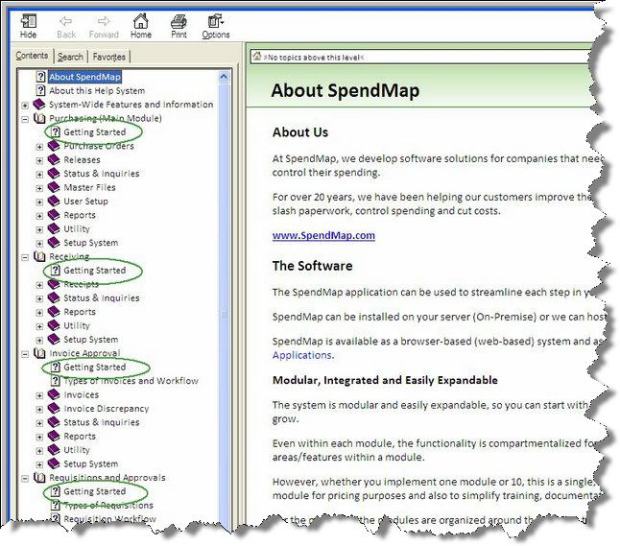
Also, the Online Help system has a Getting Started section for each of the primary modules, which appears as the first sub-section under each module…

getting-started with free PO system

You might also want to take a look at the subsection “Time to Implement” in the Getting Started Documentation that came with your free software…that will point you in the right direction.

Thanks for your input!

Currency and Tax setup in free Purchase Order Software

We’ve had a few support tickets from folks in the United Kingdom, asking how to change the default currency in SpendMap from dollars ($) to pounds sterling (£).

The question usually comes alongside another question about how to set up Value Added Tax (VAT) as the default sales tax rate in the system.

So this blog post outlines the options for changing the default currency and taxes in the free version of SpendMap.  I’ll use “pounds” and “VAT” as the examples, but SpendMap supports other currencies and taxes too, which you can set up in the Tax and Exchange Rates Master File.

Setup Wizard

First things first, I guess I should mention that you will be prompted to select your currency and default taxes during the Setup Wizard, which will run automatically when you log into your Live (Production) copy of SpendMap for the first time.

If for some reason you want to change the currency or taxes in the Evaluation copy of SpendMap (the sample data in the Evaluation copy uses dollars ($) and a generic tax code of “TAX 1”), or if you just missed that part of the Setup Wizard the first time you ran your Live copy, keep reading to learn how to change the default currency and taxes after-the-fact…

(more…)

Supplier Pricing for Items in Free Purchase Order Software

Cathy in California asked why the pricing that she entered in the Standard Price and Standard Cost fields in the [General] Folder of the Item Master File weren’t copying over to new Purchase Orders, Requisitions and other documents.

Those fields are used for other purposes.  If you want pricing to default on new orders based on the selected item, you can set that up in the [Supplier] Folder of the Item Master File, where you can enter pricing from one or more suppliers, in addition to other related information such as freight charges, if that information is known in advance…

Supplier pricing in free Purchase Order Software

If you don’t want to enter separate pricing for each supplier, that is, if you just want to enter a single price to default on new POs regardless of who you are ordering from, then just enter “*” (an asterisk) for the supplier code, and the price will be used for all new Purchase Orders and other documents, regardless of the supplier.

TIP: If you ever change the price while entering a new Purchase Order, you can optionally update the Item Master’s default pricing right from the PO Entry Screen, so you don’t have to go back to the Item Master File to make the changes there as well.  To enable this feature, just use the “price update option” in here…
– PURCHASING > Setup system> Purchase Order settings > PO entry settings

Multi-Company Setup in your Free Purchase Order Software

Brian in Nevada asked about setting up multiple companies in the free version of SpendMap…

The program is on its way, and I love it so far. I do have another need. I run 2 different companies…They are truly separate companies, payables, orders, everything.  Can I add a second company to the live version of SpendMap, or can I install a second version? What is possible?

You have both options.  You can install a separate system/database for each company, or you can set up both companies in one system, and then use some of the features in SpendMap to segregate your data.  For example, you could use a different sequence of Purchase Order numbers for each company (i.e. different PO Number Sets) so that you can, for example, filter reports to only see POs for one company at a time.  Similarly, if you have separate suppliers, items and/or account codes for each company, you could use the Master File Catalogs feature to create separate Master File lists for each company.

TIP: If you go this route, you may want to restrict users to their company’s Purchase Orders, suppliers, account codes, etc., so that they can’t accidentally select something from the other company.  Or you can let them access data from both companies if you prefer.

Restrict user access in Free Purchase Order Software

So it comes down to how “separate” the companies really are.  If they are truly separate and you will never want to run reports and otherwise view data for both companies at the same time (e.g. Show me a list of Purchase Orders across both companies), then by all means create two separate copies of the database, with a separate shortcut/icon for each system on your desktop.

Backing up your free Purchase Order Software

When you start using the free version of SpendMap in your business, it is very important that you implement a backup procedure.  Your IT Department should be backing up your Purchase Order System when they backup the other applications on your PC or network servers.

We moved the backup and restore procedures into the Online Help system.  To update your Online Help, from the Main Menu of SpendMap, select the menu Help > Check For Updates, then exit the system.

At the bottom-left of the Help window, click “Free version guide” and look for the new subsection called “Backup
and Restore Procedures”.

If you have any questions, feel free to log a support ticket.

Part numbers in free Purchase Order Software

Nancy in Pennsylvania recently asked me about the best way to set up her part numbers in SpendMap.  Specifically, she asked about the use of supplier item numbers when multiple suppliers provide the same item…

“How do item numbers  relate to supplier item numbers?  For example, if you have an item code but have several suppliers for that item, then I would think the item code needs to be generic (e.g. copy paper). But how or where do you record the item number from the supplier, so you order the correct things?  If you use the supplier’s item number, then how do you have multiple suppliers for that item?“

That’s right Nancy, you can set up a “generic” part number for the item, which will be the same regardless of how many suppliers you buy it from (let’s call it the “internal item code”).  Then, in the [Supplier] Folder of the Item Master File, you can set up as many suppliers for that item as you like, each with their own “supplier’s item code”…

Supplier's part numbers in free Purchase Order Software

The other alternative would be to set up multiple items in the Item Master, one for each supplier, but there are a number of benefits to having a single “internal” item code for all suppliers.

First and foremost, you will be able to run reports by your internal part number, so you’ll be able to see the purchase history of the item, regardless of who you bought it from.

Almost as important, there will only be one item in the Item Master File for your users to search for, regardless of who they’re buying it from, which is a bunch easier, especially for “casual” users like Requisitioners who may not be as well-trained as, say, Buyers or Purchasing Managers that use the system all day long.

Also please note that you can search for items by the supplier’s item number when creating Purchase Orders, Requisitions, or other transactions in the system, in addition to being able to search by your internal item number, by keyword in the description, and many other options.

Finally, since your suppliers may not be familiar with your internal item numbers, their part numbers (the “supplier’s item numbers”) will be inserted into the description of the Purchase Order automatically, so your suppliers will be able to see both your internal item number as well as their item number when processing Purchase Orders on their end.