Software Tips & Tricks

Establishing the In-Stock Quantity of Items in your Free Purchase Order Software

John works in the IT Consulting industry in Georgia and was asking how to tell SpendMap how much of each item he has in-stock when first setting up the Item Master File…

“I am about to import the Items but do not see where I can put in the qty that we currently have in inventory. Where can I import this in – we have 2016 items in inventory. Thanks,”

It is a two-step process to 1) add the items in the Item Master File, and then 2) tell SpendMap how much of each item you have in stock…

So first, you need to get the items into the Item Master File in any of these ways…

  • By importing the items using…
    – PURCHASING > Utility > Data Interfaces > Item Master File > Item Data > Import >
  • By clicking the [Add] button in the [General] Folder of the Item Master File
  • By adding the new items “on-the-fly” as you work in other areas of the system, for example, while creating a new POs or other documents

Then, you can tell SpendMap how much of each item you have in stock by performing a physical inventory count….

  • You can key the count information into the Inventory Count Work Area manually…
    – INVENTORY CONTROL > Adjustments > Inventory counts > Inventory count Work Area
  • Or you can import the in-stock quantities using…
    – INVENTORY CONTROL > Utility > Data Interfaces > Inventory count Work Area > Import >

Either way, the last step is to process the transactions in the Inventory Count Work Area, using…
– INVENTORY CONTROL > Adjustments > Inventory counts > Process count and adjust stock

Only a Few Items?

If you need to update inventory levels for just a few items, it may be more convenient to just post inventory adjustments, rather than doing a full inventory count…
– INVENTORY CONTROL > Adjustments > Adjust stock > Manually adjust stock levels

Perpetual Inventory Maintained Automatically

Going forward, as stock items are added and removed from inventory (e.g. when items are received, when inventory usages are posted, etc.), the inventory levels in SpendMap will be updated automatically, so the system will know exactly what you have in stock for each item at any point in time. Therefore, you won’t have to do a physical inventory count to determine what’s in stock for things like reordering, calculating your inventory value for your financial statements, etc.

Sender of email messages in your free Purchase Order Software

mail-GREENMichael works in the construction industry in England and was asking about the “From” field when sending Purchase Orders and other documents to his suppliers by e-mail…
“Do all emailed purchase orders need to be sent from the same email address irrespective of user? … Is it possible to have individual email addresses for each user, if so how do I set this up?”

You actually have both options.  The e-mail can come from the individual Buyers (i.e. the person who processes the Purchase Order in SpendMap) or it can be the same e-mail address regardless of who is sending the order, such as “Purchasing@YourCompany” or similar.

It’s controlled by the setting “Sender of external automatic messages” in…
– PURCHASING > Setup system > e-mail settings

Per the Online Help for that setting, the “sender” is noteworthy as the recipient might reply to a message or an error might occur during transmission (in which case the sender would typically get an “undeliverable mail” message from the outgoing mail server), so if you decide to use a single e-mail address for all messages, make sure that someone is set up to receive messages to that account.

Hope that helps.

Switching to the Live Copy of your Free Purchase Order Software

Marty works in the water damage service industry in Florida and was asking how to switch from the Evaluation Copy to the Live Copy of SpendMap when the time comes to actually implement his new PO software…

“I am finished with the evaluation copy…how do I start using the live copy?”

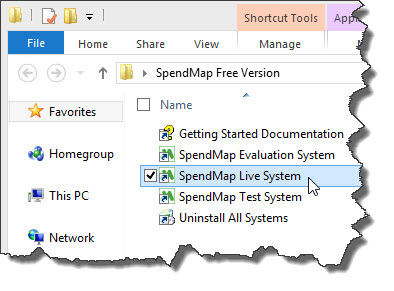
There is no formal “switch”…you can start using the Live Copy at any time.  Just click on the shortcut/icon called “SpendMap Live System”, which should be right next to the shortcut/icon for the Evaluation Copy…

Live Version of Free PO Software

They are actually just separate installations of the software on your computer. So you can use them both simultaneously. For example, even after you start using the Live Copy, you might need to do some testing, or maybe check out a new module, in which case you can go back to your Evaluation Copy any time.

Again, they are just separate installations of the same software, so nothing you do in one copy will affect the other. And, of course, the Evaluation Copy has some sample data, while the Live System is empty to start off with.

For more details, take a look at the sections called “Three Systems (Evaluation, Live and Testing Copies)” and “Time to Implement” in the Getting Started Documentation that came with the software.

Seeing other users’ work in your Free Purchase Order Software

PO-Work-Area-Toolbar-ButtonRandy works at a consulting firm in Little Rock, Arkansas, and was asking why users aren’t able to see other people’s work in SpendMap…

“I installed the free version of SpendMap on a server for two users. They are trying to see each other’s work (one added a PO, but the other can’t see it under the PO Main screen). Is this the way it is supposed to work?”

Randy is referring to Purchase Orders in the users’ PO Work Areas, which contain their “work in progress” (i.e. the POs that are still “on their desks”).  When they’re finished, they will process the new POs, which will update many areas of the system, so that everyone can see (provided they have the appropriate permissions).

So yes, Purchase Orders, Requisitions, RFQs and other “pending” documents/transactions will not be visible (in most areas of the system) until they are processed.

To learn more, check out this section of the Online Help…
– System-Wide Features and Information > System-Wide Features and Utilities > Document Work Areas


Only one sales tax in your Free Purchase Order Software

Sohan works in the automotive tire industry in Australia and was asking how to remove the second Sales Tax field from his printed Purchase Order form in the free version of SpendMap.

“I want to configure tax…in Australia we only have one tax but PO shows tax 2 as well. I don’t want TAX 2 to be seen on PO. How can I do it?”

Tax-on-PO-form
Sure thing Sohan, you can remove TAX 2 from your printed PO form.  Just go in here…

– PURCHASING > Setup system> Purchase order settings > PO printing settings > Text-Based Field Positions and Field Settings > Standard

…scroll down to Field #89, and un-check the box called “Print Title”.

That will remove the Tax 2 Total from your PO form, but you may (or may not) want to also make a couple changes to the PO Work Area screen, to avoid potential confusion about that field on the users’ part.

For example, you might want to rename the Tax 2 Field to “N/A” or similar, so they know not to use it.  You can do that in here…
– PURCHASING > Setup system > User defined terminology and settings > User defined field names and terminology

If you like, you can go one step further and actually suppress/lock/restrict the field during PO entry, so that users can’t even get to the field by accident. You can do that using…
– PURCHASING > User setup > Field restrictions by user access level > Set field restrictions

Hope that helps!

How to add a Page Break in your free Purchase Order Software

Sometimes you may need to force a “page break” while entering a PO or other document in the free version of SpendMap.

For example, some people like to add instructions for the supplier or other special notes/comments on a separate page.  Or maybe you want a separate page for each Ship-To location, with a separate list of items for each destination..

To force a page break while entering a new Purchase Order, Requisition or RFQ, use the [Page Break] button at the bottom of the PO, Requisition or RFQ Work Area Summary Screen…

Purchase Order with Page Break

TIP: If you ever need to move line items from one page of the document to another, please note that the [Copy/Cut] button at the bottom of the Line Item Summary Screen works across pages.  That is, you can Cut one or more line items from one page and then Add or Insert them on a different page (or even a different PO).

How to edit company address in your free PO Software

Dan works at a mechanical contracting company in Calgary, Alberta, and was asking how to change the company address information that shows at the top of the PO form in the free version of SpendMap…

PO-form-header

That comes from the Bill-To address, which you’ll enter during the Setup Wizard that runs automatically when you log into your Live Copy of SpendMap for the first time.  But there are two ways to modify your Bill-To or Ship-To address information after you have already completed the Setup Wizard…

  1. Just go into the Cost Center Master File here…
    – PURCHASING > Master Files > Cost Centers > Add/Modify/Delete
    …and look for the codes BILL-TO and SHIP-TO, and change the address information associated with those codes. The next time you enter a new PO, the new address info will carry forward to the new PO.
  2. If you just want to modify the bill-to or ship-to address info on individual POs but not all POs going forward, rather than modifying the default bill-to/ship-to information, you can modify it on a PO-by-PO basis, by clicking the “Address” hyperlink, to the right of the Bill-to and Ship-to fields on the PO Header Screen in your PO Work Area.

PO-Header-Screen

Listing items by supplier in your free Purchase Order Software

David works at a small furniture manufacturer in the UK and was asking if it’s possible to list only the items provided by one specific supplier while entering new Purchase Orders in the free version of SpendMap.

Sure thing David, when adding items to your Purchase Orders, just RIGHT-mouse click on the [?] Lookup button next to the Item Code field and you’ll be presented with a bunch of ways to search for items.  Notice how the Supplier Field is already filled in with the supplier on the PO (from the previous screen)…

list items by supplier in free PO software

So just click [OK] to get a list of just the items supplied by that supplier.

You can actually do this anywhere in SpendMap, not just in the PO Work Area.

On a separate but related note, if you ever need a hard copy report listing the items from a supplier, try this…
– PURCHASING > Reports > Supplier information > Items supplied by supplier

How to enable modules in your Free Purchase Order Software

Update 07/29/2015:  Our Free Version now includes the Purchasing, Receiving and Email Integration modules.  Read the announcement here.

We’ve had a few Support Tickets from people asking about the message that you get when you try to access certain modules in the free version of SpendMap, stating “To use this feature, you need to enable the feature (or the entire module) in the Setup System area“.

enable-module in Free Purchase Order Software

Sometimes people misinterpret this message to mean that the feature or function is not available in our Free Version, when in fact it is and just needs to be turned on and/or configured.

All of the modules are enabled by default in the Evaluation Copy of SpendMap but in your Live Copy, some modules are disabled by default to improve system performance.  You can enable some of the modules during the Setup Wizard that runs automatically when you log into your Live (production) System for the first time, otherwise you can visit the Setup System menu group to enable them after-the-fact…

  • Main Purchasing Module (Purchase Orders) – Enabled automatically when you run the Setup Wizard.
  • Requisitions and Approvals – Does not need to be enabled (always turned on).  Just start entering requisitions when you’re ready.
  • Receiving – Can be enabled during Setup Wizard or with first check-box in…RECEIVING > Setup system > Receiving options
  • Invoice Approval – Must be enabled with first check-box in…INVOICE APPROVAL > Setup System > Invoice Options
  • Request For Quotation (RFQ) – Does not need to be enabled (always turned on).  Just start entering RFQs when you’re ready.
  • Inventory Control – Must be enabled with first check-box in…INVENTORY CONTROL > Setup system > Inventory options
  • Asset Management – Does not need to be enabled (always turned on).  Just start entering or purchasing assets when you’re ready.
  • E-mail Integration – Enabled by configuring the settings in …PURCHASING > Setup system > e-mail settings
  • Faxing – Due to licensing restrictions related to the third party fax technology that we use for this module, which limits the number of copies that we are allowed to distribute, the Faxing Module is not available in the Free Version of SpendMap.  Please consider using the E-mail Module instead.
  • PunchOut (e-commerce integration) – This web-based component is only available in the Paid Version of SpendMap.