PO software

Multiple PO number sequences in your free Purchase Order Software

Lisa works in the construction industry in South Africa and was asking about setting up different sequences of PO numbers for each of her projects…

“We work on a lot of different sites and we need different sequences of (Purchase Order) numbers for each project/job – how do I configure the different sequences?”

Sure thing Lisa, you can set up a different “PO Number Set” for each Project/Job, each with its own incrementing PO number.  Then you can select that Number Set when creating orders for that project.  Here’s the menu option…
– PURCHASING > Setup system > Incrementing document number sets > POs

If you like, you can also assign a default PO Number Set to each user (e.g. if a user works on specific Project), so that it defaults to their PO Number Set automatically for each new order.  You can optionally do that using the field called “PO/Req/RFQ number set”, in the [SETTINGS] Folder of the User Master File.

If you don’t specify a default for a user (e.g. if they work on multiple projects/jobs), they can just select a PO Number Set when creating each new Purchase Order in their PO work Area.

Finally, if you want a user to have access to ONLY one Number Set and no others, you can use the “Force?” check-box, just to the right of the “PO/Req/RFQ number set” field…
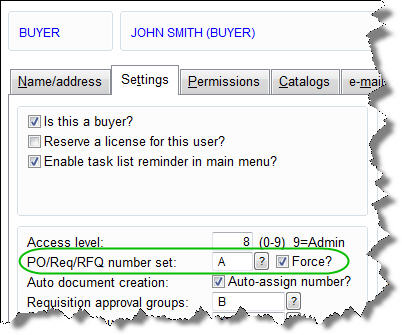
PO Number Settings for User

Entering PO numbers manually in your free Purchase Order Software

Marsha works at a shipyard in Newfoundland, Canada, and was asking if she can enter her PO numbers manually, instead of SpendMap assigning the next Purchase Order number automatically for each new order.

Sure thing Marsha, you can enter your PO numbers manually on each new PO if you prefer.

The Setup Wizard, which runs automatically when you first run the Live Copy of SpendMap, will set up an “auto incrementing” sequence of PO numbers, since most people want that, but you can either;

  1. replace that auto-incrementing number with the option of manually entering your PO numbers, or
  2. you can set up multiple “PO Number Sets”, and one of the Number Sets can give you the next sequential number for each new PO, and you can use a separate PO Number Set that allows you to enter the PO numbers manually for certain orders when you need to.

You can change the settings in here…
– PURCHASING > Setup system > Incrementing document number sets > POs

If you want to enter your PO number manually, just enter “.” (a period, without the quotes) in the Next Number field, then select the check-box to “Allow user to modify number”.

PO number settings

No shortcuts for PO Software

Seth Godin’s words are always worth repeating, but perhaps never more so than his recent blog post about shortcuts.

How does this relate to the world of Purchase Order Software and e-procurement?

Far too many software vendors push the message “easy, easy, easy” during the sales process.

And as a result, far too many nice people become frustrated and disappointed when they get around to actually implementing their new Purchasing systems, only to find out that there’s actually a little work involved (sorry folks, this isn’t a word processor that you can just install and start using).

Seth’s closing remarks are worth repeating here: “It will take you less time and less effort to do it the (right) way than it will to buy and try and discard all the shortcuts“.  Well said, Seth.

But the good news is, as you work to get your free Purchase Order Software up and running, there’s lots to look forward to.

Measure twice.  Cut once.

TIP: If you’re ready to start implementing the free version of SpendMap, please see “Time to Implement” in the Getting Started Documentation that came with your free software.


Update for free Purchase Order System (various fixes and new Online Help)

An update has been posted to correct a few minor issues in the free version of SpendMap, as well as various improvements to the Online Help.

At your earliest convenience, please select the menu HELP > CHECK FOR UPDATES from within SpendMap to update your system.

As always, this “patch” will NOT update your version number or change any features.

If you have any questions, please use the free support ticket system.

Regards,
– The Free-Procurement Project Team

PS.  Have you told anyone about us lately?  Please help spread the word.  Thanks!

Is free Purchase Order software right for you?

Barry in Washington, D.C. commented that we might want to be a bit more forthcoming about the differences between the Free and Paid versions of SpendMap. free vs.  paid purchase order software

Sorry about that, Barry.  We didn’t mean to hide anything.

In a nutshell, while they are functionally very similar, the Free Version is a Windows/desktop application that was designed for small businesses and small buying groups in larger organizations, while the Paid Version is a web-based (browser-based) system that is more suitable for midsize and large organizations (since it runs in your web browser with no software to install, it’s easier to deploy to a large number of users).

Technology aside, there are also differences in the way that we sell, implement and support the two products.  For example, the Free Version is all set up for SMBs to do a self-evaluation, while we offer a more “consultative” sales approach for our larger customers who are considering the Paid Version (bigger companies tend to have more complex needs when it comes to their e-procurement systems, which often makes a self-evaluation impractical).

Similarly, the Free Version assumes a do-it-yourself implementation using the various resources that we provide with the free software (e.g. online help, video tutorials, online support system), while our larger, paying customers get to work directly with our Client Services Group and have access to our full line of Professional Services, such as priority phone support, web-based and on-site training, implementation consulting, and custom programming services.

Again, these are just the main differences between the Free and Paid Versions of SpendMap.  For more details, we added a new subsection called “Is this right for you?” to the Getting Started Documentation that comes with the free software.  Just select the menu HELP > CHECK FOR UPDATES, then exit and re-run SpendMap.  The new section is right at the top of the Getting Started Documentation.

Hope this helps.

Free Purchase Order Software – Status Update

Our Blog will be a little more quiet than usual for the next few weeks as we work on the 2013 release of SpendMap, which we hope to officially announce early in the Next Year.

While some of the new features will only be available in the (paid) web-based version of SpendMap (e.g. Executive Dashboards, SQL Server 2012 support, etc.), we expect around 20 or so new features to make their way into the next free version of SpendMap.  Here are just a few…

  • Support for Windows 8 and Windows Server 2012
  • Ability to create Requisitions for Blanket Purchase Orders
  • New utility to import requisition approval/routing rules during system setup
  • Ability to broadcast e-mails to all or some suppliers from within SpendMap
  • New e-mail notification:  e-mail copy of final Purchase Order to the Requisitioner
  • Ability to specify Max inventory levels by inventory location

Stay tuned for more details as we get closer to the release date.

And if you haven’t yet subscribed to this blog, just use the field at the top-left of this page to get updates by e-mail when we have news for you about the free Purchase Order Software System.

Limits on free Purchase Order Software

My credit card number was stolen a few weeks ago and my bank issued me a new card.  They also lowered my credit limit (to reduce the chance of fraud going forward, I guess) but without notifying me, so naturally I was surprised when my card was declined at a gas station over the weekend.  To make things worse, a $25 “over limit fee” shows up on my statement.  So they lower my limit without notice and then charge me for using their service.  Very nice.

Recently we’ve had quite a few questions about the “limits” on the free version of SpendMap.  Despite our best efforts to explain that the software is totally free, quite a few of you are still calling it the “demo” version and asking about the limitations in the free software, like if there are limits on the number of suppliers or items you can add, or how many Purchase Orders you can process, or how long the trial period is.

There are no limits.  It’s totally free.  Forever and always.  Really.  Really really!

The only limits are those that are imposed by the technology itself.  Since it is a desktop application, it’s not really suitable for a large number of users.  If you need to roll out your e-procurement system to hundreds or thousands of users, you should really be looking at our web-based system.

The only other limit, if you can call it that, is the limit on what you can accomplish on your own with the software, in between the duties of your regular business day.  But if you don’t have time for a do-it-yourself e-procurement project, we’re offering an affordable Service Plan so that you can directly engage our Client Services Team to make faster progress.

And no, there won’t be any surprise charges when you cut your 100th PO.

Control Spending with a No PO No Pay Policy

When we first started offering the free Purchase Order Software a couple months ago, I did a blog post on the use of Purchase Orders as Step #1 on the path to controlling your company’s pending.

I didn’t set out to outline a three-step process for spend control but good things do come in threes, so here’s Step #2…

Once you have a reliable and efficient system in place for staff to request items and get them approved in a timely manner and you’re using Purchase Orders to keep track of your spending, the next thing you’ll have to work on is a way to get people to use the system.  User adoption is critical to the success of an e-procurement initiative.

There are countless ways to encourage user adoption of your new Purchasing System but if I had to pick one, it would be the No-PO-No-Pay Policy.

Basically, you inform all the parties involved (end-user requisitioners, the folks in Accounts Payable and, most importantly, your suppliers) that you will not pay invoices unless there is an approved Purchase Order for the goods or services.

Harsh?  Perhaps.  Difficult to enforce?  Sometimes.  Bound to be exceptions?  Maybe.

My goal for this blog post was not to give you all the ins and outs of implementing a No-PO-No-Pay Policy, but rather just to make you aware of it as an option to help control your company’s spending.

As it turns out, a good many organizations use policies like this, so maybe it will work for you.

If you would like to learn more, just Google “no PO no pay” and you’ll see lots of information and blog posts on this topic, like this one.

Stay tuned for “Step #3” in an upcoming post…

Your Free Purchase Order Software is Here

Did you hear the “pop”?  That was us celebrating the arrival of the world’s first free e-procurement system.

You can download your copy here.

We’ve tried to predict your questions and we put that knowledge into the online help system and the first round of tutorial videos.  But we aren’t expecting to hit a home run right out of the gate, so please send us your feedback and let us know what else we can do to help.

And don’t forget to sign up for this Blog.  As we add to the software and our library of tutorials or other resources, we’ll be making blog posts to let you know that there’s something new to help.  If you don’t follow the blog, you won’t find out about the new stuff.

Thanks again for trying the free version of SpendMap!

New YouTube Channel for Tutorials

Last couple weeks we’ve been working on a new YouTube channel  with online software tutorials.  Should be really helpful for new users.  A great compliment to the new Help System (which so far is getting rave reviews).

Six tutorials posted so far…mostly high-level stuff for now…
http://www.youtube.com/user/spendmap

YouTube is fun…feeling like a movie star!

😀