purchase order software

The Free-Procurement Project Turns 1

This week is the 1-year Anniversary of The Free-Procurement Project.

Free Purchase Order Software turns 1
That’s right, it’s been one year since we launched the world’s first totally free e-procurement system.

And even with our 20 years of experience in this business, we could never have predicted how much interest there would be in the Project.  So far, more than 5,000 people in over 100 countries have downloaded the Free version of SpendMap.

Our sincere thanks to the entire Free-Procurement community and all of you who helped make this project a success!

All the best,
– The Free-Procurement Project Team

Multi-Company Setup in your Free Purchase Order Software

Brian in Nevada asked about setting up multiple companies in the free version of SpendMap…

“The program is on its way, and I love it so far. I do have another need. I run 2 different companies…They are truly separate companies, payables, orders, everything.  Can I add a second company to the live version of SpendMap, or can I install a second version? What is possible?”

You have both options.  You can install a separate system/database for each company, or you can set up both companies in one system, and then use some of the features in SpendMap to segregate your data.  For example, you could use a different sequence of Purchase Order numbers for each company (i.e. different PO Number Sets) so that you can, for example, filter reports to only see POs for one company at a time.  Similarly, if you have separate suppliers, items and/or account codes for each company, you could use the Master File Catalogs feature to create separate Master File lists for each company.

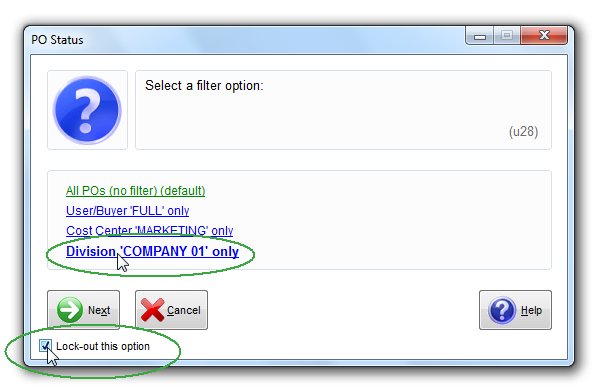
TIP: If you go this route, you may want to restrict users to their company’s Purchase Orders, suppliers, account codes, etc., so that they can’t accidentally select something from the other company.  Or you can let them access data from both companies if you prefer.

Restrict user access in Free Purchase Order Software

So it comes down to how “separate” the companies really are.  If they are truly separate and you will never want to run reports and otherwise view data for both companies at the same time (e.g. Show me a list of Purchase Orders across both companies), then by all means create two separate copies of the database, with a separate shortcut/icon for each system on your desktop.

Windows 8 Support for your Free Purchase Order Software

I’m writing this blog post on my fancy new Windows 8 machine with touch screen.  It’s taking a bit to get used to but I must say, I’m liking the new Windows 8 experience and I suspect it will be a big hit for Microsoft.

We have completed our development work on the 2013 release of SpendMap, which includes Windows 8 support and around 20 other new features, and we have begun our testing phase.

If you are already using last year’s release of our Free Purchase Order System (v11.64), make sure to follow this blog and we’ll let you know when an update is ready.  As with all new SpendMap releases, the update utility is completely automatic and will bring forward all your settings, master files, POs and other transactions, so you won’t lose any of your work.

Happy 2013 everyone!

Free Purchase Order Software – Status Update

Our Blog will be a little more quiet than usual for the next few weeks as we work on the 2013 release of SpendMap, which we hope to officially announce early in the Next Year.

While some of the new features will only be available in the (paid) web-based version of SpendMap (e.g. Executive Dashboards, SQL Server 2012 support, etc.), we expect around 20 or so new features to make their way into the next free version of SpendMap.  Here are just a few…

  • Support for Windows 8 and Windows Server 2012
  • Ability to create Requisitions for Blanket Purchase Orders
  • New utility to import requisition approval/routing rules during system setup
  • Ability to broadcast e-mails to all or some suppliers from within SpendMap
  • New e-mail notification:  e-mail copy of final Purchase Order to the Requisitioner
  • Ability to specify Max inventory levels by inventory location

Stay tuned for more details as we get closer to the release date.

And if you haven’t yet subscribed to this blog, just use the field at the top-left of this page to get updates by e-mail when we have news for you about the free Purchase Order Software System.

Inventory Control Module Video Tutorial

How about some Inventory Control to go along with your free Purchase Order software?

This new video tutorial shows how to manage a consumable inventory such as office supplies, cleaning and maintenance supplies, raw materials for production, and so on.

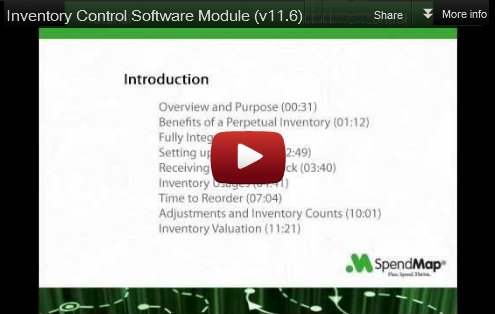
Click the image below to watch the Inventory Control Software tutorial, and don’t forget to visit our YouTube channel to see 16 other tutorials that will help you get started with the most popular features in SpendMap…

Inventory Control Software Video Tutorial

New Tutorial: Invoice Approval and Accounts Payable Interface Module

This new video tutorial shows you how to quickly and easily approve supplier invoices by matching them to Purchase Orders and Receipts already in SpendMap (three-way matching).

The video also reviews Invoice Discrepancy approval and Non-PO Invoices as well.

Click the image below to watch the tutorial on YouTube, and don’t forget to visit our Channel to see 15 other video tutorials that will help you get started with the most popular features in your free Purchase Order system…

Click to watch Invoice Approval video tutorial

Backing up your free Purchase Order Software

When you start using the free version of SpendMap in your business, it is very important that you implement a backup procedure.  Your IT Department should be backing up your Purchase Order System when they backup the other applications on your PC or network servers.

We moved the backup and restore procedures into the Online Help system.  To update your Online Help, from the Main Menu of SpendMap, select the menu Help > Check For Updates, then exit the system.

At the bottom-left of the Help window, click “Free version guide” and look for the new subsection called “Backup
and Restore Procedures”.

If you have any questions, feel free to log a support ticket.

Who can’t use a free Purchase Order system?

Last week, our Sales Manager hosted a free system setup meeting for the owner of a small residential cleaning service company in California.

What I found interesting was this customer’s unconventional use of the software.  She has a team of cleaners and is using SpendMap to keep track of their work by setting up each cleaner as a supplier in the Supplier Master File, and then creating a Purchase Order for each cleaning job, which she auto-emails from the system.

In addition to being an easy way to communicate with her team, she’ll have a complete history of all the jobs (orders) to refer back to as needed.

No budgets.  No requisitions.  She won’t even be using the Item Master File.

An unconventional use of a Purchase Order system, for sure, but why not?  After all, the software is free and accomplishes the task.

So it got me thinking, what else might people use this free PO software for?  I mean, since most of the system’s features are compartmentalized, there’s no reason why you need to use everything that the system offers.

Are you making use of the free version of SpendMap in an unconventional way?  If so, we’d love to hear your story.  Please shoot us an e-mail at free-procurement@spendmap.com.

Thanks!

Copying Purchase Orders in your free PO System

We’ve had a few questions about copying Purchase Orders to create new POs in the free version of SpendMap.

There seems to be a bit of confusion about why there are two [COPY] buttons, one on the PO Work Area Summary Screen (where you see the list of Purchase Orders in your PO Work Area) and the other button on the Purchase Order Header Screen (where you see a summary of line items at the bottom of the screen).  The later is actually called [COPY/CUT] since it provides dual functionality, as outlined below…

So, to clarify, one is used to copy an entire Purchase Order (including all details, and all line items) while the other is used to copy individual line items, either to somewhere else on the same PO or onto another PO in your Work Area.

If you select the [COPY] button at the bottom of the PO Work Area Summary Screen, you will be prompted to copy either the PO that is currently highlighted/selected in the list, or you can copy an already processed (i.e. live) PO, or a PO Template.  In all cases, you’ll get a brand new Purchase Order in your PO Work Area, which you can then modify as needed before processing.

Quite separately, if you click the [COPY/CUT] button at the bottom of the Purchase Order Header Screen (just below the list of line items), you’ll see that “Copy” shows in the Line Column for the selected line item.  Click the button again and it will change to “Cut”…

purchase order line items

You are essentially “tagging” line items to be either duplicated or moved from their current location.  You can tag as many items as you want and when you’re ready, just click the [ADD] button to add the lines to the bottom of the order, or click [INSERT] to paste the lines above the currently selected line.

TIP:  When copying and cutting line items like this, you’re not restricted to the Purchase Order that you’re currently working on.  You can also copy or move lines to and from other POs in your Work Area as well.  For example, if you want to consolidate two POs into one, just [CUT] all the lines from one Purchase Order and add them to the other PO.

Hope this helps.