PO software

Terms and Conditions on PO Form (Ts and Cs)

Jody works in the hospitality industry in California and was asking how to include terms and conditions (Ts and Cs) on her PO form in the free version of SpendMap.

There are actually two options when it comes to terms and conditions on your Purchase Order form…

Short Terms Text

If you just need a few lines of text, try using the Short Terms Text in PO Printing Settings, which will be included on the face of the PO form, at the bottom, next to your signature line.  Here is where you can find the setting, and what it looks like…
– PURCHASING > Setup system> Purchase order settings > PO printing settings > Settings

Short terms and conditions on PO form

Long Terms Page

If you need more than just a few lines of text, the other option would be to use the full Terms and Conditions Page that will automatically accompany each PO that is printed or e-mailed to your suppliers .  You can configure the Terms Page using the [Setup Your Terms Page] button on that same PO Printing Settings screen.

When you click the [Setup Your Terms Page] button, you will be brought to a screen where you can either 1) enter lots and lots of text for your Terms Page, or 2) if you already have an existing Terms Page, you can scan it and upload it into SpendMap as an image file.

Finally, don’t forget to enable the Terms Page for one or more copies of the PO (likely only the Supplier’s copy) using the applicable check-box on the main PO Printing Settings screen…

PO Printing Settings

How to copy items, suppliers and other Master File codes in your free PO Software

On the heels of last week’s blog post on time-saving tips, John makes custom t-shirts and was asking if he can copy items to save time…

“Is there any way of duplicating an item? I have several items that are all the same except for item (part number) and description.”

Yes, you can copy items, suppliers, account codes, and most other Master File codes in SpendMap to save time and reduce data entry.

Just go into the applicable Master File and click the [ADD] button to get a blank screen, then enter an existing code in the Code Field and you will be prompted to copy the existing code to a new code.  All details (fields) will be copied to the new code, any of which can then be modified as required.

This section of the Online Help has more information about generic features that can be used across all Master Files in SpendMap…
– System-Wide Features and Information > Master Files > About Master Files

Copy-item

5 time-saving tips for your free Purchase Order Software

Here are a few time-saving tips and tricks for your free version of SpendMap…

<END> Key to Switch Users

Sometimes, especially in the early stages of setting up and testing the system, you may want to switch user accounts, that is, log into SpendMap as a different user.

Instead of using the menu SPENDMAP > SWITCH USER or exiting the system and logging back in, try using the <END> key while at the Main Menu.

<TAB> Key to Select Last Menu

Since menu options in SpendMap are grouped by functional area, there are times that you exit one menu/utility and then need to select another related menu that is right next to the last one that you just selected.  Instead of drilling back through the menus, just hit the <TAB> key on your keyboard to “jump” to the last menu you selected.

<?> Keyboard Shortcut for Lookup/Search

You are probably accustomed to clicking on the little [?] button next to fields to display a drop-down list of the underlying table (e.g. a list of Master File codes, a list of POs or other documents, etc).

Another way to display the Lookup List is to just type a question mark <?> in the field and hit <ENTER>.  This avoids taking your hand off the keyboard and can speed up data entry, especially on screens with many fields.

Extended Search

On the topic of searching for Master File codes and documents with the Lookup Feature, did you know that using the [?] button or <?> key to get a list of codes in alphabetical order is just the most basic way of using Lookup?

To perform an “advanced search”, including the ability to search by keyword and/or pretty much any other field in the underlying table, just RIGHT-mouse click on the little [?] button.  Alternatively, you can also do a regular Lookup (left-mouse click on the [?] button) and select the [Advanced Search] button at the bottom of the primary Lookup List.

You can learn more in this section of the Online Help…
System-Wide Features and Information > System-Wide Features and Utilities > Lookup (Searching)

<F2> Key Alternates Between Code/Description

Did you know that you can use <F2> to alternate between the code and description of most fields on most screens?  For example, let’s say you’re looking at a Purchase Order in View PO Status and you see the vendor code is “12345”.  Just hit <F2> to see that vendor “12345” is really Acme Office Supplies.

Same goes for most other Master File codes, such as items, account codes, etc.

In many cases, you can also click on the code/description hyperlink to “drill” into the actual Master File itself.  For example, you might need to see the full address or phone number for Acme.

You can lean more about this one in…
PURCHASING > Setup system > Master file settings > Master file code/description display options

Seeing other users’ work in your Free Purchase Order Software

PO-Work-Area-Toolbar-ButtonRandy works at a consulting firm in Little Rock, Arkansas, and was asking why users aren’t able to see other people’s work in SpendMap…

“I installed the free version of SpendMap on a server for two users. They are trying to see each other’s work (one added a PO, but the other can’t see it under the PO Main screen). Is this the way it is supposed to work?”

Randy is referring to Purchase Orders in the users’ PO Work Areas, which contain their “work in progress” (i.e. the POs that are still “on their desks”).  When they’re finished, they will process the new POs, which will update many areas of the system, so that everyone can see (provided they have the appropriate permissions).

So yes, Purchase Orders, Requisitions, RFQs and other “pending” documents/transactions will not be visible (in most areas of the system) until they are processed.

To learn more, check out this section of the Online Help…
– System-Wide Features and Information > System-Wide Features and Utilities > Document Work Areas


Only one sales tax in your Free Purchase Order Software

Sohan works in the automotive tire industry in Australia and was asking how to remove the second Sales Tax field from his printed Purchase Order form in the free version of SpendMap.

“I want to configure tax…in Australia we only have one tax but PO shows tax 2 as well. I don’t want TAX 2 to be seen on PO. How can I do it?”

Tax-on-PO-form
Sure thing Sohan, you can remove TAX 2 from your printed PO form.  Just go in here…

– PURCHASING > Setup system> Purchase order settings > PO printing settings > Text-Based Field Positions and Field Settings > Standard

…scroll down to Field #89, and un-check the box called “Print Title”.

That will remove the Tax 2 Total from your PO form, but you may (or may not) want to also make a couple changes to the PO Work Area screen, to avoid potential confusion about that field on the users’ part.

For example, you might want to rename the Tax 2 Field to “N/A” or similar, so they know not to use it.  You can do that in here…
– PURCHASING > Setup system > User defined terminology and settings > User defined field names and terminology

If you like, you can go one step further and actually suppress/lock/restrict the field during PO entry, so that users can’t even get to the field by accident. You can do that using…
– PURCHASING > User setup > Field restrictions by user access level > Set field restrictions

Hope that helps!

How to add a Page Break in your free Purchase Order Software

Sometimes you may need to force a “page break” while entering a PO or other document in the free version of SpendMap.

For example, some people like to add instructions for the supplier or other special notes/comments on a separate page.  Or maybe you want a separate page for each Ship-To location, with a separate list of items for each destination..

To force a page break while entering a new Purchase Order, Requisition or RFQ, use the [Page Break] button at the bottom of the PO, Requisition or RFQ Work Area Summary Screen…

Purchase Order with Page Break

TIP: If you ever need to move line items from one page of the document to another, please note that the [Copy/Cut] button at the bottom of the Line Item Summary Screen works across pages.  That is, you can Cut one or more line items from one page and then Add or Insert them on a different page (or even a different PO).

We got you some free PO Software for the holidays

Happy holidays!

This year we got you a totally free Purchase Order software system and support.

Hope it fits.

Feel free to re-gift to your friends and business associates.  Everyone loves free PO Software in their stocking, from your lawyer to your dentist to your contractor.

Have fun and be safe everyone.

– Your friends at the Free-Procurement Project and SpendMap.

A gift for you.

How to edit company address in your free PO Software

Dan works at a mechanical contracting company in Calgary, Alberta, and was asking how to change the company address information that shows at the top of the PO form in the free version of SpendMap…

PO-form-header

That comes from the Bill-To address, which you’ll enter during the Setup Wizard that runs automatically when you log into your Live Copy of SpendMap for the first time.  But there are two ways to modify your Bill-To or Ship-To address information after you have already completed the Setup Wizard…

  1. Just go into the Cost Center Master File here…
    – PURCHASING > Master Files > Cost Centers > Add/Modify/Delete
    …and look for the codes BILL-TO and SHIP-TO, and change the address information associated with those codes. The next time you enter a new PO, the new address info will carry forward to the new PO.
  2. If you just want to modify the bill-to or ship-to address info on individual POs but not all POs going forward, rather than modifying the default bill-to/ship-to information, you can modify it on a PO-by-PO basis, by clicking the “Address” hyperlink, to the right of the Bill-to and Ship-to fields on the PO Header Screen in your PO Work Area.

PO-Header-Screen

Update for free Purchase Order System (accumulated fixes)

A patch has been posted to correct various minor issues in the free version of SpendMap.  Please select the menu HELP > CHECK FOR UPDATES from within SpendMap to update your system.

This is a “patch” only (i.e. not a full version upgrade), so it will not change your version number or change any features.

If you have any questions, please use our free support ticket system.

Regards,
– The Free-Procurement Project Team

PS.  Have you told anyone about us lately?  Please help spread the word.  Thanks!

PO numbers by Ship-To location in your Free Purchase Order Software

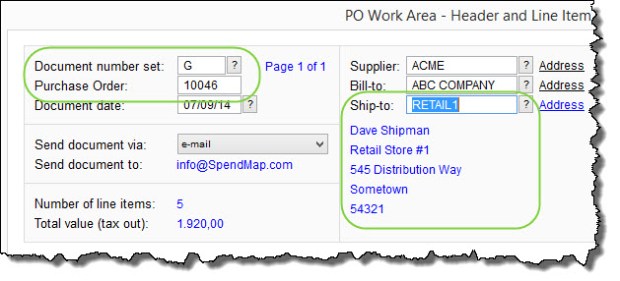
Jody is using the free version of SpendMap to manage spending for a chain of bar/restaurants, and was wondering if there is a way to set up a separate sequence of PO numbers for each Ship-To location.

While there is no “direct” link between Ship-To locations and PO Number Sets, you can set up an indirect relationship by way of the user accounts.  That is, in the User Master File, you can 1) set up a default Ship-To for each user, and separately 2) assign each user a default PO Number Set.

If you do both those things for all users at a location, and assuming they don’t change the defaults when entering POs (and/or if you lock out those fields so that they cannot change from the defaults), then all POs for each Ship-To will also be for that PO Number Set…

PO-BY-SHIP-TO

Again, this is not a “hard relationship” (i.e. rule) in the software per se, it is simply one way to configure it.  That said, it seems to work well for most people who ask about this.

You can set up your Ship-To locations in here…
– PURCHASING > Master Files > Cost Centers > Add/Modify/Delete

You can set up your PO Number Sets in here…
– PURCHASING > Setup system > Incrementing document number sets > POs

You can specify the default Ship-To and PO Number Set for each user in the [Settings] Folder of the User Master File, in here…
– PURCHASING > User setup > Add/modify/delete users

And, if you want to, you can lock/restrict access to the PO Number Set field and/or the Ship-To field in the PO Work Area (so that users can’t change from their defaults), using this…
– PURCHASING > User setup > Field restrictions by user access level > Set field restrictions