Software Tips & Tricks

Options for exporting data from your free Purchase Order Software

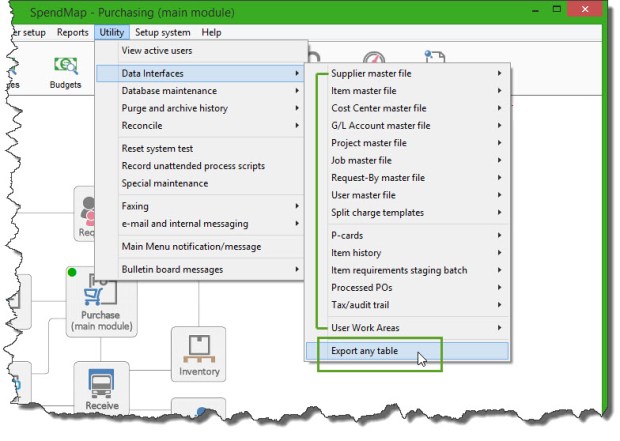
You may have noticed that there is more than one way to export items, suppliers, PO history and other data out of the Free Version of SpendMap.  I am referring to the “Export Any Table” utility versus the “dedicated” export utilities under UTILITY > DATA INTERFACES in each module…

export data from PO system

While you could use Export Any Table to export the same data that is available via the dedicated export utilities, the dedicated exports provide some additional features that might come in handy if you’re going to be doing this on a regular basis, such as…

  • The dedicated exports allow you to set up “export templates”, so that you don’t have to manually select the fields that you want to export each time.
  • When configuring the dedicated exports, you can specify the location/position of each field in the export file.  While Export Any Table does allow you to select the fields that you want to export, you cannot specify, for example, the target column in the Excel file.
  • You can specify the format of date fields (e.g. MM/DD/YY vs. YY-MM-DD) if the other system that will be importing the data uses a different format than you use in SpendMap.
  • You can specify a default value for fields that might be blank in the source table.

Hope this help you pick the best tool for the job!

PDF Printer Driver in Windows 10

If you install the free version of SpendMap on a PC with an earlier version of Windows and then later upgrade the PC to Windows 10, you may need to reinstall SpendMap’s PDF printer driver. (more…)

Upgraded e-mail features in your free Purchase Order Software

We made two fairly significant improvements to the e-mail features in the Free Version of SpendMap (including v12.65)…mail-GREEN

1) Encrypted E-Mail

SpendMap now supports encrypted (SSL/TLS) connections to the mail server.  Better security aside, we have been finding that more and more e-mail providers (like Google’s Gmail) no longer support unencrypted connections.  If you previously had trouble getting SpendMap to work with your e-mail system, please try again after upgrading.

Note the new “Secure Connection” setting under the Server Name or IP Address field, in…
– PURCHASING > Setup system > e-mail settings

Please note that to send e-mail, SpendMap now requires the Microsoft .NET Framework v4.0 or above to be installed on the PC (available since 2010).

We normally don’t make changes to published versions of SpendMap but we made an exception in this case due to recent changes at Google and the increasing number of requests for this feature.

2) Free, Built-In E-mail Service

The free version of SpendMap now includes a free, built-in e-mail service, which you can use instead of configuring the system to use your own e-mail server or ISP.

Just enter “SpendMap” in the Server Name or IP Address field in E-mail Settings to use this free service (don’t worry about the other SMTP settings as they will be ignored when using the built-in e-mail service).  The Online Help for the Server Name or IP Address field has additional details.

For new downloads of the free version of SpendMap, the Evaluation Copy is preconfigured to use this new e-mail service.  If you already have SpendMap installed, your settings will not change automatically but you can manually change the Server Name or IP Address field per above if you want to use this free service.

How to include your account number for the supplier on the PO form in your free PO software system

Chaim works in the security solutions industry in New Jersey and was asking how to include an account number for the supplier on the PO form…

When I place an order, our suppliers would like to know our account number. In the Supplier information there are fields to enter Phone, Fax, but not our Account Number.  The Account Number should appear on the PO.

Great question, Chaim!

Most people use the Comment 1 field or the Delivery Note field for that, both of which can be renamed to “Account Number” or similar.

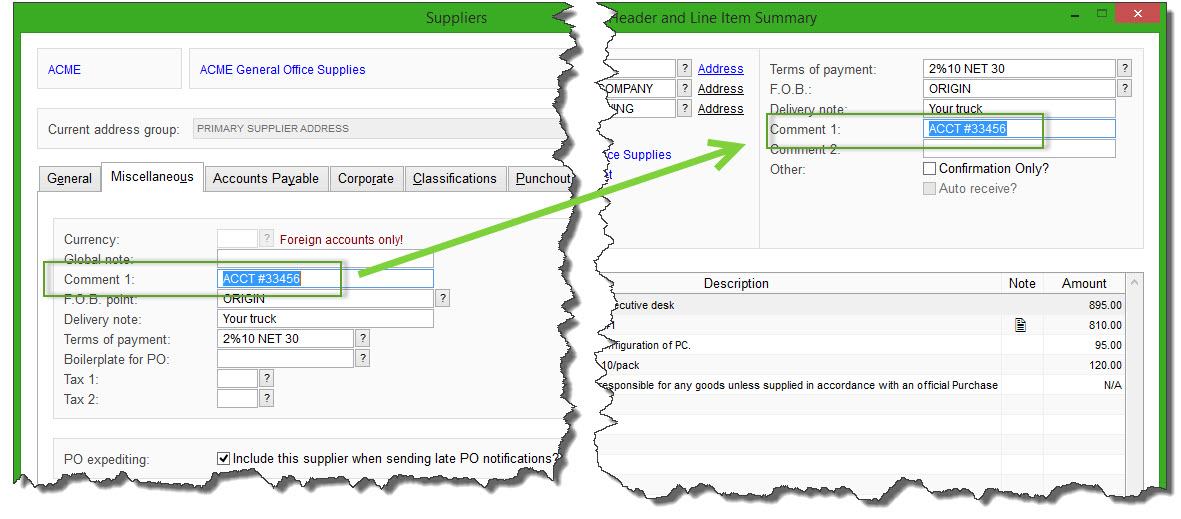
You can enter the supplier’s account number into either of those fields in the [Miscellaneous] folder of the Supplier Master File, and it will carry forward to the PO Header for each new PO for that supplier and will be available to print on the PO form…

supplier account number on Purchase Order

TIP: Make sure that the field that you use appears on your PO form layout.  Delivery Note appears on form layouts 1, 2, and 5, where Comment 1 only appears on form layout 3.  Of course, if you upgrade to the paid/commercial version of SpendMap, we can customize your PO form with any fields you like.

You can preview and/or select your PO form layout, using the [Change PO Layout Option] button, in here…
– PURCHASING > Setup system> Purchase order settings > PO printing settings > Settings

Renaming the Fields

You can rename the field titles from “Comment 1” or “Delivery Note” to “Account Number”, which will update the field title in the Supplier Master File, as well as on the PO Header screen and the PO form itself.

Just go in here…
– PURCHASING > Setup system> Purchase order settings > PO printing settings > Text-Based Field Positions and Field Settings > Standard

…and change the Title of field #19 (Delivery Note) or #21 (Comment 1) , then exit and re-run SpendMap.


History of sent e-mail messages in your Free Purchase Order Software

Jose works in the irrigation services industry in Dubai, United Arab Emirates, and was asking how to see a history of e-mail messages that were sent from SpendMap…

I couldn’t confirm whether the PO, RFQ was sent to the recipient….How do I know the PO and RFQ are being sent successfully?

There are two options for sending e-mail from SpendMap, 1) MAPI and 2) SMTP.

If you would like e-mails that are sent from SpendMap to show in your Outlook Sent Box, then use the MAPI option (using the two fields at the top of the E-mail Setting Screen).  TIP: In most cases, you do NOT need to enter any of the other MAPI-related settings further down the screen.

If, however, you prefer the SMTP option, you can enable the Sent E-mail Log, using the setting called “Maintain a log of sent e-mail messages” (also in E-mail Settings), and you will see a history of the outgoing e-mail messages in…
– PURCHASING > Utility > e-mail and internal messaging > e-mail log > Log of sent e-mail messages

Email Logs in free PO Software

TIP: It would be unusual for SpendMap users to verify that each and every e-mail was sent successfully (e.g. by checking Outlook or using the Sent E-mail Log), since you will be notified if an e-mail could NOT be sent.  If SpendMap cannot connect to Outlook or your SMTP server to send a message, you will see a “failed e-mail” icon in the Main Menu of SpendMap, and the failed message will show in the E-mail Error Log, in here…
– PURCHASING > Utility > e-mail and internal messaging > e-mail log > Local/Server e-mail error log

Or, if SpendMap is able to pass the message to the outgoing mail server but the message fails for some other reason (e.g. bad e-mail address), the mail server will send an “undeliverable mail” message back to the sender.

Terms and Conditions on PO Form (Ts and Cs)

Jody works in the hospitality industry in California and was asking how to include terms and conditions (Ts and Cs) on her PO form in the free version of SpendMap.

There are actually two options when it comes to terms and conditions on your Purchase Order form…

Short Terms Text

If you just need a few lines of text, try using the Short Terms Text in PO Printing Settings, which will be included on the face of the PO form, at the bottom, next to your signature line.  Here is where you can find the setting, and what it looks like…
– PURCHASING > Setup system> Purchase order settings > PO printing settings > Settings

Short terms and conditions on PO form

Long Terms Page

If you need more than just a few lines of text, the other option would be to use the full Terms and Conditions Page that will automatically accompany each PO that is printed or e-mailed to your suppliers .  You can configure the Terms Page using the [Setup Your Terms Page] button on that same PO Printing Settings screen.

When you click the [Setup Your Terms Page] button, you will be brought to a screen where you can either 1) enter lots and lots of text for your Terms Page, or 2) if you already have an existing Terms Page, you can scan it and upload it into SpendMap as an image file.

Finally, don’t forget to enable the Terms Page for one or more copies of the PO (likely only the Supplier’s copy) using the applicable check-box on the main PO Printing Settings screen…

PO Printing Settings

How to copy items, suppliers and other Master File codes in your free PO Software

On the heels of last week’s blog post on time-saving tips, John makes custom t-shirts and was asking if he can copy items to save time…

“Is there any way of duplicating an item? I have several items that are all the same except for item (part number) and description.”

Yes, you can copy items, suppliers, account codes, and most other Master File codes in SpendMap to save time and reduce data entry.

Just go into the applicable Master File and click the [ADD] button to get a blank screen, then enter an existing code in the Code Field and you will be prompted to copy the existing code to a new code.  All details (fields) will be copied to the new code, any of which can then be modified as required.

This section of the Online Help has more information about generic features that can be used across all Master Files in SpendMap…
– System-Wide Features and Information > Master Files > About Master Files

Copy-item

5 time-saving tips for your free Purchase Order Software

Here are a few time-saving tips and tricks for your free version of SpendMap…

<END> Key to Switch Users

Sometimes, especially in the early stages of setting up and testing the system, you may want to switch user accounts, that is, log into SpendMap as a different user.

Instead of using the menu SPENDMAP > SWITCH USER or exiting the system and logging back in, try using the <END> key while at the Main Menu.

<TAB> Key to Select Last Menu

Since menu options in SpendMap are grouped by functional area, there are times that you exit one menu/utility and then need to select another related menu that is right next to the last one that you just selected.  Instead of drilling back through the menus, just hit the <TAB> key on your keyboard to “jump” to the last menu you selected.

<?> Keyboard Shortcut for Lookup/Search

You are probably accustomed to clicking on the little [?] button next to fields to display a drop-down list of the underlying table (e.g. a list of Master File codes, a list of POs or other documents, etc).

Another way to display the Lookup List is to just type a question mark <?> in the field and hit <ENTER>.  This avoids taking your hand off the keyboard and can speed up data entry, especially on screens with many fields.

Extended Search

On the topic of searching for Master File codes and documents with the Lookup Feature, did you know that using the [?] button or <?> key to get a list of codes in alphabetical order is just the most basic way of using Lookup?

To perform an “advanced search”, including the ability to search by keyword and/or pretty much any other field in the underlying table, just RIGHT-mouse click on the little [?] button.  Alternatively, you can also do a regular Lookup (left-mouse click on the [?] button) and select the [Advanced Search] button at the bottom of the primary Lookup List.

You can learn more in this section of the Online Help…
System-Wide Features and Information > System-Wide Features and Utilities > Lookup (Searching)

<F2> Key Alternates Between Code/Description

Did you know that you can use <F2> to alternate between the code and description of most fields on most screens?  For example, let’s say you’re looking at a Purchase Order in View PO Status and you see the vendor code is “12345”.  Just hit <F2> to see that vendor “12345” is really Acme Office Supplies.

Same goes for most other Master File codes, such as items, account codes, etc.

In many cases, you can also click on the code/description hyperlink to “drill” into the actual Master File itself.  For example, you might need to see the full address or phone number for Acme.

You can lean more about this one in…
PURCHASING > Setup system > Master file settings > Master file code/description display options

Removing toolbar buttons in your free Purchase Order Software

Tom works in the hotel industry in Florida and asked how to remove buttons from the toolbar at the top of the Main Menu in SpendMap.

Toolbar Button

There are actually two ways to do that – you can remove toolbar buttons for only certain users or you can remove them altogether, for everyone.

By User

To remove a toolbar button from someone’s User-Definable Menus, use this…
– PURCHASING > User Setup > User definable menus and pop-up prompts > Add/Remove individual menus and pop-up prompts

Just remove the menu option associated with the toolbar button.  As a reminder, toolbar buttons are shortcuts to menu options in SpendMap, so if you take the menu away from the user, the toolbar button will also disappear automatically.

System-Wide

If you would like your users to have access to a menu option but prefer to NOT show the associated button in the toolbar, you can remove the toolbar button with this…
– PURCHASING > Setup system > User defined terminology and settings > Modify menu titles and toolbar buttons

Just UN-check the option to “Include this menu option on the toolbar” and the button will be removed from everyone’s toolbar but they will still be able to select the applicable menu option (unless you removed it from their user-specific menu, per above).

turn-off-toolbar-option


Printing Invoices in your Free Purchase Order Software

Sean wasn’t the first to ask about printing invoices in SpendMap…

“I am trying to learn about SpendMap to see if we can use it for our small business…I can’t find where to add our company logo to the Invoice form. Can you point me in the right direction?”

SpendMap does not print invoices – your suppliers will.

To clarify, SpendMap’s Invoice Approval Module is used to approve your supplier’s invoices, by allowing you to quickly and easily match their invoices to your Purchase Orders (and optionally Receipts too), to make sure that you bought and received the stuff before paying for it.

But SpendMap is not an invoicing (Accounts Receivable) system, so we don’t print/generate invoices (i.e. to send to your customers).  That would be something that you might find in a Sales/Distribution system but not a Purchasing System.

If, however, you’re looking to add your logo to the PO form, then yes, you can upload your logo in a couple ways. The most common way would be during the Setup Wizard that runs automatically when you log into your Live Copy of SpendMap. If you missed that or if for some reason you’re trying to change the logo in your Evaluation Copy of SpendMap (the one with all our sample data), then you can do that in here…
– PURCHASING > Setup system> Purchase order settings > PO printing settings > Settings

Just click the [CHANGE PO LAYOUT OPTION] button, and upload your logo using the link on the right-side of the screen.